Monitor Brightness Control: Mac & Windows Guide (2026)
Control external monitor brightness on Mac and Windows. Compare DDC/CI apps, OS sliders, vendor tools, and Samsung Smart Monitor fixes.
If you've ever opened your Mac's brightness slider and noticed it does nothing to your external monitor, or watched your Windows brightness slider disappear entirely the moment you plug a second display in, you're hitting the same wall millions of people hit every day. Both macOS and Windows ship brightness controls that work on the built-in display only. Microsoft's own support page admits it: "To change the brightness on an external monitor, use the buttons on it." Apple says the same.
This guide explains why that gap exists and walks through every working solution: physical buttons, OS workarounds, third-party DDC apps, vendor utilities, software dimmers, and the Wi-Fi-only edge case for Samsung Smart Monitors. At the end, you'll know exactly which method fits your setup.
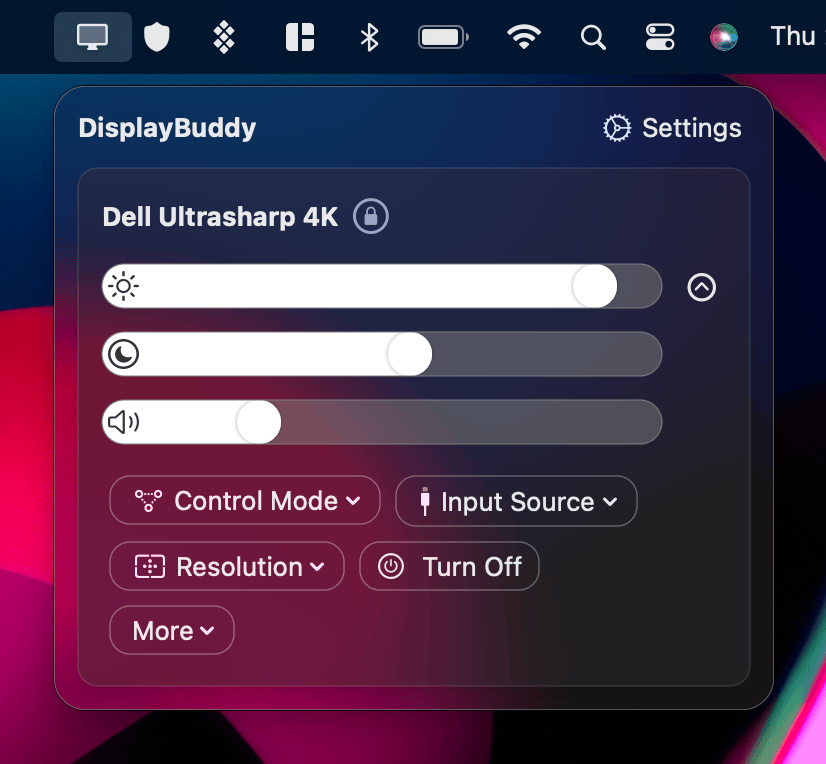
Here's how the working solution feels. The slider lives on your Mac; the brightness change happens on the external monitor.
If you're trying to change the brightness of the screen built into your laptop (not an external monitor), here's the two-second answer.
 On Mac
- Press F1 to dim, F2 to brighten
- Or Control Center → Display slider
- Or System Settings → Displays → Brightness
 On Windows
- Quick Settings → Brightness slider
- Or Settings → System → Display → Brightness
- Or Fn + brightness keys (usually F11/F12)
- Night Shift (Mac): System Settings → Displays → Night Shift → Schedule
- Night Light (Windows): Settings → System → Display → Night light → On
- True Tone (Mac): System Settings → Displays → toggle "True Tone"
- Adaptive brightness (Windows): Settings → System → Display → Brightness → uncheck "Help improve battery..."
Why Monitor Brightness Controls Are Missing for External Displays
The technical reason is one acronym: DDC/CI, short for Display Data Channel / Command Interface. It's the standard that lets a computer send "set brightness to 60%" over the same cable (HDMI, DisplayPort, USB-C, DVI) that carries the picture. Most external monitors made in the last 15 years support it.
The catch is that neither macOS nor Windows uses DDC/CI by default for the brightness slider you see in Settings. Microsoft's own driver documentation makes this explicit: Windows exposes brightness control on one display panel (typically the laptop's built-in screen), and OEMs have to opt in via a registry override to enable brightness control for "noninternal" connectors. Most don't.
So when you plug in a Dell, LG, Samsung, or any DDC/CI-capable external monitor, the OS sees it but doesn't expose a brightness slider for it. That gap is what every solution below fills.
Every Method to Control External Monitor Brightness
| Method | Mac | Win | Controls monitor backlight? | When to use it |
|---|---|---|---|---|
| Physical buttons / OSD | ✅ | ✅ | Yes | One-off adjustments; no automation |
| OS brightness slider | Built-in display only | Built-in display only | Yes, built-in display only | Native, but doesn't reach external displays |
| DisplayBuddy (DDC/CI app) | ✅ | ✅ | Yes | Best for daily use; presets, hotkeys, sync, schedules |
| Vendor utility | Mostly Windows; some Mac | ✅ | Yes | First-party features (KVM, layout); brand-locked |
| Software dimmer | ✅ | ✅ | No, uses overlay or gamma dimming | Below-minimum dimming or non-DDC monitors |
| Wi-Fi (Samsung Smart Monitors) | ✅ via DisplayBuddy | ❌ | Yes, over Wi-Fi | M5/M7/M8/M9/ViewFinity S9/Odyssey OLED G9 only |
| MacBook Pro XDR brightness boost | ✅ (Pro/Max chips) | ❌ | Built-in display only | Outdoor or HDR work on MacBook Pro |
The next sections walk through each method, what it does well, where it falls short, and which app to pick.
Method 1: Physical Monitor Buttons
The buttons (or joystick) on the side or bottom of your monitor open the OSD (On-Screen Display), where every monitor exposes brightness, contrast, color temperature, and input source. Always works. Always slow.
Use this if:
- You only adjust brightness once or twice a day
- Your monitor doesn't support DDC/CI (older or budget models)
- You're troubleshooting why a third-party app can't connect
Avoid this if:
- You change brightness multiple times a day
- You have more than one external monitor
- The monitor is wall-mounted or behind a stand where buttons are hard to reach
Method 2: The OS Brightness Slider (Mac and Windows)
Both operating systems give you a brightness slider, but it's wired only to the built-in laptop screen.
On Mac
The brightness keys (F1/F2 on Apple keyboards, the touch-bar slider on older MacBook Pros, or the Brightness control in Control Center) all map to the laptop's internal display. Plug in any non-Apple external monitor and the keys do nothing for it. Apple's own support page concedes: "If your external display is not made by Apple, you might need to use its built-in controls and menu system to adjust brightness."
The one workaround that occasionally works: open System Settings → Displays → Arrangement and drag the white menu bar to the external monitor, making it the "primary" display. The slider then targets that display. It works reliably for Apple's own external displays (Pro Display XDR, Studio Display). On third-party monitors, it's a coin toss. Apple Discussions threads still recommend this fix years after it first surfaced, but roughly as many users report it does nothing on their setup.
On Windows
Windows 10 and 11 show a brightness slider in Quick Settings (the Network/Battery/Sound flyout) and in Settings → System → Display. On a desktop PC with only an external monitor, the slider often vanishes entirely. Microsoft's own support page documents this: "You might not see the Brightness slider on devices that have an external monitor."
Driver updates, "Generic PnP Monitor" reinstalls, and graphics-card control panels don't fix it because the gap isn't a bug. It's how Windows is designed.
As one user posted to the Microsoft Tech Community in 2025: "The Windows brightness slider is missing for my external monitor. NVIDIA Control Panel only exposes gamma and contrast, not brightness." Microsoft has not responded to that thread. Windows 11 24H2 and 25H2 have shipped throughout 2025 and early 2026 without adding native external-monitor DDC support. A February 2026 security patch restored the built-in-display slider for some All-in-Ones but changed nothing for external monitors. There is no official fix coming.
Troubleshooting "Brightness Slider Missing on Windows"
If you've been Googling fixes for the missing slider, here's what doesn't work and why, so you can stop chasing them:
- Updating display drivers (NVIDIA / AMD / Intel control panels): these expose gamma and contrast, not real backlight brightness. They don't help.
- Reinstalling the "Generic PnP Monitor" driver in Device Manager: the most-recommended forum fix. It does not enable the brightness slider for external monitors. It only ever helped on a narrow set of laptops where the built-in display had a busted driver.
- The "Display brightness" registry tweak (DDPCimSvc, Bright): only affects internal panels.
- Toggling adaptive brightness or HDR: unrelated.
The reason none of these work is the one in the section above: Windows by design only exposes the slider for the panel the OEM tagged as the internal display. The fix for any external monitor is a third-party DDC/CI app (Method 3 below).
→ Read more: Control external monitor brightness on Mac covers the Mac-specific deep dive, and Use brightness keys to control external display brightness walks through making your Mac keyboard keys actually work on external displays.
Method 3: Third-Party DDC/CI Apps
This is the right answer for almost everyone. A small app sits in your menu bar (Mac) or system tray (Windows), talks to your monitor over DDC/CI, and gives you a real brightness slider that adjusts the actual backlight. (See the live demo near the top of this page if you want to feel how it works.)
On Mac
| App | License | What it does well | Where it falls short |
|---|---|---|---|
| MonitorControl | Free, open source | Maps macOS brightness keys to external displays; native OSD | No HDR/XDR support; DDC over built-in HDMI fails on M1 Macs and the entry-level M2 mini (M3/M4/M5 are fine); v4.3.3 (Oct 2024) is the latest release |
| Lunar | Free + $23 lifetime Pro | Adaptive brightness via ambient light sensor | Free tier limited to 100 brightness adjustments per day; complex UI with six brightness modes; Mac only |
| DisplayBuddy | $24.99 lifetime on Mac | Controls every DDC/CI-capable brand on Mac AND Windows; presets, sync, schedules; Samsung & LG Smart Monitor support over Wi-Fi (only app that does this); UltraBright Mode for MacBook Pro XDR; Mac brightness keys map to every external display | One-time purchase, not subscription |
| ExternalDisplayBrightness | Free, open source | Lightweight; keyboard shortcuts | v1.3.0. Described by its developer as a "completed summer initiative"; not actively maintained; some Samsung monitors fail to register |
→ Compare DDC apps: DisplayBuddy vs MonitorControl · DisplayBuddy vs Lunar
On Windows
| App | License | What it does well | Where it falls short |
|---|---|---|---|
| Twinkle Tray | Free, open source | System tray slider; multi-monitor; hotkeys; time-based scheduling; CLI | No HDR support; multiple open GitHub issues for "monitor not detected after sleep/wake" (#148, #1217, #1093) |
| Monitorian | Free + paid Microsoft Store add-ons | Multi-monitor brightness; ambient-light sensor display; touchpad gestures | Limited to 4 monitors at a time; hotkeys and CLI require a paid subscription via Microsoft Store; v4.14.0 (March 2026) |
| DisplayBuddy | $18.99 lifetime on Windows | Presets, sync, schedules, input switching, hotkeys, HDR brightness on Windows. 7-day free trial on Windows. | One-time purchase, not subscription |
| ClickMonitorDDC | Free | Lightweight DDC controller | Older project; community-recommended for basic use only |
→ Compare Windows DDC apps: DisplayBuddy vs Twinkle Tray · DisplayBuddy vs Monitorian
If you want one app family that covers Mac and Windows with presets, sync, schedules, Samsung & LG Smart Monitor support, and your Mac brightness keys actually working on every external display, DisplayBuddy is the answer. The free options each handle a slice of the problem; DisplayBuddy handles all of it.
Method 4: Vendor Utilities (DDPM, Easy Setting Box, OnScreen Control)
If you only ever use one brand of monitor, the manufacturer's first-party utility is worth a look. These tools sometimes ship features the third-party DDC apps don't have. KVM switching, window-arrangement layouts, firmware updates.
- Dell Display and Peripheral Manager (DDPM) is free. It supports Windows and macOS (macOS 13/14/15/26 on Apple Silicon M1–M5; Mac mini, MacBook Air, Mac Pro, but not iMac). Works only with Dell monitors launched after 2018. → Compare: DisplayBuddy vs Dell Display Manager
- Samsung Easy Setting Box. Windows only. Window-management focused; no brightness control for non-Samsung monitors. → Compare: DisplayBuddy vs Easy Setting Box
- LG OnScreen Control. Windows + older Mac builds. Brightness, color, screen split. LG-only. → Compare: DisplayBuddy vs LG OnScreen Control
The trade-off is obvious: vendor utilities are powerful for their own brand and useless for everything else. If you mix brands across your desk. A Dell for the laptop dock, an LG for the second monitor, a Samsung for movies. You'll end up running three apps that don't talk to each other.
Method 5: Software-Overlay Dimmers (When DDC Isn't an Option)
Some older monitors don't expose DDC/CI at all. Some users want to dim the screen below the hardware minimum, like for late-night work in a dark room. That's where software dimmers come in.
They don't change the monitor's own backlight. They overlay a translucent black layer or modify the GPU's gamma table to reduce perceived brightness.
- CareUEyes Screen Dimmer (Windows): gamma-based, can dim down to 1%, includes blue-light filter
- Dimmer by Nelson Pires (Windows): small free overlay tool
The trade-off: it is not monitor-backlight control. The backlight is still using the same power, so energy use does not improve. Screenshots may not capture the dimmed appearance. And on HDR content, overlay dimming can look uneven.
Use a software dimmer only if your monitor doesn't support DDC/CI, or if you specifically need below-minimum dimming. For everyone else, DDC is the better answer.
Method 6: Wi-Fi Control for Samsung Smart Monitors
Samsung's Smart Monitor line (M5, M7, M8, M9, ViewFinity S9, Odyssey OLED G9) is a genuine edge case. These monitors run Samsung's Tizen smart-TV OS and do not support DDC/CI at all. None of the apps above can talk to them over the cable.
The only way to control brightness on a Samsung Smart Monitor from a Mac is over your local Wi-Fi network. As of early 2026, DisplayBuddy is the only third-party app shipping this integration. The pairing happens once: both your Mac and the monitor join the same Wi-Fi network, DisplayBuddy discovers the monitor, and brightness/contrast/volume controls then work like any other connected display.
→ Full setup walkthrough: Control Samsung Smart Monitor from Mac
If your DDC app says "no compatible displays found" and you're on a Samsung Smart Monitor, this is why.
Method 7: MacBook Pro XDR Brightness Boost
This method is about the built-in display, not an external one, but it's worth covering alongside the others. The MacBook Pro 14" and 16" with M-series Pro or Max chips have mini-LED XDR panels capable of 1,000 nits sustained and 1,600 nits peak, but macOS caps normal content at around 500 nits to save battery and reduce heat. A handful of apps remove that cap.
- Vivid ($): the original; doubles the brightness of the built-in display system-wide
- LumiMax ($): similar concept, claims up to 1600 nits
- BrightIntosh (free, open source): same idea, simpler UI
- Lunar Pro ($23): XDR Brightness mode; same underlying approach
- DisplayBuddy: UltraBright Mode
These all use the same private SkyLight.framework API to extend the brightness range. Apple's display hardware ships with thermal protection built in, so sustained 1000-nit use is safe.
→ Compare XDR boost apps: DisplayBuddy vs BrightIntosh
DisplayBuddy is the one app on this list that also controls external monitors. UltraBright Mode for your MacBook Pro plus full DDC/CI control of every connected display, all in one menu bar app.
Brand-Specific Quirks
Brightness behavior varies by monitor manufacturer because every brand implements DDC/CI slightly differently. Quick notes per brand. Full troubleshooting walkthroughs are linked:
- Dell: DDC-capable on virtually every monitor since 2010. → Control Dell monitor brightness on Mac
- LG: DDC works; OnScreen Control utility adds split-screen layouts. → Control LG monitor brightness on Mac
- Samsung: standard monitors are DDC-capable; Smart Monitors are Wi-Fi-only (Method 6).
- HP: DDC works; some EliteDisplay models need DDC/CI manually enabled in the OSD. → Control HP monitor brightness on Mac
- MSI: DDC-capable; watch for the "Smart Brightness" setting in the OSD which can override software commands. → Control MSI monitor brightness on Mac
- AOC, ASUS, BenQ, ViewSonic: all DDC-capable; consult our full guide library for brand-specific notes.
The single biggest source of "my DDC app isn't working" support tickets is DDC/CI being disabled in the monitor's OSD by default. On most monitors there's a toggle buried in Settings → System → DDC/CI. Turn it on, restart the app, and it usually starts working.
A second common gotcha: some gaming monitors (Samsung Odyssey G9 over DisplayPort, LG ultrawides with certain presets) disable or break DDC when "Gaming Mode," "Local Dimming," or "Auto Brightness" is active. Try a Standard or sRGB picture mode, turn Local Dimming off, and reconnect. If DDC still refuses, switch from DisplayPort to HDMI (or vice versa) — G9-class monitors are notoriously picky about which cable carries the DDC signal.
DisplayBuddy: One App, Every Method, Both Platforms
We built DisplayBuddy because every existing solution is partial.
MonitorControl is Mac-only. Twinkle Tray is Windows-only. Lunar is Mac-only too. Monitorian charges for hotkeys and stops at four monitors. Vendor utilities only work with their own brand. ExternalDisplayBrightness is abandoned. And until DisplayBuddy shipped Wi-Fi pairing, Samsung Smart Monitors weren't supported by anyone.
DisplayBuddy is the one app that does:
- DDC/CI brightness, contrast, volume, and input switching on every compliant monitor brand (Dell, LG, Samsung, BenQ, ASUS, HP, AOC, MSI, ViewSonic, and more)
- Mac and Windows with one-time lifetime licenses: $24.99 on Mac and $18.99 on Windows (no subscription)
- Samsung & LG Smart Monitor support over Wi-Fi. The only app on the market that does this
- Presets that save brightness, contrast, volume, input source, and display arrangement, restorable with one click or a Siri command
- Sync that adjusts every connected monitor with one slider, with per-monitor offsets for mixed setups
- Schedules that change settings by time of day, sunrise/sunset, or battery level
- Mac keyboard brightness and volume keys working on external monitors, just like Apple's own displays
- macOS Widgets, Siri, and Spotlight integration
- MacBook Pro XDR brightness boost (UltraBright Mode)
DisplayBuddy is a one-time purchase with a 7-day money-back guarantee on full-price Mac purchases only and a 7-day free trial on Windows. Available on the website and on Setapp.
Frequently Asked Questions
How do I change the brightness on an external monitor?
The fastest way is a third-party DDC/CI app. DisplayBuddy on Mac or Windows, or MonitorControl, Lunar, Twinkle Tray, or Monitorian as alternatives. They install in your menu bar or system tray and let you drag a slider to set real backlight brightness on any DDC/CI-capable monitor. The OS sliders in macOS and Windows control only the built-in display, which is why an external monitor needs a separate tool.
How to adjust external monitor brightness on Windows 11 and 10?
Windows itself does not expose a brightness slider for external monitors. Microsoft's documentation explicitly says to use the buttons on the monitor. The fix is to install a DDC/CI app like Twinkle Tray, Monitorian, or DisplayBuddy. They add a brightness slider to the system tray that controls the actual monitor backlight over the same cable that carries the picture.
How do I adjust the brightness of my external screen on Mac?
If your external display is an Apple monitor (Studio Display, Pro Display XDR), the macOS brightness keys and slider work as expected. For any non-Apple monitor. Dell, LG, Samsung, BenQ, ASUS, and so on. Install a third-party DDC/CI app. DisplayBuddy, MonitorControl, and Lunar are the most common choices. After installation, your Mac brightness keys can be remapped to control the external monitor too.
Why is the Windows brightness slider missing for my external monitor?
By design. Windows exposes its brightness slider for the built-in display only. See Microsoft's support documentation. On a desktop PC with only external monitors, the slider may not appear at all. Driver updates and graphics-card control panels do not fix it because the gap is intentional. The solution is a DDC/CI app.
What is DDC/CI and which monitors support it?
DDC/CI (Display Data Channel / Command Interface) is the standard that lets a computer send commands like "set brightness to 60%" to a monitor over the same cable that carries the picture. Most external monitors made in the last 15 years support it, but it has to be enabled in the monitor's on-screen menu. Look for an option like Settings → System → DDC/CI and turn it on. Without DDC/CI, third-party brightness apps cannot communicate with the monitor.
What is the best app for controlling monitor brightness on Mac?
DisplayBuddy. It controls every DDC/CI-capable monitor brand from your Mac's menu bar, maps your Mac's brightness keys to every external display, and adds presets, multi-monitor sync, schedules, and Wi-Fi control for Samsung Smart Monitors (the only app that does this). The Mac license is $24.99 lifetime with a 7-day money-back guarantee on full-price purchases only.
What is the best app for controlling monitor brightness on Windows?
DisplayBuddy. It adds a system tray brightness slider for every DDC/CI-capable monitor on Windows 10 and 11, with hotkeys, presets, schedules, sync across multiple monitors, and full HDR support. The Windows license is $18.99 lifetime and ships with a 7-day free trial so you can confirm it works with your monitors first.
How do I adjust brightness on a Samsung Smart Monitor?
Samsung Smart Monitors (M5, M7, M8, M9, ViewFinity S9, Odyssey OLED G9) run Samsung's smart-TV OS and do not support DDC/CI. Standard third-party apps cannot reach them over the cable. The only working method from a Mac is over your local Wi-Fi network. As of early 2026, DisplayBuddy is the only app shipping Samsung & LG Smart Monitor Wi-Fi control. See the dedicated guide for setup steps.
Wrap-Up
The OS-level brightness gap for external monitors isn't going away. Microsoft and Apple have both designed around the assumption that you'll touch your monitor's physical buttons. For anyone who plugs in a second display more than once a day, that's not a workable answer.
Pick the method that matches your setup:
- One monitor, set it once a month. Physical buttons are fine.
- Daily adjustments, single platform. MonitorControl (Mac) or Twinkle Tray (Windows).
- Multiple monitors, Mac and Windows, presets and schedules. DisplayBuddy.
- Samsung Smart Monitor on Mac. DisplayBuddy is currently the only working option.
- MacBook Pro XDR boost. Vivid, BrightIntosh, or DisplayBuddy's UltraBright Mode.
→ Try DisplayBuddy free with the 7-day money-back guarantee on full-price Mac purchases only, or the 7-day free trial on Windows. Get DisplayBuddy.
DisplayBuddy
for Mac and Windows
Take control of your monitors
Control brightness, contrast, volume, and much more.
Buy NowLifetime license • 7-day refund on full-price purchases