PowerToys PowerDisplay vs DisplayBuddy: Which Should You Use?
PowerToys PowerDisplay is free and capable — but it can't control Apple monitors, has no Mac version, and just shipped. See the full feature comparison with DisplayBuddy for Windows.
Microsoft shipped PowerDisplay in PowerToys 0.99 on April 28, 2026. It is the first time Windows has had a built-in tool for external monitor control. For most users who only need brightness and contrast on standard DDC/CI monitors, it is a genuine option — and it is free.
But it has real limitations that matter to a specific set of users: anyone with an Apple Studio Display or Studio Display XDR, anyone who uses both Mac and Windows, and anyone who wants to save their display settings.
This page is a full comparison.
What Is PowerToys PowerDisplay?
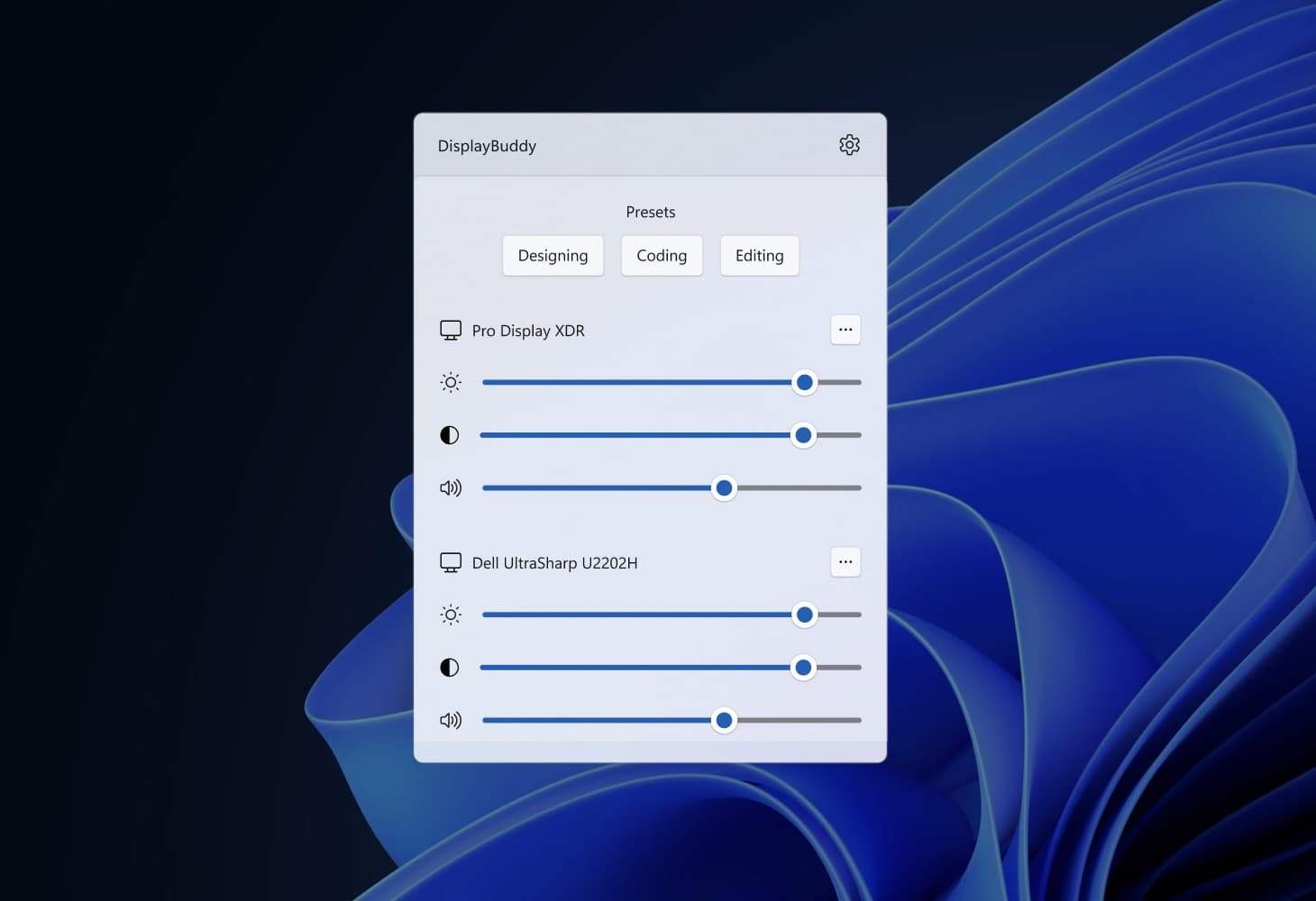
PowerDisplay is a display management utility that ships as part of Microsoft PowerToys - a free collection of power-user tools for Windows. It uses DDC/CI to communicate with external monitors, giving you a system tray flyout where you can adjust brightness, contrast, volume, input source, rotation, color temperature, and power state for each connected display.
It also supports Profiles — saved combinations of settings you can apply with one click — and integrates with Windows Light Switch so your monitor profile switches automatically when Windows enters dark or light mode.
PowerDisplay is not a standalone app. It requires installing PowerToys, which is available on GitHub or winget.
What Is DisplayBuddy?
DisplayBuddy is a dedicated monitor control app for Windows and Mac. Like PowerDisplay, it uses DDC/CI for standard external monitors. Unlike PowerDisplay, it also speaks Apple's proprietary USB protocol natively, which is the only way to control brightness on an Apple Studio Display, Studio Display XDR, or Cinema Display connected to a Windows PC.
DisplayBuddy is a paid app with a 7-day free trial, available directly on the Microsoft Store.
PowerDisplay vs DisplayBuddy: Feature Comparison
| Feature | DisplayBuddy (Windows) | PowerToys PowerDisplay |
|---|---|---|
| Brightness control (DDC/CI) | ✅ Yes | ✅ Yes |
| Contrast control | ✅ Yes | ✅ Yes |
| Volume control | ✅ Yes | ✅ Yes |
| Input source switching | ✅ Yes | ✅ Yes |
| Power state control | ✅ Yes | ✅ Yes |
| Rotation control | ✅ Yes | ✅ Yes |
| Profiles (save full display config) | ✅ Yes | ✅ Yes |
| Fn + brightness key mapping | ✅ Yes — maps laptop keys to external monitors | ❌ No |
| Sync brightness across all monitors | ✅ Yes | ❌ No |
| Apple Studio Display (USB protocol) | ✅ Yes — native support | ❌ No — DDC/CI only |
| Apple Studio Display XDR | ✅ Yes — native support | ❌ No |
| Apple Pro Display XDR Control | ✅ Yes — native support | ❌ No |
| Resolution control | ✅ Yes | ❌ No |
| Mac support | ✅ Yes | ❌ No |
| Windows support | ✅ Yes | ✅ Yes |
| Standalone app | ✅ Yes | ❌ No — requires PowerToys |
| Microsoft Store | ✅ Yes — direct install | ❌ No |
Where PowerDisplay Is the Right Choice
You want free. PowerDisplay is free as part of PowerToys. If you already have PowerToys installed and you have standard DDC/CI monitors, it covers brightness, contrast, volume, and profiles at no cost.
You want color temperature control. PowerDisplay includes a color temperature switcher — warmer or cooler white points — per monitor. DisplayBuddy does not offer color temperature control on Windows. If this matters for your workflow, PowerDisplay has the edge.
You like tinkering with VCP codes. PowerDisplay exposes the raw DDC/CI VCP code table for each monitor, letting you create custom labels for color presets and input sources. This is genuinely useful for power users who want to map obscure DDC values to readable names.
You are already in the PowerToys ecosystem. If you use FancyZones, PowerRename, or other PowerToys utilities, PowerDisplay adds monitor control with no additional installation or cost.
Where DisplayBuddy Is the Right Choice
You Have an Apple Studio Display or Studio Display XDR
This is the biggest gap in PowerDisplay. Apple's monitors — the Studio Display ($1,599), the Studio Display XDR ($3,299, launched March 2026), and older Cinema Displays — do not use DDC/CI. Apple built a proprietary USB-based protocol for brightness communication that is completely separate from the DDC/CI standard.
PowerDisplay is DDC/CI only. It cannot detect or adjust brightness on Apple displays connected to a Windows PC.
DisplayBuddy speaks Apple's USB protocol natively on Windows, over Thunderbolt or USB-C, with no Boot Camp drivers required. If you have a Studio Display or Studio Display XDR running on a Windows machine, DisplayBuddy is currently the only easy solution for brightness control.
You Use Mac and Windows
PowerDisplay is Windows-only. DisplayBuddy runs natively on both Mac and Windows. If you use a Mac at work and a Windows machine at home — or you have both in the same setup — DisplayBuddy gives you the same interface, the same Presets, and the same keyboard shortcuts on both platforms.
You Want Keyboard Brightness Key Support
DisplayBuddy maps your laptop's Fn + brightness keys to your external monitors, so pressing your brightness keys adjusts your external display the same way it adjusts your built-in screen. PowerDisplay opens via a keyboard shortcut, but does not remap the system brightness keys to external displays.
You Want a Dedicated, Focused App
PowerDisplay is one utility inside a 30-utility bundle. DisplayBuddy is purpose-built for monitor control. If you do not need the rest of PowerToys, installing a 100MB+ bundle to get one feature is not ideal. DisplayBuddy installs directly from the Microsoft Store in seconds.
A Note on PowerDisplay's Maturity
PowerDisplay shipped on April 28, 2026 — it is a brand new utility in its first public release. The underlying GitHub pull request history shows active bug fixing around startup restore, volume initialization, and window lifecycle in the weeks leading up to launch. Early-release PowerToys utilities historically go through several patch cycles before settling into stability.
DisplayBuddy has been shipping to Windows users since 2023 and has an established compatibility record with Dell, Samsung, LG, ASUS, BenQ, HP, MSI, Philips, Viewsonic, AOC, Gigabyte, Lenovo, and more.
This is not a reason to dismiss PowerDisplay — it will improve quickly, and Microsoft's engineering resources are significant. But if you have a production workflow that depends on reliable monitor control today, the maturity difference is real.
Which One Should You Use?
Use PowerDisplay if:
- You have standard DDC/CI monitors (Dell, Samsung, LG, ASUS, etc.)
- You already use PowerToys
- You want color temperature or VCP code access
Use DisplayBuddy if:
- You have an Apple Studio Display, Studio Display XDR, or Cinema Display on Windows
- You use Mac and Windows and want one app for both
- You want Fn brightness key mapping
- You want a standalone app from the Microsoft Store
Frequently Asked Questions
Does PowerToys PowerDisplay work with Apple Studio Display?
No. Apple Studio Display, Studio Display XDR, and Cinema Displays use a proprietary USB-based brightness protocol rather than standard DDC/CI. PowerDisplay is DDC/CI only and cannot communicate with Apple displays. DisplayBuddy supports Apple's USB protocol natively on Windows.
Is PowerToys PowerDisplay free?
Yes. PowerDisplay is part of Microsoft PowerToys, which is free and available on GitHub and winget. It requires installing the full PowerToys package.
Does PowerToys PowerDisplay work on Mac?
No. PowerToys is Windows-only. DisplayBuddy is the only major monitor control app in this category that runs natively on both Mac and Windows.
Can I use both PowerDisplay and DisplayBuddy at the same time?
Technically yes, but running two apps that communicate with the same monitor via DDC/CI simultaneously can produce conflicts. It is generally better to pick one.
What does DisplayBuddy have that PowerDisplay doesn't?
The main differences: Apple display support (Studio Display, Studio Display XDR, Pro Display XDR), Mac support, Fn brightness key mapping, resolution control, and Samsung & LG Smart Monitor Wi-Fi support.
What does PowerDisplay have that DisplayBuddy doesn't?
Color temperature control per monitor, custom VCP code labeling.
Which is better for multi-monitor setups?
Both handle multiple monitors. DisplayBuddy's Presets system is more comprehensive — you can save brightness, contrast, volume, input source, and display layout across all monitors and switch instantly. PowerDisplay's Profiles save brightness, contrast, volume, and color temperature, but not input source or layout.
Compare DisplayBuddy With Other Apps
DisplayBuddy
for Windows 10 or 11
Take control of your monitors
Control brightness, contrast, volume, and much more.
Get DisplayBuddy on the Microsoft Store