Control Samsung Smart Monitor from Mac (M9, M8, M7, M5)
Control Samsung Smart Monitor brightness, contrast, and volume from your Mac without touching the buttons. Works with M9, M8, M7, M5, ViewFinity S9, and Odyssey OLED G9.
Samsung Smart Monitors are popular with Mac users for good reason. They look great on a desk, work as a standalone display, and the M8 and ViewFinity S9 in particular punch well above their price bracket for creative work. But there is one consistent frustration Mac users run into after buying one: you cannot adjust the brightness from macOS.
There is no slider in System Settings. The brightness keys on your keyboard do nothing. The only option out of the box is the physical OSD buttons on the back of the monitor, which is exactly as annoying as it sounds.
DisplayBuddy fixes this with a direct Wi-Fi connection to your Samsung monitor.
Why Mac Cannot Control Samsung Smart Monitor Brightness by Default
Most external monitors support a protocol called DDC/CI (Display Data Channel Command Interface), which lets software on your computer send commands directly to the monitor: adjust brightness, change contrast, switch input, and so on. That is how apps like DisplayBuddy, BetterDisplay, and MonitorControl work with most displays.
Samsung Smart Monitors do not support DDC/CI. Samsung chose not to implement it, which means standard brightness control software cannot talk to these monitors at all. The monitor is essentially invisible to macOS as far as hardware brightness control goes.
DisplayBuddy solves this differently. Instead of using DDC/CI, DisplayBuddy connects to Samsung Smart Monitors over Wi-Fi using the same protocol Samsung's own remote control app uses. This gives you full hardware control of the monitor directly from your Mac, no physical buttons required.
(Note: If you have a standard Samsung monitor without Smart TV features, it likely uses standard protocols. See our guide on controlling Samsung monitor brightness on macOS instead.)
Supported Samsung Smart Monitor Models
DisplayBuddy supports the following Samsung Smart Monitor models:
Your Mac and your Samsung Smart Monitor need to be on the same Wi-Fi network for the connection to work.
How to Set Up Samsung Smart Monitor Control in DisplayBuddy
Setting up takes about two minutes:
- Make sure your Samsung Smart Monitor and your Mac are connected to the same Wi-Fi network
- Open DisplayBuddy and go to Settings, then Samsung Smart TV Control
- Click Scan for Devices. DisplayBuddy will search your network for compatible Samsung monitors
- Select your monitor from the list and click Connect
- Your Samsung monitor will show a permission dialog on screen. Click Allow to complete the pairing
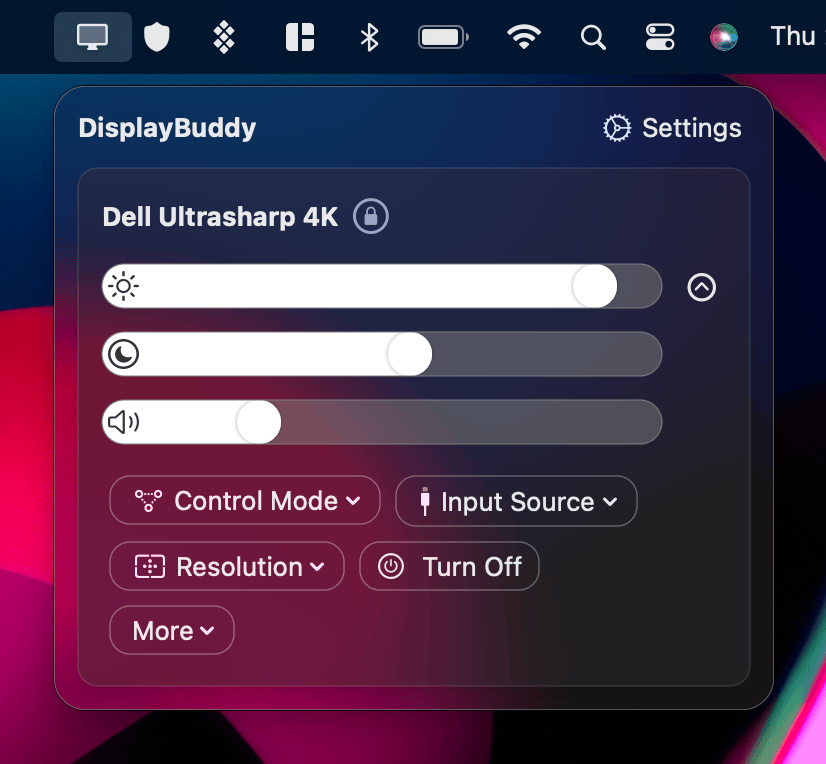
Once connected, your Samsung monitor will appear in DisplayBuddy's menu bar alongside any other displays you have connected.
What You Can Control
After connecting, DisplayBuddy gives you full control over your Samsung Smart Monitor directly from the Mac menu bar:
- Brightness: Adjust the actual backlight brightness of the panel, not a software overlay
- Contrast: Fine-tune the contrast ratio without going into the OSD
- Volume: Control the built-in speakers or connected audio devices
- Input Source: Switch between inputs directly from the menu bar
- Power: Turn the monitor off without touching the physical buttons
You can also use DisplayBuddy's Presets feature to save configurations and switch between them instantly. For example, a "Work" preset with high brightness and an "Evening" preset with reduced brightness and volume, switchable with a single keyboard shortcut.
Using Presets with Your Samsung Smart Monitor
Presets are the most-used feature in DisplayBuddy, and they work particularly well with Samsung Smart Monitors. Because brightness control is not available natively in macOS for these displays, most users end up going into the OSD every time they want to adjust settings for a different environment.
With Presets, you configure your preferred brightness, contrast, and volume for each context once, then switch between them instantly:
- Save a "Daytime" preset with brightness at 80% for working during the day
- Save an "Evening" preset with brightness at 30% and volume lowered for late-night use
- Switch between them from the menu bar or with a keyboard shortcut. No OSD, no buttons
If you use multiple monitors alongside your Samsung Smart Monitor, DisplayBuddy's Sync feature can keep all displays in step when you adjust one. Particularly useful on mixed setups where you have a Samsung next to a Dell or LG.
Setting the Control Mode
DisplayBuddy lets you choose how it communicates with your monitor. For Samsung Smart Monitors, you want Samsung Smart selected in the Control Mode dropdown. The other options (DDC/CI, Apple Display Protocol, and Software Control) apply to different monitor types and connection methods.
If you see your Samsung monitor listed in DisplayBuddy but the sliders are not responding, check that Control Mode is set to Samsung Smart. Switching from DDC/CI to Samsung Smart is the fix in most cases where the monitor is detected but not responding correctly.
Resetting the Connection
If you need to reset the connection to your Samsung Smart Monitor, go to Settings, then Samsung Smart TV Control, and click Disconnect. Then follow the setup steps above to reconnect.
Frequently Asked Questions
Can I control Samsung Smart Monitor brightness from a Mac without software?
No. Samsung Smart Monitors do not support DDC/CI, which is the standard protocol macOS and third-party apps use to control monitor brightness. Without DDC/CI, neither System Settings nor keyboard brightness keys can adjust the display. DisplayBuddy connects over Wi-Fi instead, which is the only reliable way to get hardware brightness control on these monitors from a Mac.
Does DisplayBuddy work with Samsung M8 on Mac?
Yes. DisplayBuddy supports the Samsung M9, M8 (M80B, M80C, M80D), M7 (M70B, M70C, M70D), M5 (M50B, M50C, M50D), ViewFinity S9, Odyssey OLED G9 G95SC, and Odyssey Ark. Your Mac and the monitor need to be on the same Wi-Fi network. Setup takes about two minutes.
How do I adjust brightness on Samsung Smart Monitor with Mac?
Open DisplayBuddy, go to Settings, then Samsung Smart TV Control, and click Scan for Devices. Once your monitor is connected, a brightness slider appears in the DisplayBuddy menu bar. You can also assign a keyboard shortcut or create Presets to switch between brightness levels instantly.
Why is there no brightness slider for my Samsung monitor in System Settings?
Samsung Smart Monitors do not support DDC/CI, the protocol macOS uses for external monitor brightness control. This is a Samsung hardware decision, not a macOS limitation. DisplayBuddy works around this by using a Wi-Fi connection to control the monitor directly.
Can I use keyboard shortcuts to control Samsung Smart Monitor brightness?
Yes, through DisplayBuddy. Once your Samsung monitor is connected, you can assign custom keyboard shortcuts to brightness up and brightness down in DisplayBuddy's settings. The native macOS brightness keys will not work with Samsung Smart Monitors without additional software.
Does DisplayBuddy work with Samsung ViewFinity S9?
Yes. The ViewFinity S9 (S90PC) is supported and connects the same way as the M-series monitors, over Wi-Fi from DisplayBuddy's Samsung Smart TV Control setting.
Is Easy Setting Box an alternative for brightness control on Mac?
No. Samsung Easy Setting Box is a window management tool for splitting your screen into zones. It does not control brightness, contrast, or volume on any monitor. If you are looking for hardware brightness control on a Samsung monitor from a Mac, DisplayBuddy is the right tool.
How DisplayBuddy Solves Common Samsung Smart Monitor Issues on Mac
No brightness key support? DisplayBuddy connects over Wi-Fi instead.
Samsung Smart Monitors do not support DDC/CI, so keyboard brightness keys and the macOS brightness slider in Control Center have no effect. Some users work around this with two separate apps (one for brightness and one for volume), but that means managing two apps, two settings panels, and two potential points of failure every time something updates. DisplayBuddy bypasses the DDC/CI limitation entirely by connecting to your Samsung & LG Smart Monitor over Wi-Fi, giving you control over brightness, contrast, and volume in one place.
Quick setup: Connecting DisplayBuddy to your Samsung Smart Monitor
Getting started takes under a minute. Make sure your Mac and Samsung monitor are on the same Wi-Fi network - some routers split 2.4 GHz and 5 GHz into separate networks, so confirm both devices are on the same band. Once they're on the same network, DisplayBuddy will find your monitor automatically. If you ever need to re-scan, go to Settings, then Samsung Smart TV Control, click Disconnect, and run the scan again.
Compare DisplayBuddy With Other Apps
DisplayBuddy
for macOS 10.13+
Take control of your monitors
Control brightness, contrast, volume, and much more.
Buy NowLifetime license • 7-day refund on full-price purchases