Control External Monitor Brightness on Mac (No OSD Required)
Your Mac brightness keys do nothing for your external monitor. Fix it with DDC/CI software. Mac troubleshooting for M1 HDMI, docks, and HDR.
If your Mac brightness keys work on the MacBook screen but do nothing for your external monitor, you are not alone. Press F1 or F2 and the external display sits there at whatever brightness it last had. Often that means blindingly bright at night, or too dim during the day.
This guide explains why macOS does that, how to make brightness keys reach your external monitor through DDC/CI, and what to do when the four common Mac quirks (cable, dock, M1 HDMI, HDR) get in the way. By the end you should never need to touch the physical OSD buttons on your monitor again.
Why Your Mac Brightness Keys Stop at the Built-in Screen
macOS treats built-in displays differently from external monitors.
Built-in displays (the screen on your MacBook, iMac, or an Apple-branded external like the Studio Display) have native brightness control. Press F1 or F2 and macOS adjusts the backlight directly.
External monitors are a different story. Apple's own support page concedes the gap: "If your external display is not made by Apple, you might need to use its built-in controls and menu system to adjust brightness." Translation: macOS will not send brightness commands to non-Apple external displays out of the box.
The bridge that makes brightness keys reach external monitors is a protocol called DDC/CI (Display Data Channel / Command Interface). DDC/CI lets software send commands over the same cable that carries the picture: set brightness to 60%, switch input to HDMI 2, mute the speakers, rotate the screen. Almost every external monitor sold in the last 15 years speaks it. macOS does not use it for its brightness slider, so a DDC/CI-aware app fills the gap.
The Fix: Use DDC/CI From a Mac App
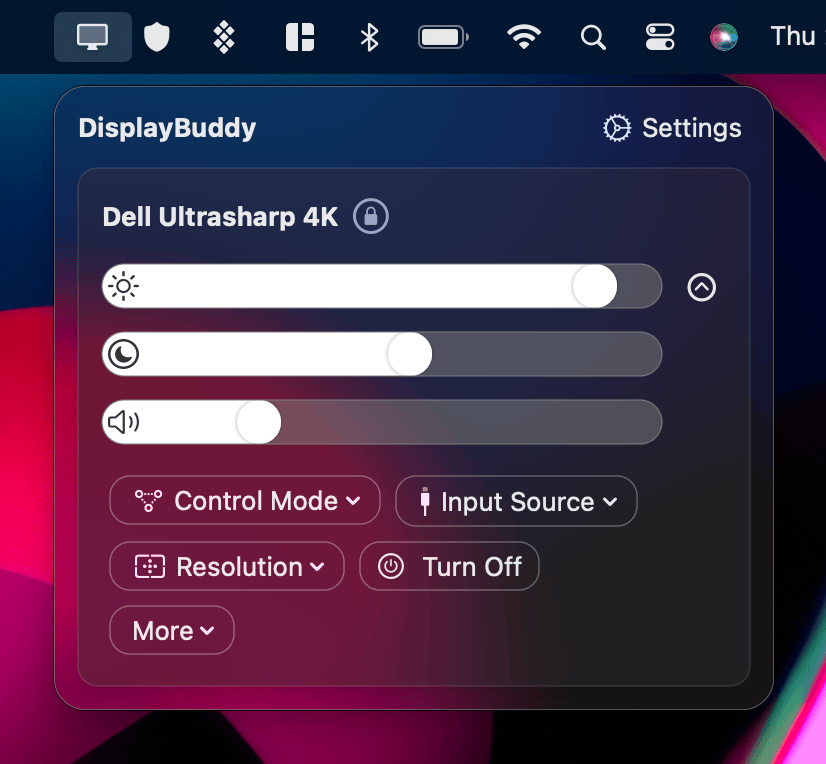
A small Mac app sits in your menu bar, talks to your monitor over DDC/CI, and gives you a real brightness slider that adjusts the actual backlight. It also intercepts F1 and F2 so your brightness keys finally work on every connected display.
Several Mac apps do this. For a side-by-side comparison of the top Mac options (DisplayBuddy, MonitorControl, Lunar, BetterDisplay), see the best monitor control software for Mac roundup. The rest of this page is the Mac deep dive: features, M1 HDMI workaround, HDR caveat, DisplayLink, and brand-specific quirks. It assumes a DDC/CI app is in place.
DisplayBuddy on Mac: At a Glance
- Native menu bar app for every Mac model (iMac, Mac mini, MacBook Air, MacBook Pro, Mac Studio, Mac Pro)
- Native Apple Silicon (M1, M2, M3, M4, M5)
- 7-day money-back guarantee on full-price purchases only
- Controls brightness, contrast, volume, input source, and resolution over DDC/CI
- Works with any DDC/CI-capable monitor: Dell, LG, BenQ, ASUS, ViewSonic, HP, AOC, MSI, and more
- Adds Wi-Fi control for Samsung & LG Smart Monitors, which do not speak DDC/CI
Mac-Specific Features
These map to specific macOS surfaces. Most DDC/CI apps stop at "brightness slider plus a hotkey." The list below is what DisplayBuddy adds on top.
| Feature | What it does |
|---|---|
| Brightness keys | F1 / F2 (or any custom shortcut) control your external monitor the same way they control the built-in screen. Setup guide. |
| Presets | Save brightness, contrast, volume, input source, resolution, and rotation across all displays. Switch with one click. |
| Sync | Adjust one monitor and the others follow. Useful when displays from different brands sit side by side. |
| Schedules | Change settings on time of day, lock / unlock, dark mode toggle, monitor connected, or charging state. |
| Siri | "Hey Siri, set my monitor brightness to 40 percent." |
| macOS Widgets | Home Screen widgets for brightness, presets, and quick toggles. |
| Spotlight | Trigger presets from Spotlight search. |
| Apple Shortcuts | Build automations that involve displays. Brightness drops when a Zoom call starts, presets switch when you open Photoshop, displays power down on schedule. |
| CLI | Scriptable from Terminal (v3.3.0 and later). Useful for tiling window managers, Hammerspoon, or shell aliases. |
| BlackOut | Turn off a display without unplugging it. Useful for clamshell mode or saving battery on the laptop screen. |
| UltraBright Mode | Unlock the 1000-nit HDR layer on MacBook Pro 14 / 16 for SDR content. |
| Display layouts | Save monitor arrangements (positions, primary display) and switch between them. Handy if you dock at multiple desks. |
| Samsung & LG Smart Monitor over Wi-Fi | The M5 / M7 / M8 / ViewFinity S9 run Samsung's smart-TV OS, and the LG smart monitors like MyView do not support DDC/CI. DisplayBuddy reaches them over your local Wi-Fi network. Samsung Smart Monitor setup. |
Step 1: Make Sure DDC/CI Is Enabled on Your Monitor
Some monitors ship with DDC/CI disabled in their on-screen display (OSD) menu. You enable it once, then you can leave the buttons alone for good.
- Press the physical buttons (or joystick) on the back or underside of your monitor to open the OSD.
- Look for a setting named one of:
- "DDC/CI"
- "Monitor control"
- "External control"
- "PC control"
- "Show Type" (BenQ)
- Toggle it on.
- Save and exit.
A DDC/CI app can now reach the monitor. If your monitor model has no DDC/CI option in the OSD, jump to the troubleshooting section below: either your monitor does not support the protocol, or the signal path between the Mac and the monitor is blocking it.
Troubleshooting: Common Mac-Specific Snags
If you have a DDC/CI app installed, DDC/CI enabled in the OSD, and brightness control still does not work, one of these four scenarios is almost always why.
Your Cable, Dock, or Adapter Doesn't Pass DDC/CI
Symptom: Monitor supports DDC/CI (you confirmed in the OSD), the app is installed, the slider does nothing.
Why: Some USB-C hubs, docks, and cables strip out DDC/CI signals on the way through. This is especially common with:
- Cheap USB-C to HDMI adapters
- Lower-tier USB-C hubs (even some name-brand ones)
- HDMI connections (DisplayPort is more reliable for DDC/CI)
Fix:
- Switch to a USB-C to DisplayPort cable if your monitor has a DisplayPort input.
- Connect the monitor directly to the Mac, bypassing the dock, to confirm whether the dock is the culprit.
- If the dock is the problem, swap to a Thunderbolt 3 / 4 dock from CalDigit, OWC, Plugable, or Anker. These generally pass DDC/CI cleanly.
- For DisplayLink hubs specifically, see the next section.
DisplayLink Hubs Block DDC/CI
Symptom: Your monitor is connected via a DisplayLink dock (common with USB-A docking stations or USB-C hubs driving 4+ monitors). Hardware brightness control does not work, even with a high-quality app.
Why: DisplayLink converts the display signal at the dock level. It does not pass DDC/CI commands through to the monitor. This is by design, not a bug.
Fix: There is no DDC/CI workaround for DisplayLink connections. Either connect the monitor directly to the Mac (bypass the DisplayLink hub) or use software dimming, which overlays a transparent dim layer on the screen and works regardless of connection type.
M1 Macs With the Built-in HDMI Port
Symptom: Brightness control works for a Dell or LG monitor connected over USB-C or Thunderbolt, but not on the same monitor connected to the Mac's built-in HDMI port. M1-generation chips only.
Why: The built-in HDMI port on first-generation Apple Silicon (M1, M1 Pro, M1 Max, M1 Ultra) does not pass DDC/CI cleanly. This affects the Mac mini, the MacBook Pro 14 / 16, and the Mac Studio. M2-generation and later chips do not have this limitation. The issue is at the Apple chipset level, not specific to any one DDC/CI app.
Fix:
- Connect the monitor through a USB-C or Thunderbolt port instead of the built-in HDMI.
- If the monitor only has HDMI on its side, use a USB-C to HDMI adapter on the Mac side.
- See the deeper write-up: DDC over HDMI on Apple Silicon.
HDR Mode Blocks Brightness Adjustment
Symptom: Your monitor supports DDC/CI and is set up correctly. The moment you enable HDR (System Settings → Displays → High Dynamic Range), the brightness slider stops doing anything.
Why: When a monitor is in HDR mode, it manages brightness internally per pixel based on the HDR signal. Most monitors stop accepting DDC/CI brightness commands while HDR is active. This affects every DDC/CI app, not a specific one.
Fix:
- For SDR content, turn HDR off in System Settings → Displays.
- On a MacBook Pro 14 / 16, UltraBright Mode unlocks the 1000-nit HDR layer for SDR content as a workaround.
- For external HDR monitors, brightness has to be set via the monitor's own HDR controls (often labeled "HDR Brightness" or "Local Dimming Zones" in the OSD).
Your Monitor Doesn't Support DDC/CI At All
Who this affects: older monitors (pre-2010), some budget models, a few gaming monitors that strip features for cost, TVs being used as monitors, and Samsung Smart Monitors (which use Wi-Fi instead of DDC/CI: see Samsung Smart Monitor on Mac).
Fix: Use software dimming. Software dimming overlays a transparent layer on the screen to reduce perceived brightness. It does not save power (the backlight stays at full brightness), but it works on any display.
Hardware Control vs. Software Dimming
Worth understanding the difference, because they solve different problems.
| Hardware Control (DDC/CI) | Software Dimming | |
|---|---|---|
| How it works | Sends commands over the cable that adjust the monitor's backlight LEDs directly | Overlays a transparent dim layer on top of the screen |
| Power savings | Yes. Real backlight reduction. | No. Backlight stays at full power. |
| Color accuracy | Full color range preserved | Slightly reduced. Blacks appear grey at very low dim levels. |
| Compatibility | Requires DDC/CI support on the monitor and a working signal path | Works on any display |
| Minimum brightness | Limited by the monitor's own floor (often 10–20%) | Goes below the monitor's hardware floor |
Hardware control is the right answer when it is available. Software dimming is the right answer when it is not.
By Brand: Mac Setup Guides for Specific Monitors
If your monitor is from one of these brands, the brand-specific guide has model-specific OSD steps and known DDC/CI quirks for that vendor:
- AOC
- ASUS
- BenQ
- Dell
- Gigabyte
- HP
- Huawei
- Iiyama
- Innocn
- Lenovo
- LG
- MSI
- Philips
- ProArt
- Samsung
- ViewSonic
- Xiaomi
For Samsung Smart Monitors specifically (M5, M7, M8, ViewFinity S9), see Control Samsung Smart Monitor from Mac.
Want to Compare All the Methods?
This page is the Mac-specific DDC/CI deep dive. For a side-by-side comparison of the top Mac brightness-control apps (DisplayBuddy, MonitorControl, Lunar, BetterDisplay), see the best monitor control software for Mac roundup. On Windows? See the Windows roundup.
Frequently Asked Questions
Can I control external monitor brightness from a Mac?
Yes, via a DDC/CI app. macOS does not control non-Apple external displays natively, but a small Mac app talks to the monitor over the display cable using the DDC/CI protocol, exposing brightness, contrast, and volume sliders that work on every DDC/CI-capable monitor.
How do I adjust the brightness on a Mac monitor?
For Apple displays (built-in MacBook screen, Studio Display, Pro Display XDR): press F1 / F2, use Control Center, or System Settings → Displays. For non-Apple external monitors: macOS does not control them natively. Install a DDC/CI app like DisplayBuddy and the F1 / F2 keys, plus a menu bar slider, work on every connected display.
Why do my Mac brightness keys only change the MacBook screen?
macOS routes the brightness keys to the internal display by design. External monitors need a separate protocol called DDC/CI to receive brightness commands. Without an app to bridge them, the keys never reach the external monitor.
What is the best app for external monitor brightness on Mac?
The popular options are DisplayBuddy (paid, deep macOS integration including Presets, Sync, Schedules, Siri, Widgets, Shortcuts, CLI, and Samsung & LG Smart Monitor Wi-Fi support), MonitorControl (free, open source, basic DDC), and Lunar (free, paid Pro adds ambient sensor mode). For a side-by-side comparison see the best monitor control software for Mac roundup.
What is DDC/CI?
DDC/CI (Display Data Channel / Command Interface) is a protocol that lets your Mac send commands over the display cable to the monitor. Brightness, contrast, volume, input source, rotation: anything in the monitor's OSD can be controlled by software through DDC/CI. Almost every external monitor sold in the last 15 years supports it.
Why does brightness control work when I connect the monitor directly but not through my dock?
Some USB-C hubs, docks, and cheap adapters do not pass DDC/CI signals. DisplayLink-based docks block DDC/CI entirely. Either connect the monitor directly, switch to a Thunderbolt dock that supports DDC/CI passthrough, or use software dimming, which works regardless of connection type.
Does external monitor brightness control work on M1 Macs?
Yes, with one caveat: the built-in HDMI port on first-generation Apple Silicon (M1, M1 Pro, M1 Max, M1 Ultra) does not pass DDC/CI cleanly. This affects the Mac mini, MacBook Pro 14 / 16, and Mac Studio. Use USB-C or Thunderbolt instead of the built-in HDMI port. M2-generation and later chips do not have this limitation.
Why doesn't brightness control work when my display is in HDR mode?
When a monitor is in HDR mode, it manages brightness internally per pixel based on the HDR signal. Most monitors stop accepting DDC/CI brightness commands while HDR is active. To adjust brightness, either turn off HDR in System Settings → Displays, or use the monitor's own HDR brightness control. On MacBook Pro 14 / 16, UltraBright Mode unlocks the 1000-nit HDR layer for SDR content as an alternative.
The Bottom Line
macOS does not send brightness commands to non-Apple external monitors by default. A DDC/CI app intercepts your brightness keys and sends commands directly to the monitor over the display cable. That is the entire fix for most setups.
- Most setups: install a DDC/CI app, enable DDC/CI in the monitor's OSD once, done. F1 and F2 now control every connected display.
- Hits a dock or DisplayLink: swap to a direct Thunderbolt connection, or fall back to software dimming.
- M1 with built-in HDMI: connect through USB-C or Thunderbolt instead of the HDMI port.
- HDR is on: turn HDR off for adjustable brightness, or use the monitor's HDR brightness control.
DisplayBuddy is the option built for Mac with deep macOS integration: brightness keys, Presets, Sync, Schedules, Siri, Widgets, Spotlight, Shortcuts, CLI, BlackOut, UltraBright Mode, display layouts, and Samsung & LG Smart Monitor Wi-Fi support. 7-day money-back guarantee on full-price purchases only if it does not work with your setup.
DisplayBuddy
for macOS 10.13+
Take control of your monitors
Control brightness, contrast, volume, and much more.
Buy NowLifetime license • 7-day refund on full-price purchases