BrightIntosh Alternative for Mac: DisplayBuddy vs BrightIntosh (2026)
BrightIntosh boosts MacBook Pro XDR brightness. DisplayBuddy does that plus full external monitor control with presets, sync, and schedules.
If you are looking for more brightness on your MacBook Pro, you have two very different options:
BrightIntosh: A single-purpose app that removes macOS's brightness limit on XDR displays, unlocking up to 1000 nits for everyday content. That is the only thing it does.
DisplayBuddy: A Mac and Windows app that goes further. Its UltraBright mode pushes Apple XDR displays to their 1600-nit peak, beyond what BrightIntosh targets. And on top of that, it gives you full control over every external monitor you own: brightness, contrast, volume, input source, and display layout across Dell, LG, Samsung, BenQ, ASUS, and more.
BrightIntosh is a one-trick app. DisplayBuddy does it better, and then does a lot more. Here is how they compare.
Feature Comparison: DisplayBuddy vs BrightIntosh
| Feature | DisplayBuddy | BrightIntosh |
|---|---|---|
| XDR Brightness Unlock | ✅ UltraBright mode (up to 1600 nits peak) | ✅ Yes (up to 1000 nits sustained) |
| MacBook Pro Support | ✅ All models | ⚠️ M1 Pro/Max and newer only (14" and 16" with XDR display) |
| Pro Display XDR | ✅ Yes | ✅ Yes |
| Studio Display XDR | ✅ Yes | ✅ Yes |
| Third-Party External Monitor Brightness | ✅ DDC/CI hardware control for all brands | ❌ No |
| Contrast Control | ✅ Yes | ❌ No |
| Volume Control | ✅ Yes | ❌ No |
| Input Source Switching | ✅ Yes | ❌ No |
| Keyboard Brightness Keys | ✅ Works on external monitors and UltraBright | ✅ Custom shortcuts for XDR toggle |
| Presets | ✅ Save complete display configurations | ❌ No |
| Sync Across Monitors | ✅ One-click sync for all displays | ❌ No (single display only) |
| Schedules | ✅ Time of day, sunrise/sunset, battery, charger, dark mode | ⚠️ Battery level and power adapter automation only |
| Siri Voice Control | ✅ Yes | ❌ No |
| macOS Widgets | ✅ Yes | ❌ No |
| Spotlight Integration | ✅ Yes | ✅ Yes |
| CLI Support | ✅ Yes | ✅ Yes |
| Samsung & LG Smart Monitor | ✅ M5, M7, M8, ViewFinity S9 over Wi-Fi | ❌ No |
| Windows Support | ✅ Yes | ❌ Mac only |
| iMac Support | ✅ Yes | ❌ No |
| Mac Mini / Mac Studio / Mac Pro | ✅ Yes (external monitor control) | ❌ No (requires built-in XDR display) |
| Open Source | ❌ No | ✅ Yes (GitHub, GPL-3.0) |
A note on brightness figures: XDR displays are rated for 1000 nits sustained full-screen brightness and 1600 nits peak HDR brightness. BrightIntosh targets the 1000-nit sustained level. DisplayBuddy's UltraBright references the 1600-nit peak. Both are correct in different contexts, and the actual brightness you experience depends on your display hardware and content type.
BrightIntosh: Pros and Cons
Pros
- Open-source (GitHub, GPL-3.0)
- Available on the Mac App Store
- Unlocks sustained XDR brightness (up to 1000 nits) on Apple XDR displays
- Keyboard shortcut to toggle brightness
- Spotlight integration
Cons
- Only works on Apple XDR displays (MacBook Pro M1 Pro/Max and newer, Pro Display XDR, Studio Display XDR)
- No brightness, contrast, or volume control for third-party external monitors
- No presets, no sync, no schedules
- No Windows support
- Reported screen flickering issues after updates
- In-app purchase store connection problems reported by users
- Conflicts with f.lux
DisplayBuddy: Pros and Cons
Pros
- Works with every external monitor brand (Dell, LG, Samsung, BenQ, ASUS, ViewSonic, HP, AOC, MSI, and more)
- UltraBright mode for MacBook Pro, Pro Display XDR, and Studio Display XDR
- Presets to save and switch between complete display configurations instantly
- Sync brightness across all connected monitors
- Schedules to automate display settings based on time of day, sunrise/sunset, battery level, or system events
- Mac keyboard brightness and volume keys work on external monitors
- Siri voice control, macOS Widgets, Spotlight integration
- Works on both Mac and Windows with a single license
Cons
- No window management features
Why Mac Users Choose DisplayBuddy Over BrightIntosh
XDR Brightness Plus Everything Else
BrightIntosh does one thing well: it unlocks the full brightness of Apple XDR displays. If that is all you need, it works.
But most Mac users do not just use their MacBook screen. They connect external monitors. And the moment you plug in a Dell, LG, Samsung, or any other third-party display, BrightIntosh cannot help you.
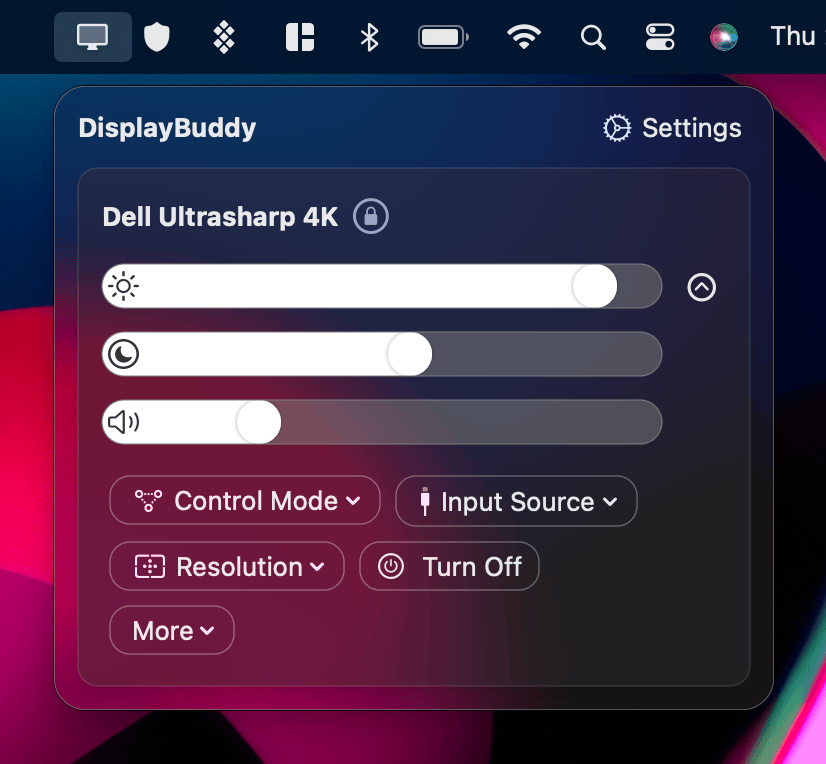
DisplayBuddy controls both. Its UltraBright mode unlocks XDR brightness on your MacBook Pro, Pro Display XDR, and Studio Display XDR, and it also gives you full hardware-level brightness, contrast, and volume control on every third-party monitor you connect. One app covers your entire setup.
Presets Save Your Entire Setup
BrightIntosh has a brightness slider and a toggle. That is the extent of its controls.
DisplayBuddy's Presets save your complete display configuration: brightness, contrast, volume, input source, display arrangement, resolution, and rotation across all connected monitors. Switch between "Work Mode," "Movie Night," and "Presentation" with one click, and every monitor updates at once.
Presets is the most-used feature in DisplayBuddy. It is particularly useful for users who move between different setups throughout the day, like docking at a desk after working on the go.
Sync Keeps All Monitors Matched
If you use multiple monitors, keeping their brightness levels consistent is a constant annoyance. Adjusting one monitor means manually adjusting the others to match.
DisplayBuddy's Sync feature adjusts brightness across all connected monitors simultaneously with one slider. BrightIntosh only controls a single display at a time.
Schedules Automate Your Display
DisplayBuddy can automatically activate Presets based on time of day, sunrise and sunset, battery level, charger status, or dark mode. Your displays can dim at sunset and brighten at sunrise without you touching anything.
BrightIntosh offers basic power-based automation: it can disable increased brightness when running on battery and restore your previous brightness state when you plug back in. That covers one scenario, but DisplayBuddy's Schedules handle dozens.
Full macOS Integration
DisplayBuddy integrates with Siri, Apple Shortcuts, macOS Widgets, and Spotlight. Activate a preset with your voice, trigger brightness changes from a Shortcut, or adjust settings from the Control Center widget. BrightIntosh offers Spotlight access to its settings, but nothing beyond that.
Cross-Platform: Mac and Windows
BrightIntosh is Mac only. If you also use a Windows machine, it cannot help you there. DisplayBuddy works on both Mac and Windows with a single license and the same feature set.
What Is BrightIntosh?
BrightIntosh is an open-source macOS app created by developer Niklas Rousset. It unlocks the full XDR brightness (up to 1000 nits sustained) on Apple displays that normally reserve this brightness level for HDR content only.
The app works by placing a tiny 1x1 pixel HDR overlay hidden behind the display's rounded corner to trigger macOS into enabling HDR mode. It then adjusts the screen's gamma values to boost overall brightness. macOS remains in full control of the display hardware throughout this process.
BrightIntosh works on:
- MacBook Pro M1 Pro/Max 14" and 16" (2021)
- MacBook Pro M2 Pro/Max 14" and 16" (2023)
- MacBook Pro M3/Pro/Max (2023)
- MacBook Pro M4/Pro/Max (2024)
- MacBook Pro M5 14" (2025)
- Pro Display XDR
- Studio Display XDR
It does not work on MacBook Air, iMac, Mac Mini, Mac Studio, Mac Pro, or any third-party external monitor.
How to Download BrightIntosh
BrightIntosh is available through two channels:
- Mac App Store: Search for "BrightIntosh" in the App Store. Offers a 3-day free trial, then requires an in-app purchase.
- GitHub: Download the source code and compile it yourself for free from github.com/niklasr22/BrightIntosh. Licensed under GPL-3.0.
The App Store version is the easiest way to install and receives automatic updates.
Common Problems with BrightIntosh on Mac
In-App Purchase Store Fails to Connect
At least one App Store reviewer reports that after the 3-day trial expires, the in-app purchase store refuses to load, showing a spinning loading circle that never completes. The developer's response suggests restarting the Mac, but this does not always resolve the issue.
Screen Flickering After Updates
After the v5.3.1 update, some users reported screen flickering when adjusting the brightness slider while BrightIntosh is active. The developer released a fix in v5.3.2, but the issue illustrates the risk of depending on a single-developer project for a critical display feature. If you experience flickering, make sure you are running the latest version.
Conflicts with f.lux
BrightIntosh and f.lux do not work at the same time. If you use f.lux for blue light filtering, you will need to choose one or the other. BrightIntosh's own FAQ and GitHub README both confirm this conflict.
Backlight Bleed
BrightIntosh's HDR pixel method can cause visible backlight bleed near the corner of the display. The developer acknowledges this in the FAQ, noting that users "may notice slight backlight bleed" and that it is normal. It can still be distracting for some users.
Battery Drain
Running your MacBook Pro display at 1000 nits continuously drains the battery significantly faster than standard brightness levels. Users and reviewers note that extended use at full XDR brightness also causes the MacBook to run hotter. This applies to any app that unlocks XDR brightness, not just BrightIntosh.
No Third-Party Monitor Support
BrightIntosh only works on Apple XDR displays. It cannot control brightness, contrast, volume, or any other setting on monitors from Dell, LG, Samsung, BenQ, or any other brand. If you use third-party external monitors, you need a separate app.
Frequently Asked Questions
What is BrightIntosh?
BrightIntosh is an open-source macOS utility that unlocks the sustained XDR brightness level (up to 1000 nits) on Apple XDR displays like the MacBook Pro, Pro Display XDR, and Studio Display XDR. It does not control external monitors.
Does BrightIntosh work on external monitors?
No. BrightIntosh only works on Apple displays with XDR technology. It cannot control external monitors from Dell, LG, Samsung, or any other brand. For external monitor control, DisplayBuddy uses DDC/CI to adjust brightness, contrast, volume, and input source on any compatible monitor.
Can DisplayBuddy boost MacBook Pro brightness like BrightIntosh?
Yes. DisplayBuddy's UltraBright mode pushes Apple XDR displays up to 1600 nits peak HDR brightness, beyond the 1000-nit sustained level that BrightIntosh reaches. DisplayBuddy also controls every external monitor connected to your Mac.
What is the difference between 1000 nits and 1600 nits on XDR displays?
Apple XDR displays support two brightness tiers: 1000 nits sustained (full-screen, continuous use) and 1600 nits peak (HDR highlights, short bursts). BrightIntosh targets the 1000-nit sustained level. DisplayBuddy's UltraBright mode accesses the 1600-nit peak level. The actual brightness you experience depends on your display hardware and content type.
What is the best BrightIntosh alternative?
DisplayBuddy is a comprehensive alternative to BrightIntosh. It includes UltraBright mode for Apple XDR displays plus full hardware control over every external monitor. If you want more than just a brightness boost on your MacBook screen, DisplayBuddy covers XDR brightness and everything else: presets, sync, schedules, input switching, and multi-brand monitor support.
Does BrightIntosh work on MacBook Air?
No. BrightIntosh requires an Apple XDR display. The MacBook Air does not have an XDR panel, so BrightIntosh will not work on it. DisplayBuddy works on every Mac model for controlling external monitors.
The Verdict
BrightIntosh does one thing: it unlocks XDR brightness on Apple displays. No external monitor control, no presets, no sync, no schedules, no automation, no Windows support. If your MacBook Pro screen is your only display and all you want is more nits, it handles that.
For everyone else, DisplayBuddy is the more complete choice. It includes the same XDR brightness unlock via UltraBright mode, plus full hardware-level control over every third-party external monitor you connect. Presets, sync, schedules, Siri, widgets, keyboard shortcuts, and cross-platform support on Mac and Windows make it the one app that covers your entire display setup.
Compare DisplayBuddy With Other Apps
DisplayBuddy
for macOS 10.13+
Take control of your monitors
Control brightness, contrast, volume, and much more.
Buy NowLifetime license • 7-day refund on full-price purchases