Easy Setting Box vs DisplayBuddy: Best Alternative (2026)
Easy Setting Box only manages window layouts. DisplayBuddy adds brightness, contrast, and volume control to your Samsung monitor.
Samsung Easy Setting Box is a free window management utility for Samsung monitors on Windows. It splits your screen into zones and snaps application windows into preset layouts, which is useful for organizing multiple windows side by side on a Samsung display.
But Easy Setting Box does not control your monitor's brightness, contrast, volume, or input source. It cannot adjust any hardware setting on your display. If you came here looking for a way to control your Samsung monitor without reaching for the physical OSD buttons, Easy Setting Box is not that tool.
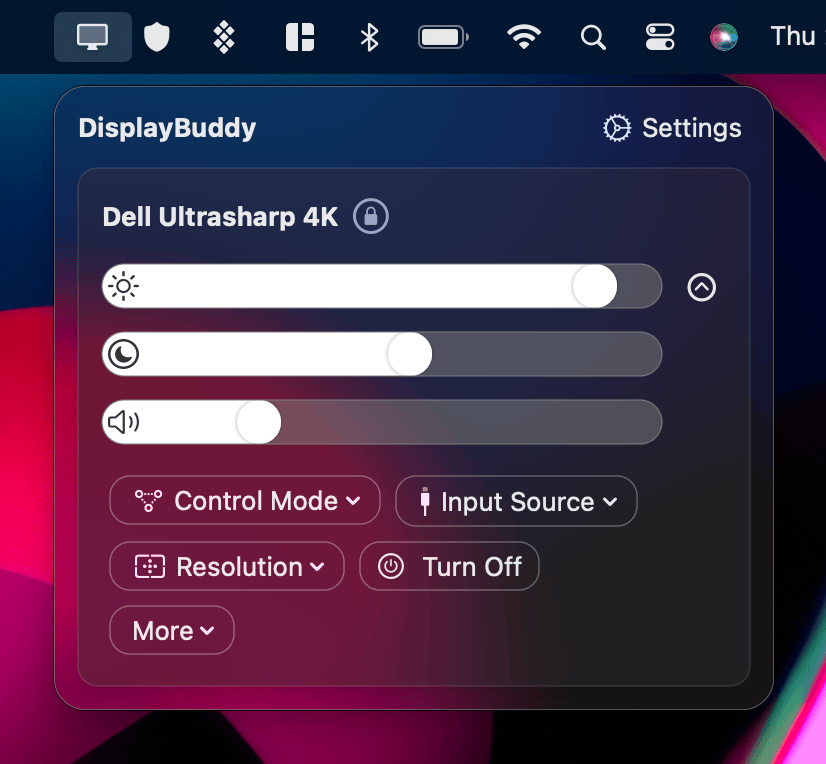
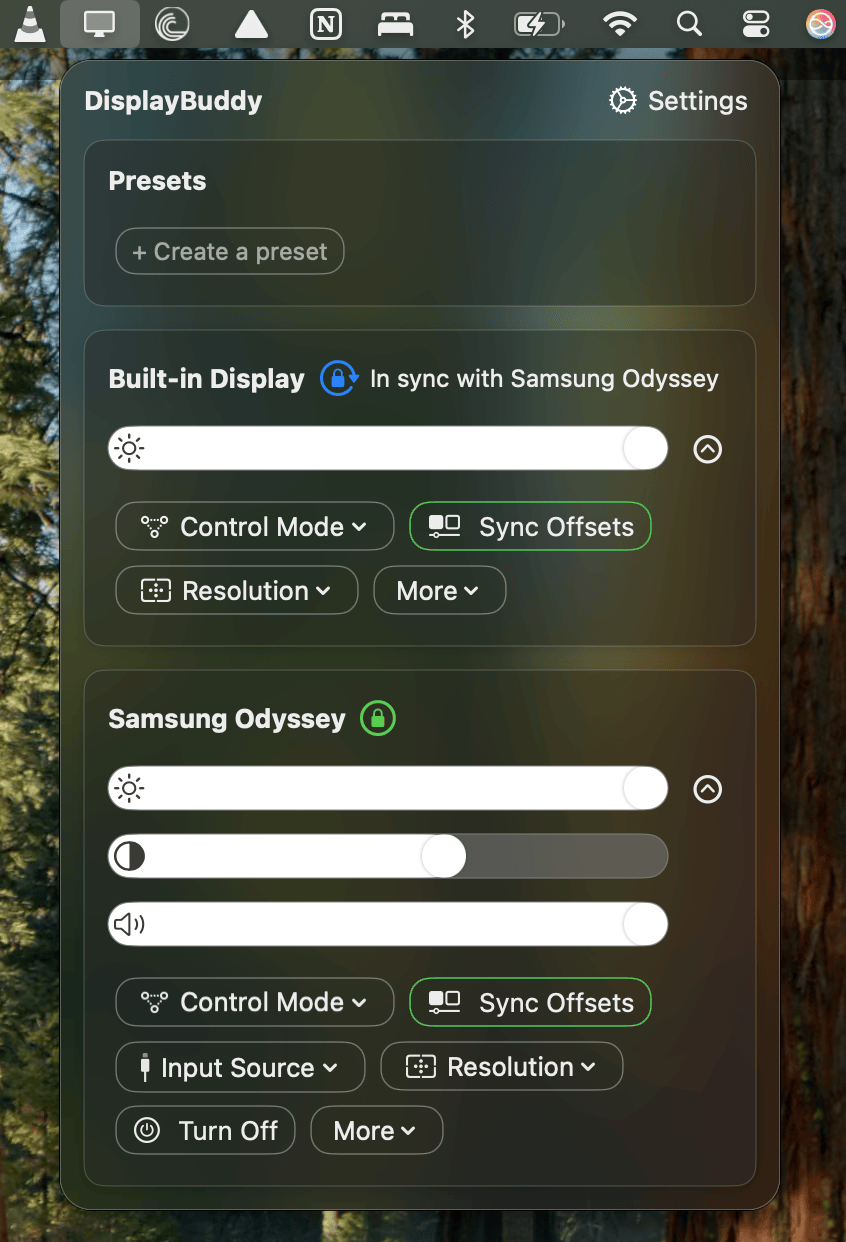
DisplayBuddy is. Just like how you change the brightness of your laptop screen, DisplayBuddy lets you control your monitor's hardware directly from your taskbar: brightness, contrast, volume, and input source, all without touching a single physical button. Save your preferred settings as a preset and switch between them instantly. Have a Samsung and a Dell side by side? Sync brightness across both so they always match. DisplayBuddy works with Samsung monitors and virtually every other brand, and it runs on both Windows and Mac with a single license.
Here is how they compare.
Feature Comparison: DisplayBuddy vs Easy Setting Box
| Feature | DisplayBuddy | Easy Setting Box |
|---|---|---|
| Brightness Control | ✅ DDC/CI hardware brightness control | ❌ No (taskbar dimming for OLED only, not monitor brightness) |
| Contrast Control | ✅ Yes | ❌ No |
| Volume Control | ✅ Yes | ❌ No |
| Presets | ✅ Save and switch between display configurations (brightness, contrast, volume on Windows) | ❌ No presets of any kind (not even saved window layouts) |
| Keyboard Shortcuts | ✅ Full customizable hotkeys for monitor control | ❌ No keyboard shortcuts for monitor settings |
| Brightness Sync | ✅ Sync brightness across all displays | ❌ No |
| Input Source Switching | ✅ HDMI, DisplayPort, USB-C | ❌ No |
| Window Management | ❌ No (saves display layouts, not window positions) | ✅ Split screen into up to 6 zones, Quick Split, adjustable grids |
| HDR Monitor Support | ✅ Maintains brightness control when Windows HDR is enabled | ❌ No HDR brightness control |
| Display Layouts | ✅ Save monitor arrangements | ❌ No |
| Multi-Monitor Support | ✅ No hard limit | ⚠️ Up to 4 monitors, Samsung only |
| Monitor Compatibility | ✅ All DDC/CI monitors (Samsung, Dell, LG, BenQ, ASUS, HP, and more) | ❌ Samsung monitors only |
| Windows Support | ✅ Yes | ✅ Yes |
| Mac Support | ✅ Yes | ⚠️ Severely limited (macOS 12.0+, community reports say it "only creates template un-interactive grids") |
Samsung Easy Setting Box: Pros and Cons
Pros
- Free, included with Samsung monitors
- Split screen into up to 6 zones with preset layouts
- Quick Split: drag and drop windows into grid sections
- Mouse Traveling: move your cursor between a Samsung Smart Monitor and your PC
Cons
- Samsung monitors only (will not detect non-Samsung displays)
- Windows only, limited Mac support (macOS 12.0+, severely limited in practice)
- No brightness, contrast, or volume control via DDC/CI
- No input source switching, no presets, no keyboard shortcuts
- Frequent installation errors and "Samsung Monitor not found" issues
- Does not work reliably with Chrome, Opera, Microsoft Teams, VS Code, and other popular apps
- GPU driver updates (NVIDIA, AMD) frequently break compatibility
DisplayBuddy: Pros and Cons
Pros
- Brightness, contrast, and volume control in one app
- Advanced presets to save and restore display configurations
- Full keyboard shortcut support
- Brightness sync across multiple displays
- Input source switching (HDMI, DisplayPort, USB-C)
- Works on both Windows and Mac with a single license
- Works with Samsung and every other DDC/CI-compatible monitor brand
Cons
- No window management features
Why Users Choose DisplayBuddy Over Easy Setting Box
Easy Setting Box Does Not Control Monitor Brightness
This is the most important distinction. If you are searching for a way to adjust your Samsung monitor's brightness, contrast, or volume from Windows without pressing the physical buttons on the monitor, Easy Setting Box does not do this.
Easy Setting Box is a window management tool. It splits your screen into zones and snaps application windows into those zones. That is its primary function.
DisplayBuddy uses DDC/CI to communicate directly with your monitor hardware. It controls the actual backlight brightness, contrast ratio, and speaker volume, the same settings you would normally adjust through the monitor's on-screen display (OSD) buttons.
Works With Every Monitor Brand
Easy Setting Box requires a Samsung monitor. If it does not detect a Samsung display, the app will not launch and you will see a "Samsung Monitor not found" error.
DisplayBuddy works with any DDC/CI-compatible monitor regardless of brand: Samsung, Dell, LG, BenQ, ASUS, ViewSonic, HP, AOC, MSI, and more. If you have a mixed-brand multi-monitor setup, DisplayBuddy controls all of them from one interface.
Samsung Smart Monitor Support
DisplayBuddy has specific support for Samsung Smart Monitors (M5, M7, M8, ViewFinity S9) over Wi-Fi, including a built-in remote control feature.
Advanced Presets
DisplayBuddy's most popular feature is Presets. Save your preferred brightness, contrast, and volume settings as a preset and switch between them instantly.
- Working during the day? One preset.
- Movie night? Another.
- Presentation mode? A third.
Easy Setting Box has no presets of any kind. It does not save display settings, and it does not even save window layout configurations for quick recall.
Cross-Platform: Mac and Windows
Easy Setting Box is primarily a Windows app. A Mac version exists (macOS 12.0+), but community reports indicate it is severely limited in practice. DisplayBuddy runs natively on both Mac and Windows with a single license and the same feature set on both platforms.
The Easy Setting Box Mac Problem
If you are a Mac user with a Samsung monitor searching for Easy Setting Box, this is important: the Mac version of Easy Setting Box does not deliver the same experience as the Windows version. According to Apple Community reports, the Mac version "only creates some template un-interactive grids." macOS Gatekeeper may also block the installation, requiring you to right-click the downloaded file and select "Open Anyway" to bypass the security warning.
The Easy Setting Box PDF manual (v3.1.6) shows a full Mac UI with split screen, Mouse Traveling, and Dock brightness dimming. But community experience contradicts this. If you need reliable monitor control on a Mac with a Samsung monitor, DisplayBuddy is the native Mac solution with full DDC/CI support for Samsung displays, including Smart Monitor models (M5, M7, M8, ViewFinity S9) over Wi-Fi.
What Is Samsung Easy Setting Box?
Samsung Easy Setting Box is a free utility bundled with Samsung monitors. It is designed to help you organize your workspace by splitting your monitor screen into zones where application windows can be snapped into place.
Key facts about Easy Setting Box:
- Window management tool, not a monitor control app
- Free, downloadable from Samsung's website or the monitor's support page
- Current version (Windows): 3.0.11 (released May 2024)
- Current version (Mac): 3.1.6 (released January 2025)
- File size: 34.66 MB (64-bit Windows installer), 51.31 MB (Mac)
- Samsung monitors only: requires at least one Samsung monitor connected to function
- Supports up to 4 monitors simultaneously
- 14 preset split screen layouts: up to 6 zones per monitor
- Quick Split: drag windows into grid sections for instant snapping
- Mouse Traveling: move your mouse cursor between a Samsung Smart Monitor and your PC seamlessly
- Taskbar brightness dimming: dims the taskbar when not in use to prevent OLED burn-in (this is not monitor brightness control)
- Windows 10 and 11 supported. Mac version exists (macOS 12.0+) but functionality is severely limited
- No centralized download page: must find the download through your specific Samsung monitor's support page
- Previously on Microsoft Store, now removed (returns 410 Gone)
How to Download Easy Setting Box
If you want to try Easy Setting Box:
Easy Setting Box is available as a free download from Samsung's website. There is no centralized download page. You need to go to your specific monitor's support page on samsung.com, find the "Software" section under Downloads, and download the 64-bit Windows installer (.msi file). A Mac version is also available for some models but has severely limited functionality. Easy Setting Box was previously available on the Microsoft Store but has been removed. Note that Easy Setting Box requires a Samsung monitor to function. It will not work with non-Samsung displays.
Common Problems with Easy Setting Box
Easy Setting Box is a free utility, but users frequently run into issues that make it difficult to install and use reliably. These are the most reported problems across Samsung Community forums, Reddit, and Windows help forums.
"Samsung Monitor Not Found" Error
The most common complaint. Easy Setting Box fails to detect the connected Samsung monitor, even when Windows recognizes it in Device Manager. This happens frequently after:
- Upgrading from Windows 10 to Windows 11
- Updating NVIDIA or AMD GPU drivers
- Using certain connection types (some HDMI configurations, DisplayPort adapters)
Samsung has acknowledged that Easy Setting Box compatibility with Windows 11 was broken for an extended period after the OS launched.
DLL Installation Errors
Users frequently encounter "A DLL required for this install to complete could not be run" errors when installing Easy Setting Box. This affects both Windows 10 and Windows 11 installations and requires manual troubleshooting (finding and placing DLL files, running installers with administrator privileges, or using workaround videos).
App Becomes Unresponsive
On Samsung Odyssey G9 and other ultrawide monitors, Easy Setting Box stops responding after approximately 30 minutes of use. Pop-up windows no longer appear, and the only fix is to fully close and restart the application.
Browser and App Compatibility Issues
Easy Setting Box does not work reliably with several popular applications:
- Chrome: window snapping is inconsistent. A Samsung moderator confirmed "Chrome does not support Easy Setting Box" in the Samsung Community forums, though it intermittently works for some users
- Opera: the snap overlay does not appear at all (reported since 2020, still not fixed as of 2026)
- Microsoft Teams: windows cannot be assigned to screen zones
- VS Code: the drag-to-position overlay does not appear because VS Code uses a custom title bar instead of the native Windows title bar. The workaround is to set
window.titleBarStyletonativein VS Code settings. - Cinema 4D: double-click stops working while ESB is running
A separate bug causes double-click to stop working entirely in apps like Thunderbird and Firefox while Easy Setting Box is active.
Users frequently recommend Microsoft PowerToys FancyZones as a more reliable free alternative for window management.
Window Zone Bugs
Even when ESB is working, users report that programs escape their assigned zones and overlap with adjacent windows. Others report that resizing a window within a zone causes it to automatically snap to full size instead of staying in the smaller area.
GPU Driver Conflicts
NVIDIA driver updates have been reported to break Easy Setting Box compatibility entirely. AMD driver updates cause similar issues. In some cases, users need to downgrade their GPU drivers to restore ESB functionality.
Frequently Asked Questions
What is Samsung Easy Setting Box?
Samsung Easy Setting Box is a free window management utility for Samsung monitors. It lets you split your monitor screen into zones and snap application windows into preset layouts. It does not control monitor brightness, contrast, or volume. It is available for Windows and has limited Mac support.
Does Easy Setting Box control brightness?
No. Easy Setting Box is a window management tool, not a monitor control app. It does not adjust your monitor's brightness, contrast, or volume. The "Taskbar Brightness" feature only dims the Windows taskbar to prevent OLED burn-in. For actual brightness control on Samsung monitors, DisplayBuddy uses DDC/CI to adjust the monitor's hardware backlight.
Does Easy Setting Box work on Mac?
A Mac version exists (v3.1.6, requires macOS 12.0 or later), but community reports indicate it is severely limited. According to Apple Community users, the Mac version "only creates some template un-interactive grids." macOS Gatekeeper may also block the installation, requiring you to right-click and select "Open Anyway" to bypass the security warning. The Samsung PDF manual shows a full Mac UI, but real-world experience contradicts this. If you need monitor control on Mac with a Samsung display, DisplayBuddy is a native Mac app with full DDC/CI support.
Does Easy Setting Box work with non-Samsung monitors?
No. Easy Setting Box requires at least one Samsung monitor to be connected. If it does not detect a Samsung display, the app will not launch. DisplayBuddy works with any DDC/CI-compatible monitor regardless of brand.
Why is Easy Setting Box not detecting my monitor?
The most common causes are: you are using a non-Samsung monitor, your GPU drivers are outdated or recently updated, you upgraded to Windows 11 (which broke ESB compatibility for a period), or there is a DLL installation error. Check that your Samsung monitor is recognized in Windows Device Manager, update your GPU drivers, and try reinstalling Easy Setting Box with administrator privileges.
What is the best Easy Setting Box alternative?
DisplayBuddy is a comprehensive alternative to Easy Setting Box for monitor control (brightness, contrast, volume, input switching, presets). It works with Samsung monitors and every other brand. For window management specifically (the feature Easy Setting Box actually provides), Microsoft PowerToys FancyZones is a free, more reliable alternative.
Is Easy Setting Box free?
Yes. Easy Setting Box is a free utility provided by Samsung for Samsung monitor owners. However, it only handles window management. If you need actual monitor hardware control (brightness, contrast, volume, input switching), DisplayBuddy is the solution and works with Samsung and every other major monitor brand.
The Verdict
Easy Setting Box does one thing: it splits your screen into zones. That is it. No brightness control, no contrast, no volume, no input switching, no presets, no keyboard shortcuts. And it only works on Samsung monitors, only on Windows, and comes with a long list of installation errors and app compatibility issues. If window snapping is all you need, there are better apps on the market.
DisplayBuddy, on the other hand, gives you full control over your monitor's hardware. Adjust brightness, contrast, and volume from your taskbar or with a keyboard shortcut. Save your favorite settings as presets and switch between them in one click. Sync brightness across every monitor on your desk, Samsung or otherwise. Switch input sources without touching a single button on your display. It works on Windows and Mac, supports every major monitor brand, and just works out of the box.
If you have been putting up with your monitor's clunky OSD buttons or hoping Easy Setting Box would do more than arrange windows, DisplayBuddy is the upgrade you have been looking for.
Compare DisplayBuddy With Other Apps
DisplayBuddy
for macOS 10.13+
Take control of your monitors
Control brightness, contrast, volume, and much more.
Buy NowLifetime license • 7-day refund on full-price purchases