Lunar Alternative for Mac and Windows | DisplayBuddy (2026)
DisplayBuddy is a comprehensive alternative to Lunar with presets, sync, widgets, Siri integration, and Windows support. Simpler interface, same DDC/CI control.
If you use an external monitor on a Mac and want software brightness control, you have likely come across Lunar. It is a technically impressive app with a long feature list. But many users find it overwhelming when all they want is reliable, simple display control.
Lunar: A Mac-only display management app focused on adaptive brightness modes, sub-zero dimming, and advanced automation via CLI
DisplayBuddy: A Mac and Windows app that controls brightness, contrast, volume, and more with a simple interface, one-click presets, and native macOS integration including Siri, Widgets, and Spotlight
Both apps use DDC/CI to control your monitors. The difference is in the approach: Lunar gives you six brightness modes and dozens of toggles. DisplayBuddy gives you one clean interface that just works.
Feature Comparison: DisplayBuddy vs Lunar
| Feature | DisplayBuddy | Lunar |
|---|---|---|
| DDC/CI Brightness Control | ✅ Yes | ✅ Yes |
| Contrast Control | ✅ Yes | ✅ Yes |
| Volume Control | ✅ Yes | ✅ Yes |
| Keyboard Brightness Keys | ✅ Yes | ✅ Yes |
| Presets | ✅ Save and restore ALL display settings with one click | ⚠️ App Presets only (brightness per active app) |
| Display Layouts | ✅ Save monitor arrangements | ❌ No |
| Sync Across Monitors | ✅ One-click sync for all displays | ⚠️ Sync Mode (follows MacBook built-in display only) |
| Schedules | ✅ Sunrise, sunset, time of day, battery level, system events | ✅ Clock Mode (sunrise, sunset, noon with offsets) |
| Siri Voice Control | ✅ Yes | ❌ No |
| macOS Widgets | ✅ Yes | ❌ No |
| Spotlight Integration | ✅ Yes | ❌ No |
| macOS Shortcuts | ✅ Yes | ✅ Yes |
| Samsung & LG Smart Monitor | ✅ M5, M7, M8, ViewFinity S9 over Wi-Fi | ❌ No |
| Windows Support | ✅ Yes | ❌ Mac only |
| Input Source Switching | ✅ Yes | ✅ Yes |
| XDR / UltraBright | ✅ UltraBright Mode | ✅ XDR Brightness |
| BlackOut (Turn Off Display) | ✅ Yes | ✅ Yes |
| Command Line (CLI) Scripting and automation via command line — view docs | ✅ Yes | ✅ Yes |
| Price | One-time lifetime license | Free tier with paid Pro upgrade |
Lunar: Pros and Cons
Pros
- Free version covers core DDC/CI controls (brightness, contrast, volume, input switching)
- Adaptive brightness via ambient light sensor (Apple Silicon only, Pro feature)
- CLI support for scripting
- Open source (core features)
- macOS Shortcuts integration
Cons
- Mac only, no Windows support
- Complex UI with six brightness modes (Manual, Sync, Sensor, Location, Clock, App Presets) that overwhelms users who just want basic control
- App Presets only adjust brightness per active application, not a full display configuration restore
- No Siri voice control
- No macOS Widgets
- No Spotlight integration
- No Samsung or LG Smart Monitor support
- Requires updates after macOS releases; Sequoia-specific settings file corruption acknowledged in Lunar FAQ
- Not available on the Mac App Store
- Sub-zero dimming uses a software overlay, not real hardware brightness control
DisplayBuddy: Pros and Cons
Pros
- One-click presets that save and restore all display settings (brightness, contrast, volume, input source, display arrangement, resolution, rotation)
- Sync brightness across all monitors simultaneously
- Schedules to automate display settings based on sunrise, sunset, time of day, battery level, or system events
- Siri voice control, macOS Widgets, and Spotlight integration
- Works on both Mac and Windows with a single license
- Samsung & LG Smart Monitor support (M5, M7, M8, ViewFinity S9) over Wi-Fi
- XDR/UltraBright mode for MacBook Pro and Pro Display XDR
- Simple, native macOS interface that mirrors Apple's design language
- Save display layouts (monitor arrangements like horizontal, vertical)
- Full command line (CLI) support
Why Users Choose DisplayBuddy Over Lunar
Presets That Save Everything
Both DisplayBuddy and Lunar have a feature called "presets," but they work very differently.
Lunar's App Presets automatically adjust brightness when a specific application is active. Open Photoshop and brightness goes up. Open Netflix and it dims. This is useful but limited: it only changes brightness, and only based on which app is in the foreground.
DisplayBuddy's Presets save your complete display configuration: brightness, contrast, volume, input source, display arrangement, resolution, and rotation across all connected monitors. Switch between "Work Mode," "Movie Night," and "Presentation" with one click, and every monitor updates at once. This is the most-used feature in DisplayBuddy.
Siri, Widgets, and Spotlight
DisplayBuddy integrates deeply into macOS with features Lunar does not offer:
- Siri: "Hey Siri, set all monitors to 50% brightness"
- Widgets: Activate presets from your desktop or Control Center
- Spotlight: Type "Activate Preset" in Spotlight to switch display settings instantly
Lunar has macOS Shortcuts support (which DisplayBuddy also has), but it does not offer Siri voice control, Widgets, or Spotlight integration.
Works on Mac and Windows
Lunar is Mac-only. If you use both a Mac and a Windows PC, you need a separate app for Windows.
DisplayBuddy runs on both Mac and Windows with a single license. Note: on Windows, Presets cover brightness, contrast, and volume. The full display layout restore available on Mac is not included in the Windows version. Sync is available on both platforms.
Samsung Smart Monitor Support
DisplayBuddy has exclusive support for Samsung & LG Smart Monitors over Wi-Fi, with full control of brightness, contrast, volume, and an on-screen remote. Lunar does not support Samsung Smart Monitors.
Simpler Interface
Lunar is a powerful app, but that power comes with complexity. It has six brightness modes (Manual, Sync, Sensor, Location, Clock, App Presets), each with its own set of toggles, curves, and configurations. For users who just want to control their monitors, this can feel overwhelming.
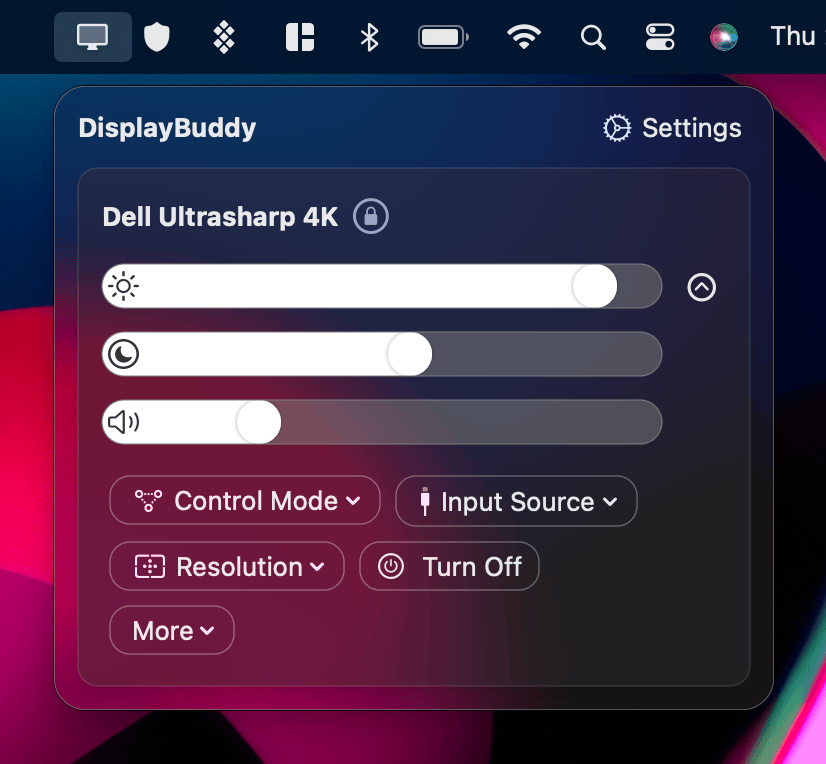
DisplayBuddy's interface mirrors Apple's Control Center aesthetic. Open the app, adjust your sliders, save a preset. No modes to choose between, no curves to configure.
What Is Lunar?
Lunar is a Mac-only display management app created by developer Alin Panaitiu. It uses DDC/CI to control external monitor brightness, contrast, volume, and input source, with additional features for adaptive brightness and advanced automation.
Key facts about Lunar:
- Free version includes DDC/CI controls, sub-zero dimming, brightness keys, volume keys, CLI, input switching, and multi-monitor support (limited to 100 brightness/contrast adjustments per day)
- Lunar Pro adds XDR Brightness, Sensor Mode, BlackOut, and removes the daily adjustment limit
- 14-day trial for Pro features activates automatically on first launch
- Open source for core features (non-paid)
- Not on the Mac App Store due to Apple's restrictions on DDC/CI access
- Mac only, no Windows version
Lunar is a tool built for power users who want adaptive brightness modes. Where it falls short for most users is in workflow features like comprehensive presets, native macOS integration (Siri, Widgets, Spotlight), and cross-platform support.
How to Download Lunar
Lunar is available as a free download from their website. It is not available on the Mac App Store due to Apple's restrictions on DDC/CI access. Lunar Pro is sold as a lifetime license covering multiple Macs.
Common Problems with Lunar on Mac
Breaks After macOS Updates
Lunar requires updates to stay compatible with new macOS releases, and some users have reported edge-case issues after major upgrades. Lunar's own FAQ acknowledges that "It appears macOS Sequoia corrupts some secure settings files of Lunar," requiring a specific workaround. Lunar's changelog shows regular compatibility updates in response to macOS changes, which helps but means users should check for an update before upgrading macOS.
UI Complexity
Lunar offers six brightness modes, each with different behaviors and configurations. Users on MacUpdate have described the interface as "too cluttered." For users coming from simpler tools, the learning curve can be steep.
Sub-Zero Dimming Is Not Real Brightness
Lunar's sub-zero dimming (going below 0% brightness) uses gamma table manipulation to make the screen appear darker. This is a software overlay, not a real hardware brightness change. It can cause color accuracy issues and conflicts with other apps that use macOS's Gamma API, including f.lux.
Conflicts with macOS Native Controls
Lunar's FAQ documents conflicts between its features and macOS native brightness controls, Night Shift, and HDR. Lunar's own FAQ notes that "HDR videos and images will look washed out and overblown when XDR is on."
Frequently Asked Questions
What is the best Lunar alternative for Mac?
DisplayBuddy is a comprehensive alternative to Lunar that offers one-click presets for all display settings, brightness sync across monitors, Siri and Widget integration, Samsung & LG Smart Monitor support, and cross-platform Mac and Windows support. For a free alternative, MonitorControl is also popular.
Is Lunar Mac safe?
Lunar is an open-source app with its code publicly available on GitHub. It requires Accessibility and Screen Recording permissions to function. It is safe to use, though users should be aware it can conflict with other apps that use macOS's Gamma API (like f.lux), and Lunar recommends checking for an update before upgrading macOS to avoid edge-case compatibility issues.
Does Lunar work on Windows?
No. Lunar is a Mac-only application. If you need display control on Windows, DisplayBuddy supports both Mac and Windows with a single license.
Does Lunar have presets?
Lunar has "App Presets" that automatically adjust brightness when specific applications are active (e.g., brighter for Photoshop, dimmer for Netflix). However, these only control brightness based on the foreground app. DisplayBuddy's presets save and restore your complete display configuration (brightness, contrast, volume, input source, arrangement, resolution, rotation) across all monitors with one click.
Is DisplayBuddy worth it?
DisplayBuddy is a paid app with a one-time lifetime license, a 7-day return policy on full-price Mac purchases only, and a 7-day free trial on Windows. If you need presets, multi-monitor sync, Siri/Widget integration, Samsung support, or cross-platform Mac and Windows support, it offers features Lunar does not have at any price tier.
Is Lunar free?
Lunar has a free tier with core DDC/CI controls (brightness, contrast, volume, input switching, CLI). It is limited to 100 brightness/contrast adjustments per day. Lunar Pro removes this limit and adds XDR Brightness, Sensor Mode, and BlackOut.
The Verdict
Consider Lunar only if you have a very specific need for ambient light sensor-based adaptive brightness.
For everyone else, DisplayBuddy is the more practical choice. It delivers what matters for daily monitor management: one-click presets that save your entire display configuration, sync across all monitors, Siri and Widget integration, and the only cross-platform solution that works on both Mac and Windows. The simpler interface means you spend less time configuring modes and more time working.
Compare DisplayBuddy With Other Apps
Related guide: How to control external monitor brightness on Mac
DisplayBuddy
for macOS 10.13+
Take control of your monitors
Control brightness, contrast, volume, and much more.
Buy NowLifetime license • 7-day refund on full-price purchases