Vivid App Alternative for Mac | DisplayBuddy (2026)
Vivid unlocks XDR brightness on MacBook Pro. DisplayBuddy does that plus external monitor control, presets, sync, and schedules. Compare both.
If you are looking for a way to increase your MacBook Pro brightness beyond the default 500-nit limit, you have two options:
Vivid: A single-purpose Mac app that unlocks XDR brightness on MacBook Pro. That is all it does. It does not control external monitors, save presets, sync displays, or work on MacBook Air.
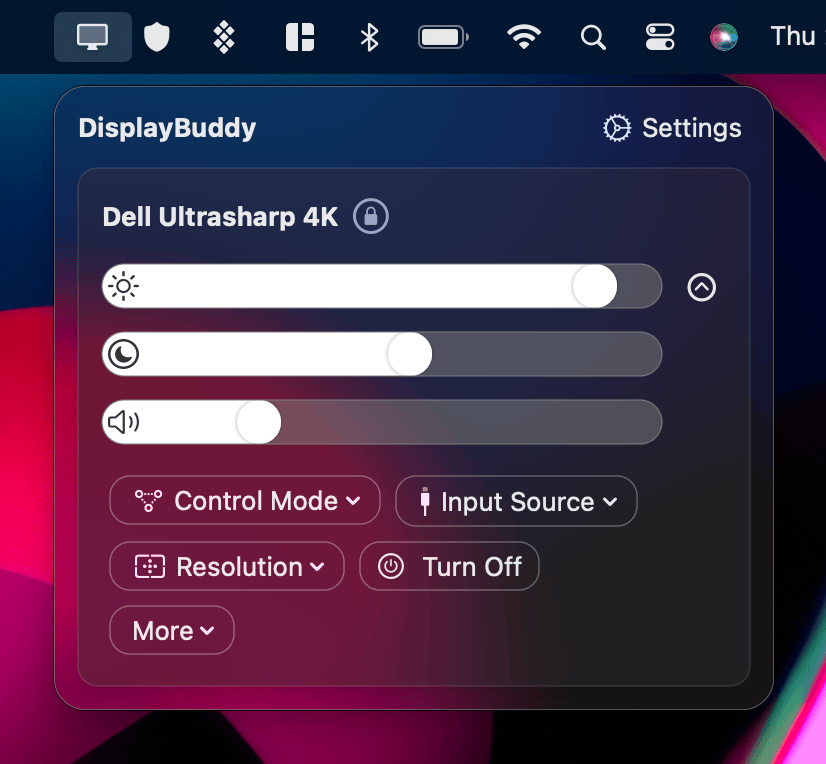
DisplayBuddy: A complete display management app for Mac and Windows. Includes UltraBright Mode for MacBook Pro, plus full DDC/CI control for every external monitor: brightness, contrast, volume, input switching, presets, sync, schedules, Siri, widgets, and keyboard shortcut control.
Vivid does one thing. DisplayBuddy does that thing and then manages every other display on your desk.
Most users searching for Vivid are really looking for better control over their displays. If that sounds like you, DisplayBuddy is the app that actually solves the full problem.
Feature Comparison: DisplayBuddy vs Vivid
| Feature | DisplayBuddy | Vivid |
|---|---|---|
| XDR / UltraBright Mode | ✅ Yes (MacBook Pro M Pro/Max, Pro Display XDR, Studio Display XDR) | ✅ Yes (MacBook Pro M Pro/Max, Pro Display XDR, Studio Display XDR) |
| Sub-Minimum Dimming | ❌ No | ✅ Yes (Eclipse Mode) |
| External Monitor Control (DDC/CI) | ✅ Any DDC/CI monitor (Dell, LG, Samsung, BenQ, ASUS, and more) | ❌ No |
| Volume Control | ✅ Yes | ❌ No |
| Keyboard Brightness Keys | ✅ Works with external monitors | ✅ Built-in display only |
| Presets | ✅ Save all display settings, restore with one click | ❌ No |
| Sync Across Monitors | ✅ Adjust all monitors with one slider | ❌ No |
| Schedules | ✅ Time of day, battery level, sunrise/sunset | ❌ No |
| Battery Automation | ✅ Yes (schedule trigger) | ✅ Yes (auto-toggle by power source) |
| Siri Integration | ✅ Voice commands and Shortcuts | ❌ No |
| macOS Widgets | ✅ Desktop widgets for quick preset access | ❌ No |
| Spotlight Integration | ✅ Yes | ❌ No |
| Samsung Smart Monitor (Wi-Fi) | ✅ M5, M7, M8, ViewFinity S9 | ❌ No |
| Input Source Switching | ✅ HDMI, DisplayPort, USB-C | ❌ No |
| MacBook Air Support | ✅ Full DDC/CI external monitor control | ❌ Not compatible |
| Windows Support | ✅ Yes | ❌ Mac only |
| Available on Setapp | ✅ Yes | ✅ Yes |
Vivid: Pros and Cons
Pros
- Unlocks XDR brightness on MacBook Pro (up to 1,000 nits sustained)
- Eclipse Mode dims below the standard minimum for night use
- Simple: one menu bar toggle, uses existing brightness keys
- Battery automation disables Vivid when unplugged
- Free Splitscreen Mode lets you try before buying
Cons
- Only works on MacBook Pro 14/16 inch with M-series Pro or Max chips, Pro Display XDR, and Studio Display XDR
- Does not work on MacBook Air, MacBook Pro 13 inch, or Intel Macs
- Cannot control external monitors (no DDC/CI)
- No presets, no sync, no schedules, no volume control
- Sleep/wake bugs cause brightness to reset on some systems
- Color accuracy issues reported by users (blown-out highlights)
DisplayBuddy: Pros and Cons
Pros
- Works with every external monitor brand via DDC/CI
- UltraBright Mode pushes MacBook Pro beyond default brightness
- Presets save and restore all display settings with one click
- Sync adjusts brightness across all monitors simultaneously
- Schedules automate settings by time of day, battery level, or sunrise/sunset
- Mac keyboard brightness and volume keys work with external monitors
- Input source switching between HDMI, DisplayPort, and USB-C
- Available on Mac and Windows with a single lifetime license
Cons
- No sub-minimum dimming (no Eclipse Mode equivalent)
Why Mac Users Choose DisplayBuddy Over Vivid
Controls Every External Monitor
Vivid does not support external monitors at all. It only controls the built-in MacBook Pro display and Apple's own XDR displays.
DisplayBuddy controls any DDC/CI compatible external monitor: Dell, LG, Samsung, BenQ, ASUS, ViewSonic, HP, AOC, MSI, and more. Samsung & LG Smart Monitors are supported over Wi-Fi.
If you use any external monitor alongside your MacBook, Vivid cannot help with that display. DisplayBuddy can.
Presets Save Your Entire Setup
- Save brightness, contrast, volume, and input source across all connected monitors
- Switch between configurations with one click, a keyboard shortcut, or a Siri command
- Presets is DisplayBuddy's most-used feature
Vivid is either on or off. There is no way to save and recall different brightness configurations. DisplayBuddy lets you set up "Work", "Movie Night", and "Presentation" profiles and switch between them instantly.
Sync Keeps All Monitors Matched
- Adjust one slider and every connected monitor follows
- Sync Offsets let you set different brightness ranges per monitor while keeping them in sync
- Useful for multi-monitor setups where each display has a different native brightness range
Vivid cannot sync anything because it does not control external monitors. If you have a MacBook Pro connected to one or two external displays, you are adjusting each one separately using physical buttons. DisplayBuddy eliminates that.
Schedules Automate Everything
- Set brightness to change automatically at sunrise, sunset, or any time of day
- Trigger changes based on battery level or charging status
- Combine with Presets: switch to "Night Mode" preset at 8 PM, back to "Work" at 9 AM
Vivid has basic battery automation (toggle on/off by power source). DisplayBuddy has full scheduling with multiple triggers and preset integration.
Your Mac Keyboard Controls External Monitors
- DisplayBuddy maps your Mac's built-in brightness and volume keys to external monitors
- Adjusting an external monitor feels exactly like adjusting the built-in display
Vivid extends the brightness key range for the built-in display only. DisplayBuddy makes those keys work with every connected monitor.
Works on MacBook Air
DisplayBuddy works on every Mac: iMac, Mac Mini, MacBook Air, MacBook Pro, Mac Pro, and Mac Studio. Vivid does not work on MacBook Air at all. Multiple Setapp reviewers confirm it: the app launches and shows "no compatible displays" on every MacBook Air model.
What Is the Vivid App?
Vivid is a macOS app made by Lumen Digital Ltd. that unlocks XDR brightness on supported Apple displays. MacBook Pro models with M-series Pro or Max chips can display up to 1,000 nits sustained (and 1,600 nits peak), but macOS limits standard use to around 500 nits. Vivid removes that cap so you get full brightness in every app, not just HDR video.
What Vivid supports:
- MacBook Pro 14 inch and 16 inch with M-series Pro or Max chips
- Apple Pro Display XDR
- Apple Studio Display XDR (added in v2.18, March 2026)
What Vivid does not support:
- MacBook Air (any model)
- MacBook Pro 13 inch
- Intel MacBooks
- Any external monitor (no DDC/CI control)
Other features:
- Eclipse Mode: dims below the standard minimum brightness, useful for working in dark rooms
- Battery Automation: automatically disables Vivid when on battery power
- Splitscreen Mode: free trial that shows Vivid brightness on one half of the screen indefinitely
- Keyboard brightness keys extend into the Vivid range when the app is active
Vivid is available as a direct download from getvivid.app, on the Mac App Store, and through Setapp. The direct download is the least expensive option.
Common Problems with Vivid on Mac
Limited Device Compatibility
Vivid only works on MacBook Pro models with M-series Pro or Max chips, Pro Display XDR, and the new Studio Display XDR. Every other Mac is excluded. This is the single most common complaint in App Store and Setapp reviews.
MacBook Air users who download Vivid see "no compatible displays" and cannot use the app at all. MacBook Pro 13 inch users are also excluded. If your Mac does not have a mini-LED XDR display, Vivid will not work.
Brightness Resets After Sleep
Multiple users report that Vivid brightness resets when the MacBook lid is closed or the display goes to sleep. One Setapp reviewer using an M3 Pro with macOS Tahoe reported that brightness "automatically resets to 0" on external displays every time the screen wakes, requiring manual adjustment multiple times per day.
Vivid's changelog shows repeated fixes for this issue across multiple macOS versions, but new reports continue to appear with each update.
Color Accuracy Issues
One Setapp reviewer noted that Vivid "blows out colours of things and the highlights for whites are way too strong" roughly 17% of the time. Vivid's own changelog includes fixes for "over saturated brightness" and color correction issues on Studio Display.
Manual Toggle Required for Display Changes
When you change display resolutions, plug in an external monitor, or switch between display configurations, Vivid must be manually disabled and re-enabled. There is no automatic detection or adjustment for hardware changes.
Frequently Asked Questions
What is the Vivid app for Mac?
Vivid is a macOS app that unlocks XDR brightness on supported Apple displays, pushing the MacBook Pro screen from its default 500 nits to over 1,000 nits sustained. It works on MacBook Pro 14 inch and 16 inch models with M-series Pro or Max chips, Pro Display XDR, and Studio Display XDR. For users who also need external monitor control, presets, and automation, DisplayBuddy is a more comprehensive alternative that includes its own UltraBright Mode.
Does Vivid work on MacBook Air?
No. Vivid does not support any MacBook Air model. The MacBook Air display does not have the mini-LED XDR hardware needed to exceed its standard brightness. If you use a MacBook Air with external monitors, DisplayBuddy works on every Mac model and controls brightness, contrast, and volume on any DDC/CI compatible display.
Will Vivid damage my display?
No. Vivid uses the same brightness capabilities Apple designed for HDR content. Apple states that supported displays can sustain 1,000 nits indefinitely. The display may get warmer in hot environments, but macOS automatically throttles brightness if temperatures get too high.
How do I make my MacBook Pro screen brighter than maximum?
Apps like Vivid and DisplayBuddy's UltraBright Mode can unlock the full XDR brightness range on MacBook Pro models with mini-LED displays. This pushes brightness from the standard 500-nit cap to over 1,000 nits sustained. DisplayBuddy also extends keyboard brightness key control to external monitors, so you can make those brighter without touching physical buttons.
Does Vivid use a lot of battery?
Yes. Vivid's own press kit states: "Your display brightness affects your battery life quite significantly, so having Vivid enabled will cause your battery to drain faster." They recommend using it only when plugged in or in very bright environments. Both Vivid and DisplayBuddy offer battery-based automation to disable high brightness when running on battery.
Is there a free alternative to Vivid?
Vivid offers a free Splitscreen Mode that shows the full brightness on one half of your screen indefinitely. BrightIntosh is another option at a lower price point. DisplayBuddy offers a 7-day money-back guarantee on full-price Mac purchases only and a 7-day free trial on Windows, and includes external monitor control, presets, sync, and schedules alongside UltraBright Mode.
Is Vivid better than DisplayBuddy?
Vivid and DisplayBuddy both unlock XDR brightness on MacBook Pro, but that is where the overlap ends. Vivid is a single-feature app that boosts your built-in display brightness and nothing else. DisplayBuddy does the same thing with UltraBright Mode and then goes further with full DDC/CI control for every external monitor, presets, sync, schedules, keyboard brightness and volume keys for external displays, input source switching, Siri and widget integration, and Windows support. Vivid also does not work on MacBook Air, has documented sleep/wake brightness resets, and is incompatible with f.lux and BetterDisplay.
What is XDR brightness on MacBook Pro?
XDR (Extreme Dynamic Range) is Apple's display technology in the MacBook Pro 14 inch and 16 inch, Pro Display XDR, and Studio Display XDR. These displays can reach 1,000 nits sustained brightness and 1,600 nits peak, but macOS normally limits standard content to around 500 nits. Apps like Vivid and DisplayBuddy's UltraBright Mode remove this limit so every app gets the full brightness range.
The Verdict
Vivid is a brightness toggle. It unlocks XDR brightness on MacBook Pro, and that is where its feature list ends. No external monitor control. No presets. No sync. No schedules. No volume control. No input switching. No Windows support. No MacBook Air support. It works on a narrow set of Apple hardware and does exactly one thing for that hardware.
It also comes with baggage. Sleep/wake brightness resets have been reported across multiple macOS versions. Color accuracy degrades roughly 17% of the time according to user reviews. It is incompatible with both f.lux and BetterDisplay. And every time you change display configurations, you have to manually toggle it off and back on.
DisplayBuddy replaces Vivid's single feature and adds everything it is missing:
- UltraBright Mode unlocks the same XDR brightness on MacBook Pro
- DDC/CI control manages brightness, contrast, and volume on every external monitor brand: Dell, LG, Samsung, BenQ, ASUS, and more
- Presets save your full display configuration across all monitors and restore it with one click, a keyboard shortcut, or a Siri command
- Sync adjusts every connected monitor with one slider, with per-monitor offsets for mixed setups
- Schedules automate everything by time of day, battery level, or sunrise/sunset
- Keyboard brightness and volume keys work with external monitors, not just the built-in display
- Input source switching between HDMI, DisplayPort, and USB-C without touching physical buttons
- Siri, Widgets, Spotlight, and Shortcuts integration built into macOS
- Samsung & LG Smart Monitor support over Wi-Fi for M5, M7, M8, and ViewFinity S9
- Mac and Windows with a single lifetime license
Consider Vivid only if all three of these are true: you own a MacBook Pro with an M-series Pro or Max chip, you never use external monitors, and the only thing you want is brighter built-in display output. For anyone with an external monitor, a multi-display setup, a MacBook Air, or a need for presets, sync, schedules, or cross-platform support, DisplayBuddy is not just the better choice. It is the only choice that actually covers the full workflow.
Compare DisplayBuddy With Other Apps
DisplayBuddy
for macOS 10.13+
Take control of your monitors
Control brightness, contrast, volume, and much more.
Buy NowLifetime license • 7-day refund on full-price purchases