Night Shift on External Monitors on Mac: Fixes That Work
Night Shift won't warm your external monitor on Mac? Here's why macOS blocks it, the fixes that actually work, and how to dim your screen at night.
You turned on Night Shift, but your external monitor stays the same cold blue. The built-in laptop screen warms up at sunset while the big display next to it does not. You are not doing anything wrong, and your monitor is not broken.
Night Shift often does not apply to external monitors because macOS identifies many third-party displays as a TV or projector through their EDID (the identification data every display reports over the cable), and it disables Night Shift and True Tone for any display in that category. The fix is to make macOS treat the screen as a standard computer monitor: reconnect the display with Night Shift already on, run your MacBook in clamshell mode to force it, or use a free tool like BetterDisplay to reclassify the display type. If the screen still will not warm up, set the color temperature in your monitor's own on-screen menu (the OSD, short for On-Screen Display) instead.
This guide covers every working fix, why each one works, and the part most articles miss: warmth is only half of comfortable evening viewing. Brightness is the other half, and Night Shift does nothing about it.
Why Night Shift Fails on External Monitors
Night Shift works by shifting your display's colors toward the warmer, more orange end of the spectrum after sunset. It uses your Mac's clock and location to time the shift, and it reduces the blue light that can interfere with sleep. On your Mac's built-in screen it is reliable. On external monitors it is hit or miss, and the reason is rarely the monitor itself.
macOS reads each connected display's EDID, the small block of identification data the display sends over HDMI, DisplayPort, or USB-C. If that data leads macOS to classify the screen as a television or projector rather than a computer monitor, it deliberately skips Night Shift and True Tone for that display. Many third-party monitors, and almost all DIY or unusual panels, report EDID that macOS reads as a 4K TV. The Night Shift checkbox still appears in System Settings, the slider still moves, but nothing changes on the external screen.
Apple acknowledges this quietly. Its own support page states that "Night Shift performance on external displays depends on the characteristics of the display." That single sentence is Apple's way of saying the feature is not guaranteed once you leave the built-in panel.
There used to be a cleaner fix. On Intel Macs, you could override a monitor's EDID to disguise it as an Apple display, and Night Shift would kick in. As one developer summarized it in the MonitorControl project's discussion: "In the past, the EDID of the external display can be replaced by overrides in the Intel era, so that it can be disguised as an Apple display, but this is no longer effective in the Apple Silicon era. This has caused great trouble to M1 users." On M1, M2, M3, M4, and M5 Macs, the old EDID-injection trick no longer works the same way, which is why the fixes below focus on display reclassification and alternatives.
Fixes at a Glance
Most cases fall into one of a few buckets. Start at the top: the first two fixes take under a minute and solve the majority of cases. Work down only if they do not stick.
| Symptom | Most Likely Cause | Go To |
|---|---|---|
| Night Shift toggles on but nothing changes | macOS sees the monitor as a TV (EDID) | Fix 3: Reclassify the Display |
| Works after plugging in, resets after sleep or clamshell | Display drops the warm profile on wake | Fix 1 / Fix 2 |
| Works on one external monitor but not the second | Per-display EDID differences | Fix 3 |
| Warmth too weak even when it works | Color temperature slider set low | System Settings slider + Fix 4 |
| Nothing software-side helps | Monitor reports as unsupported panel | Fix 4: Monitor OSD warmth |
| Screen too bright at night even with warmth | Night Shift does not control brightness | Brightness section below |
Fix 1: Reconnect and Check the Cable
The fastest fix, and the one with the highest success rate, is to reconnect the monitor with Night Shift already turned on. When the display re-handshakes with your Mac, it often picks up the warm profile correctly.
- Open System Settings > Displays > Night Shift. Set the schedule to Sunset to Sunrise, or click Turn On Until Tomorrow.
- Unplug the monitor's video cable from your Mac.
- Wait a few seconds, then plug it back in. The screen should tint warmer as it reconnects.
- While the cable is out, inspect it for damage and reseat both ends firmly. Cheap USB-C to HDMI adapters are a common culprit.
If the warm tint appears after a reconnect but disappears every time your Mac sleeps or restarts, that repeated dropout points at the cable or adapter rather than the monitor. Swapping in a known-good cable often makes the fix stick. The same cable-quality issues show up in other display glitches too, which we cover in our guide to fixing external monitor flickering on Mac.
Fix 2: Force It with Clamshell Mode
This one is for MacBooks. Running your MacBook closed, in what Apple calls clamshell or closed-display mode, often forces Night Shift onto the external monitor when nothing else will.
- Connect your MacBook to power and attach the external display.
- Connect an external keyboard and mouse (Bluetooth or wired) so the Mac stays awake once the lid is shut.
- Confirm Night Shift is on in System Settings > Displays > Night Shift.
- Close the MacBook lid. The Mac switches to clamshell mode and drives only the external display.
- Once Night Shift kicks in on the external screen, reopen the lid if you like. The warmth usually stays.
This also explains a frustrating pattern several Mac users report: Night Shift works fine until the Mac wakes from sleep or comes out of clamshell, at which point only the built-in display stays warm while the external monitor snaps back to cold white. One MacBook user on an LG UltraFine described exactly this: "With the lid open, the MacBook light sensor automatically adjusts the white balance on the laptop and monitor. With the lid closed, the monitor reverts to default blueish white light." If that is your situation, toggling Night Shift off and on after each wake forces the external display to re-apply the tint. It is a workaround, not a cure, which is why the next fix matters.
Fix 3: Reclassify the Display as a Monitor
This is the fix that addresses the actual root cause. If macOS is skipping Night Shift because it thinks your monitor is a TV, the durable solution is to tell macOS it is a computer monitor. The most reliable tool for this is BetterDisplay, a free-to-try Mac app that can change how a display is identified.
- Download and open BetterDisplay, then grant it the permissions it requests.
- Find your external monitor in BetterDisplay's list of displays.
- Change its display type (or "device type") from TV/display to Monitor.
- Check Night Shift again. macOS now stops treating the screen as a TV and applies Night Shift and True Tone normally.
Mac users on the MacRumors forums confirm this works: one reported "MacOS sees some monitors as a TV. I found the easiest fix is to use BetterDisplay to change the monitor identification to a Computer Monitor," and another replied simply, "it fixed the issue." A useful detail: the reclassification can be set during BetterDisplay's trial and it sticks even when the app is not running, so you do not necessarily need a paid license just to fix Night Shift detection. BetterDisplay is a deep power-user tool with far more features than this one setting, but for the Night Shift problem specifically, the display-type change is all you need.
Fix 4: Use the Monitor's Own Warmth Setting
If software reclassification does not help, or you would rather not install anything, every external monitor has a warmth control built into its hardware. It lives in the OSD, the on-screen menu you open with the physical buttons or joystick on the side or bottom of the monitor.
- Press the physical menu or joystick button on your monitor to open the OSD.
- Find a setting named Color Temperature, Color Preset, or Picture Mode.
- Switch it from the default (often "Standard," "Cool," or "6500K") to a warmer option: Warm, 5000K, or a Reading / Low Blue Light mode if your monitor has one.
- Save or exit the menu. The warmth now applies at the hardware level, completely independent of macOS, so it works even on displays that refuse Night Shift.
The tradeoff is that the OSD warmth is always on until you change it back, and it does not follow a sunset schedule the way Night Shift does. For a fixed evening setup, that is usually fine. If you switch between day color work and night reading often, digging through the OSD twice a day gets old, which is one more reason the brightness-and-schedule approach below is worth a look. For color-critical work, see our guide to calibrating your monitor on Mac so you know your baseline before warming anything.
Fix 5: Menu Bar Apps (Nocturnal and f.lux)
A few free apps try to reproduce or trigger Night Shift from the menu bar. They help in some setups, but each has a real limitation on Apple Silicon, so set expectations before you rely on one.
Nocturnal is a free, open-source menu bar app that toggles macOS Night Shift directly. Because it can force Night Shift on without going through System Settings, it sometimes pushes the warm tint onto an external monitor that the normal toggle ignores.
- Download and open Nocturnal from the menu bar.
- Use its slider to tint the external display, and leave it on for a moment.
- Disable Nocturnal, then re-enable the system Night Shift. The external monitor often picks up the tint it was ignoring before.
It is a convenient quick toggle to keep around even when it is not strictly fixing anything.
f.lux is the long-standing cross-platform alternative that warms your display on its own schedule. It is free on macOS and excellent on built-in displays. The catch: f.lux relies on the same display-pipeline access that macOS restricts on Apple Silicon, and Mac users with external monitors (especially over DisplayLink) report that f.lux, like Night Shift, fails to tint the external screen on M-series Macs. If f.lux warms your laptop panel but not your monitor, you are hitting the same EDID and Apple Silicon limitation described above, not an f.lux bug. On those setups, Fix 3 (reclassify the display) or Fix 4 (monitor OSD) is the more dependable route.
The Other Half of Night Comfort: Brightness
Here is the part almost every "Night Shift not working" article skips. Even when Night Shift works perfectly, it only changes color. It never lowers brightness. A monitor pumping out 300 or 400 nits of warm orange light at midnight is still far too bright for a dark room, and that brightness is a bigger driver of eye strain and sleep disruption than color temperature alone.
Most external monitors make manual dimming painful. The brightness control is buried in the same fiddly OSD menu, and macOS brightness keys do not work on most external displays out of the box. So people leave the monitor at one brightness all day and all night.
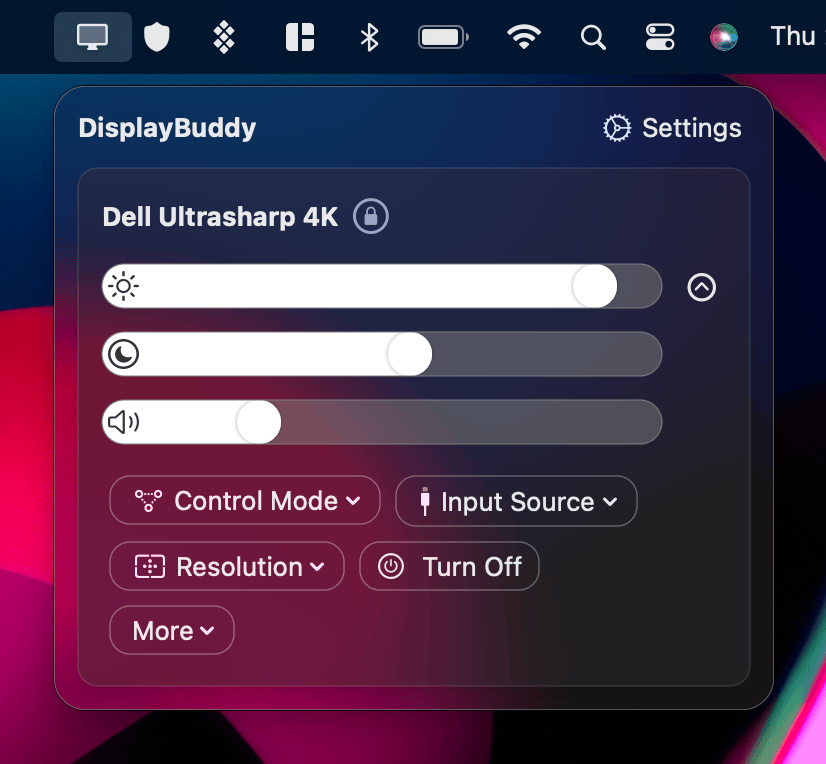
This is the gap DisplayBuddy fills. It controls brightness directly on the monitor hardware over DDC/CI (the standard control channel built into virtually every modern monitor), so you get a smooth software brightness slider, and your Mac's brightness keys start working on external displays. More importantly for night use, DisplayBuddy Schedules can dim every connected monitor automatically at sunset and bring it back up in the morning, the same way Night Shift handles color. Pair warmth (from Fix 3 or Fix 4 above) with automatic dimming, and you finally get the full evening setup: warm and dim, not warm and blinding.
A fair word on free options: MonitorControl is a free, open-source Mac app that also adjusts external brightness over DDC/CI and maps your brightness keys, and it is a genuinely good choice if manual control is all you want. The difference that matters at night is automation. MonitorControl has no scheduling, so you dim by hand every evening. DisplayBuddy's Schedules do it for you at sunset, sync brightness across every display, and work on both Mac and Windows from one license. Want a free manual slider? Use MonitorControl. Want the dimming to happen on its own? That is what DisplayBuddy adds.
| Tool | Warms Color | Dims Brightness | Auto at Sunset | Reliable on Externals |
|---|---|---|---|---|
| macOS Night Shift | Yes | No | Yes (color only) | Only if seen as a monitor |
| Monitor OSD warmth | Yes | Manual only | No | Always (hardware level) |
| f.lux / Nocturnal | Yes | No | Yes (color only) | Unreliable on Apple Silicon |
| MonitorControl (free) | No | Yes (DDC/CI) | No | Yes |
| DisplayBuddy | No | Yes (DDC/CI) | Yes (brightness) | Yes |
DisplayBuddy is not a Night Shift replacement, and it does not change color temperature. It solves the brightness side that Night Shift was never built to handle, and unlike free manual tools it dims on a schedule. If you have multiple displays, it can also sync brightness across all of them so they dim together. Not sure your monitor supports hardware control? Check the monitor compatibility tool first.
Brand-Specific Notes
The EDID classification problem is more common on some brands than others, mostly because of how each vendor writes its display identification.
Dell and LG: These are the most frequently reported in both directions. Night Shift works on some Dell and LG models out of the box and fails on others, depending on the exact panel's EDID. If yours is affected, Fix 3 (reclassify) is the typical solution. LG UltraFine displays, which Apple officially supports for Night Shift, are the exception and usually just work. DisplayBuddy users on these brands can also see our LG smart monitor on Mac guide for brightness control specifics.
Samsung: Large Samsung monitors and Smart Monitors are among the displays most often read as TVs, since Samsung shares panel and firmware lines between its monitor and television products. Reclassification (Fix 3) or the monitor's own Eye Saver / Eye Comfort mode in the OSD (Fix 4) are the go-to fixes. For brightness, see controlling a Samsung Smart Monitor from Mac.
Running two or more external monitors? A very common complaint is Night Shift applying to one external monitor but not the second, even when both are identical models. That is per-display EDID handling, and you fix each display individually with Fix 1 or Fix 3. Our multi-monitor Mac setup guide covers getting consistent behavior across a multi-display desk.
Frequently Asked Questions
Why does Night Shift work on my MacBook screen but not my external monitor?
Because macOS applies Night Shift per display, and it disables the feature for any display it classifies as a TV or projector based on the monitor's EDID identification data. Your built-in panel is always recognized as a computer display, so it warms reliably, while a third-party external monitor that reports itself like a TV gets skipped. Reclassifying the external display as a monitor (for example with BetterDisplay) usually fixes it.
How do I force Night Shift onto an external monitor?
Try these in order: turn Night Shift on, then unplug and reconnect the monitor's video cable; if you have a MacBook, run it in clamshell mode with the lid closed to force the feature onto the external screen; and if neither sticks, use a free tool like BetterDisplay to change the display's type from TV to computer monitor. If the screen still will not warm up, set a warm color temperature in the monitor's own OSD menu instead, which works regardless of how macOS classifies the display.
Does Night Shift work on unsupported monitors?
Often yes, despite Apple's short list of officially supported displays. Apple only formally lists its own displays plus the LG UltraFine 4K and 5K, but many users run Night Shift on third-party monitors without issue. Apple's own wording is that "Night Shift performance on external displays depends on the characteristics of the display," meaning it comes down to the individual monitor's EDID rather than a hard supported-or-not list. If yours is one that macOS reads as a TV, reclassifying it as a monitor is the fix.
Is there a blue light filter on Mac, and is Night Shift the only option?
Night Shift is Apple's built-in blue light filter, and it is the main option on macOS. When it will not apply to an external monitor, your alternatives are your monitor's built-in Low Blue Light or Warm color mode in the OSD, the open-source menu bar app Nocturnal, or f.lux (though f.lux hits the same Apple Silicon external-display limitation as Night Shift). For reducing eye strain overall, lowering brightness matters as much as filtering blue light, which Night Shift does not do.
Why does Night Shift turn off when my Mac wakes from sleep?
This is a known macOS quirk where the external display drops the warm profile on wake or when leaving clamshell mode, while the built-in screen keeps it. The quickest workaround is to toggle Night Shift off and back on in System Settings after each wake, which forces the external monitor to re-apply the tint. A more permanent fix is reclassifying the display as a monitor so macOS applies Night Shift to it consistently.
Does DisplayBuddy add Night Shift to external monitors?
No. DisplayBuddy does not change color temperature, so it is not a Night Shift replacement. What it does is control external monitor brightness over DDC/CI and dim your displays automatically on a sunset schedule, which is the part Night Shift cannot do. The recommended setup is to fix the warmth using the steps in this guide (display reclassification or your monitor's OSD), then use DisplayBuddy to handle automatic dimming for full evening comfort.
Is DisplayBuddy worth paying for when MonitorControl is free?
If you only need to set brightness by hand, MonitorControl is a free, open-source option that handles DDC/CI brightness and the Mac brightness keys well. DisplayBuddy is a paid app that adds what MonitorControl does not: automatic sunset dimming and other time and event based Schedules, brightness sync across monitors, full display Presets, and support for both Mac and Windows on a single license. For the specific goal of dimming your external monitor automatically at night, DisplayBuddy's Schedules are the deciding feature. For purely manual control, MonitorControl is enough.
Will reducing blue light actually help me sleep?
Research suggests that exposure to bright blue light in the evening can affect circadian rhythms and make it harder to fall asleep, which is why Apple built Night Shift. Warming your display's color is part of the picture, but overall screen brightness in a dark room matters too. For the best result at night, combine a warmer color temperature with lower brightness rather than relying on color shift alone.
Related Guides
DisplayBuddy
for macOS 10.13+
Take control of your monitors
Control brightness, contrast, volume, and much more.
Buy NowLifetime license • 7-day refund on full-price purchases