How to Change Huawei Monitor Brightness Without the Buttons (macOS)
Control Huawei monitor brightness from macOS without the OSD menu. Keyboard shortcut, presets, and multi-monitor sync, with DisplayBuddy.
📖 Complete Guide: For the full guide to controlling external monitor brightness on Mac, including troubleshooting and solutions for all scenarios, see: How to Control External Monitor Brightness on Mac
Are you on macOS, using a Huawei monitor? Ever wish you could change the brightness without reaching for the buttons behind your monitor?
The Huawei OSD is the kind of menu nobody wants to navigate - tiny labels, awkwardly placed buttons, and a joystick that flicks the wrong direction half the time. There is a faster way.
Effortlessly Adjust Your Huawei Monitor's Brightness
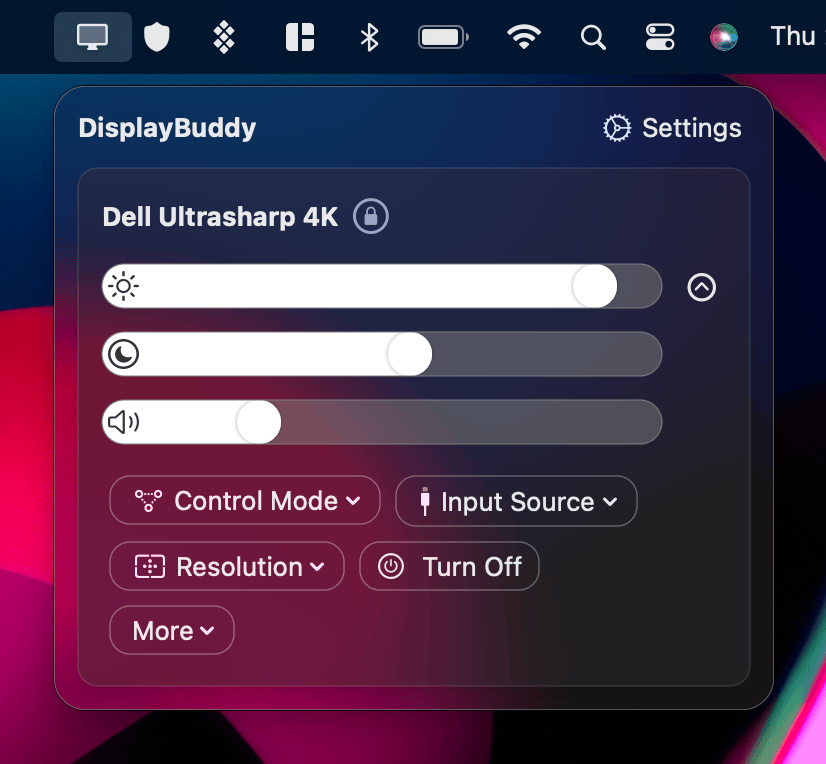
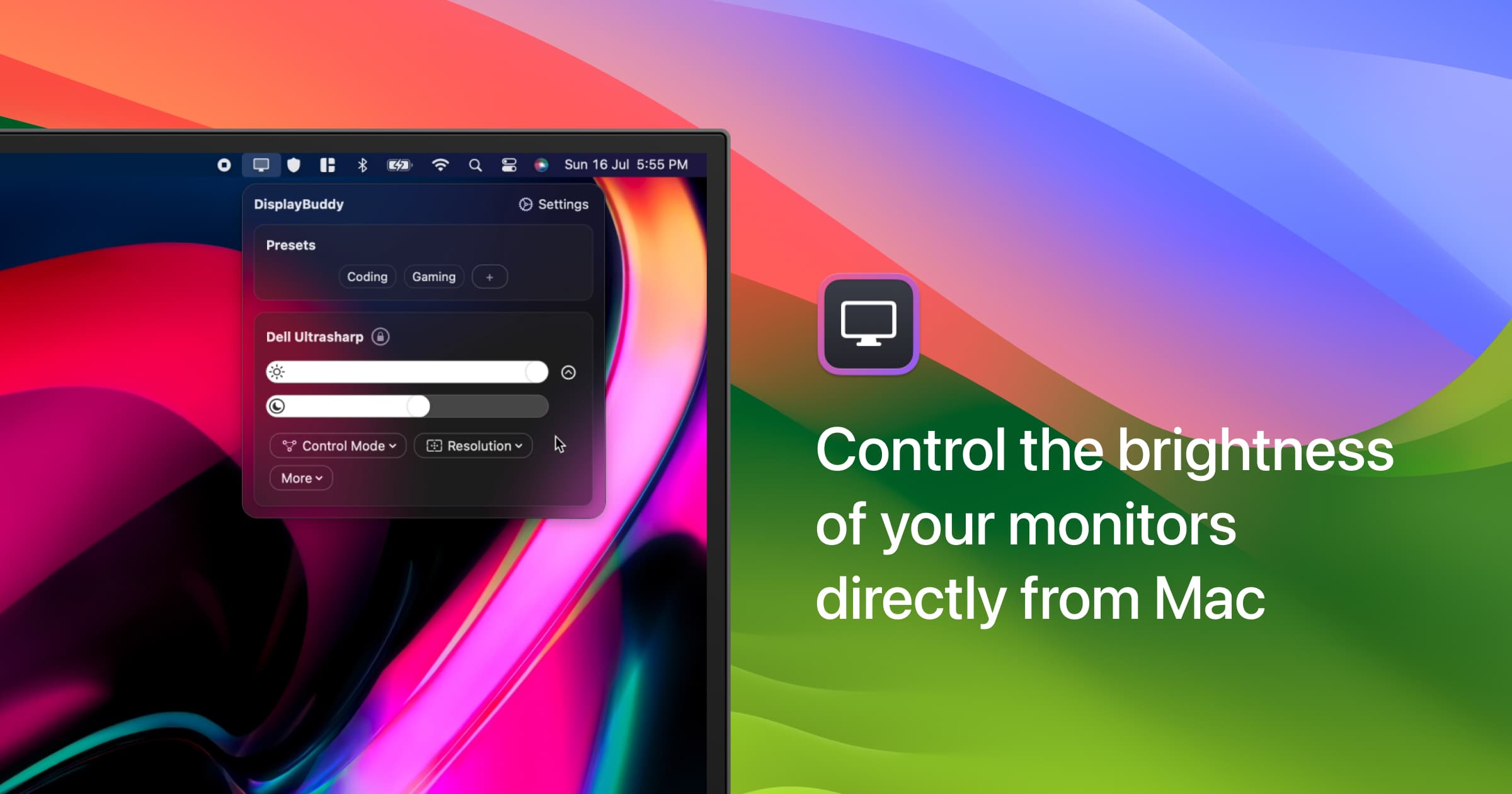
DisplayBuddy is the smarter way to control your monitors. It talks to your Huawei display over DDC/CI so you can adjust brightness from macOS directly - no OSD, no fumbling, no immersion break.
How to Change Your Huawei Monitor's Brightness Without the Buttons
- Download DisplayBuddy and install it on your macOS machine. The free trial gives you full control of every connected display.
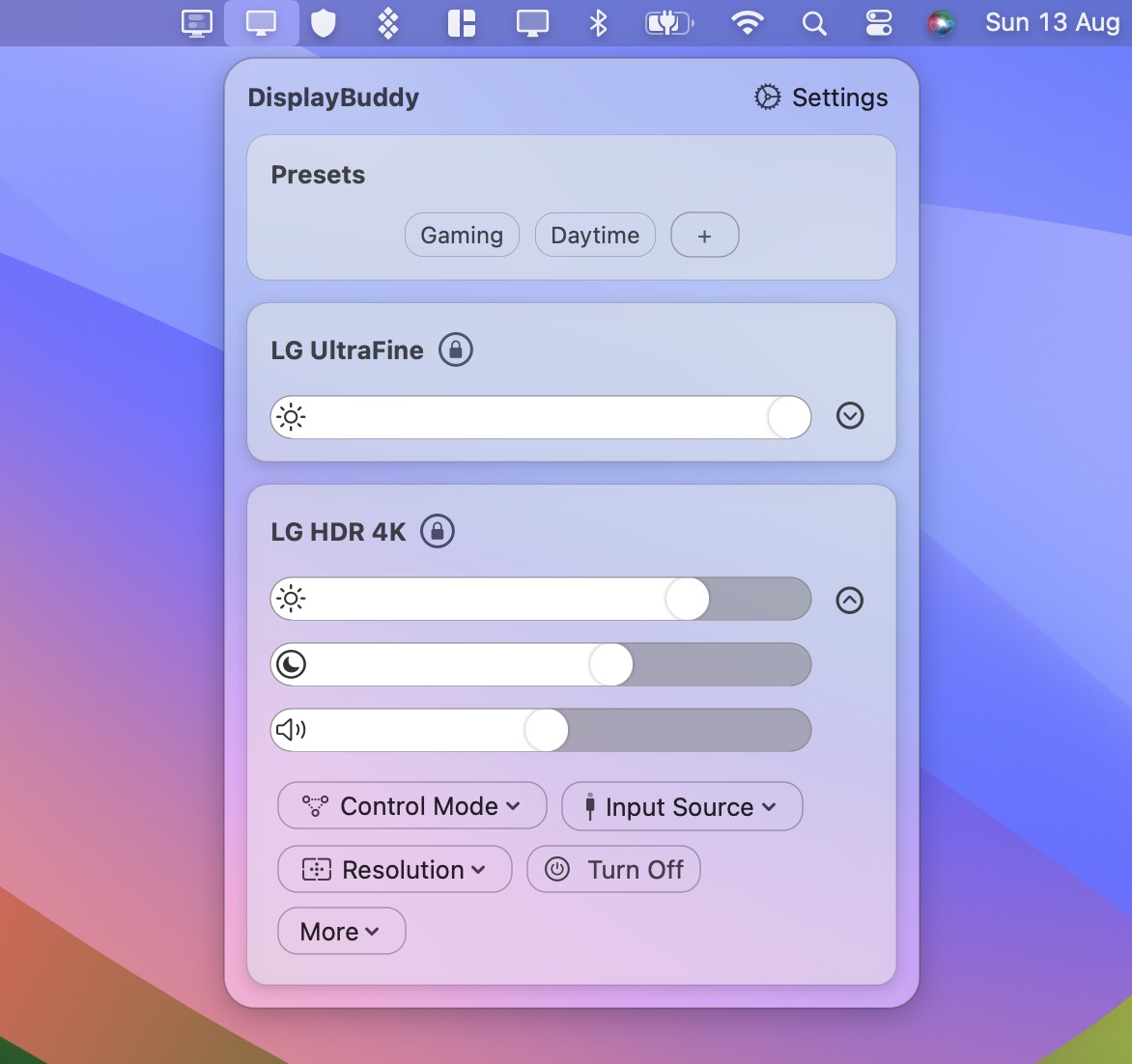
- Open DisplayBuddy. Your Huawei monitor appears automatically in the menu bar - no driver install, no OSD trip needed.
- Adjust the brightness slider or assign a keyboard shortcut for one-tap control. Changes apply instantly, even mid-game or mid-call.
Brightness Control Made Easy
Here's how DisplayBuddy upgrades your brightness control:
- Effortless adjustments: change your monitor brightness with a few clicks.
- Brightness keys for external displays: your Mac's F1/F2 keys control your Huawei monitor the same way they control a built-in display.
- Multi-monitor sync: set one display as the source and the rest follow brightness changes automatically.
- Presets: save a full multi-monitor state and switch back to it with one click - Work, Movie, Night, Gaming.
Example: imagine you're working late. With DisplayBuddy, a single click activates your Night preset, instantly lowering brightness and softening contrast across every monitor in your setup.
Common Huawei Monitor Brightness Issues - and Quick Fixes
- Huawei brightness slider not appearing? Check that DDC/CI is enabled in the monitor's OSD - it's on by default on most Huawei models, but a factory reset can switch it off. Look under Settings → Other → DDC/CI.
- Brightness greyed out or "not available"? On Windows this usually means HDR is on, which locks the standard DDC/CI brightness control. DisplayBuddy detects this and falls back to software dimming so you keep full range without leaving HDR.
- Brightness resets after sleep or wake? A known DDC/CI quirk on macOS - the monitor drops its last value when the link re-handshakes. DisplayBuddy re-applies your last brightness automatically the moment the display reconnects.
- Brightness changes lag through a USB-C dock? Some Thunderbolt and USB-C docks drop DDC/CI commands. Try a direct cable to confirm, then enable Slow DDC in DisplayBuddy if you want to keep the dock.
Top Huawei Models Supported by DisplayBuddy
DisplayBuddy has been tested with a wide range of monitors across multiple brands. It works even if you have multiple monitors of different brands in your setup.
Here are some of the Huawei monitor models that DisplayBuddy can seamlessly control on macOS:
- MateView
- ZQE-CAA
- ZQE-CBA
- HUAWEI AD80HW
- SSN-24
- XWU-CBA
- VE248
Of course, DisplayBuddy can control a lot more Huawei models than the short list above, so there's no harm in trying it out - if it doesn't work with your monitor, you get a full refund within 7 days on full-price purchases, no questions asked.
DisplayBuddy does a lot more
You can do a lot more with DisplayBuddy than just controlling monitor brightness:
- Control the real brightness, contrast and volume of your monitors - and use keyboard brightness and volume keys.
- Sync controls across multiple displays - make every monitor follow one monitor's brightness or contrast.
- Create Presets - save settings across multiple displays and restore them with a single click.
- Use Siri to control your monitors - "Hey Siri, set all my displays to 80% brightness".
- Simple, intuitive design that works on macOS Big Sur and above, and Windows 10 and 11.
And so much more. Here's the full list of things you can do with DisplayBuddy.
Huawei Monitor Brightness on macOS - FAQ
Why can't I change my Huawei monitor's brightness?
The usual causes are DDC/CI being disabled in the monitor's OSD, an HDR session locking the brightness slider on Windows, a picture mode preset overriding manual control, or a USB-C dock dropping DDC commands. DisplayBuddy detects each of these and either works around them automatically or tells you exactly which OSD setting to flip.
How do I adjust Huawei monitor brightness from my Mac keyboard?
Install DisplayBuddy, open Preferences, and map your Mac's F1 and F2 keys (or any combo) to brightness or volume. The keys then control your Huawei display the same way they control a built-in MacBook screen. The brightness keys guide walks through the exact setup.
Does DisplayBuddy work with HDR on my Huawei monitor?
Yes. When HDR is active the standard DDC/CI brightness slider usually locks (especially on Windows). DisplayBuddy detects this and switches to a software dimming fallback so you can still adjust perceived brightness without turning HDR off.
Will this work for every Huawei monitor model?
DisplayBuddy works with any Huawei monitor that supports DDC/CI, which covers most models from the past several years. The list above shows what we have explicitly tested. If your specific Huawei model is not supported, you get a full refund within 7 days on full-price purchases, no questions asked.
Is DisplayBuddy free?
DisplayBuddy is a one-time paid app with a free trial. One license covers both Mac and Windows, and there is a 7-day refund window on full-price purchases.
Can DisplayBuddy sync brightness across multiple Huawei monitors?
Yes. Set one display as the source and DisplayBuddy will follow brightness changes across every Huawei (or other brand) monitor in your setup. You can also save the full multi-monitor state as a Preset and switch back to it in one click.
Related Huawei Guides
- Control Huawei monitor contrast on macOS
- Control Huawei monitor volume on macOS
- Control Huawei monitor brightness on Windows
- Control external monitor brightness on Mac (full guide)
- Use your Mac brightness keys for external monitors
DisplayBuddy
for macOS 10.13+
Take control of your monitors
Control brightness, contrast, volume, and much more.
Buy NowLifetime license • 7-day refund on full-price purchases