Best Monitor Control Software for Windows (2026)
Best Windows monitor control apps in 2026. DisplayBuddy vs Monitorian, Twinkle Tray, Dell DDPM, LG OnScreen compared on DDC/CI, HDR, presets.
Windows lets you slide brightness on a laptop. Plug in an external monitor from Dell, LG, Samsung, or any other brand, and the system slider is gone. The only thing left is the joystick or buttons on the back of the monitor.
That is the problem monitor control software solves on Windows. These apps use a protocol called DDC/CI to talk directly to your monitor's hardware, giving you control over brightness - and on some apps, contrast, volume, and input source - from a system tray slider or hotkey.
We tested every major Windows monitor control app available in 2026. Here is how they compare.
TL;DR: DisplayBuddy is the most complete Windows monitor control app on this list - full DDC/CI control (brightness, contrast, volume, input) across every brand, plus presets, sync, schedules, hotkeys, and Samsung & LG Smart Monitor Wi-Fi. No monitor cap - users have run it across 8+ displays in a single setup, and one license covers both Windows and Mac. Monitorian is a widely-used open-source Microsoft Store app for brightness and contrast on up to four monitors. Twinkle Tray adds time-based scheduling and hotkeys on top of brightness control. On Mac? See our Mac guide.
How DDC/CI Monitor Control Works on Windows
External monitors support a protocol called DDC/CI, short for Display Data Channel / Command Interface. It lets Windows send commands over the display cable (HDMI, DisplayPort, USB-C) to adjust hardware settings like brightness, contrast, volume, and input source directly on the monitor.
This is different from software dimming, which overlays a dark filter on your screen. Software dimming washes out colors and does not actually reduce backlight power. DDC/CI controls the real backlight, which preserves color accuracy and saves energy.
One Windows-specific catch: when Windows HDR is enabled, the OS takes exclusive control of the display pipeline and DDC/CI brightness stops working in most apps. Monitorian v4.12 added an experimental SDR brightness slider to mitigate this, but there is no clean general workaround.
Windows Monitor Control Apps Compared
| Feature | DisplayBuddy | Monitorian | Twinkle Tray | Dell DDPM | LG OnScreen |
|---|---|---|---|---|---|
| DDC/CI Brightness | ✅ | ✅ | ✅ | ✅ Dell only | ✅ LG only |
| Contrast Control | ✅ | ✅ | ❌ | ✅ | ❌ |
| Volume Control | ✅ | ❌ | ❌ | ❌ | ❌ |
| Input Switching | ✅ | ❌ | ❌ | ✅ | ❌ |
| Keyboard Hotkeys | ✅ | ❌ | ✅ | ❌ | ❌ |
| Presets | ✅ All settings | ❌ | ❌ | ⚠️ Auto Mode only | ⚠️ Per-app only |
| Sync Across Monitors | ✅ | ✅ Unison mode | ✅ Link sliders | ❌ | ❌ |
| Window Management | ❌ | ❌ | ❌ | ✅ Easy Arrange | ✅ Screen Split |
| HDR-Friendly DDC | ✅ | ⚠️ v4.12 SDR slider | ❌ | ⚠️ | ⚠️ |
| Free Monitor Cap | None | 4 (paid add-on removes) | None | None | None |
| Works With Any Brand | ✅ | ✅ | ✅ | ❌ Dell only | ❌ LG only |
DisplayBuddy (Windows and Mac)
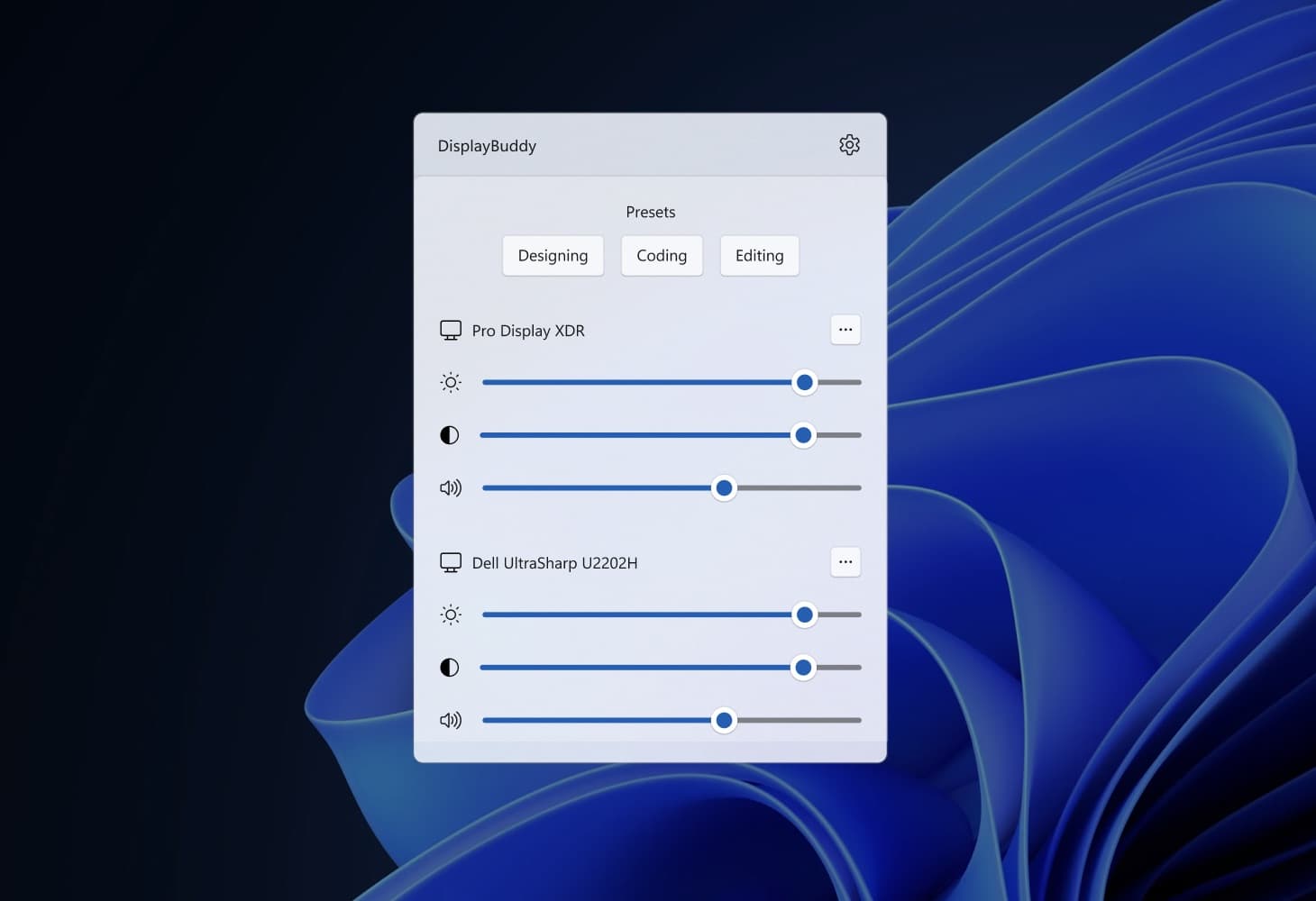
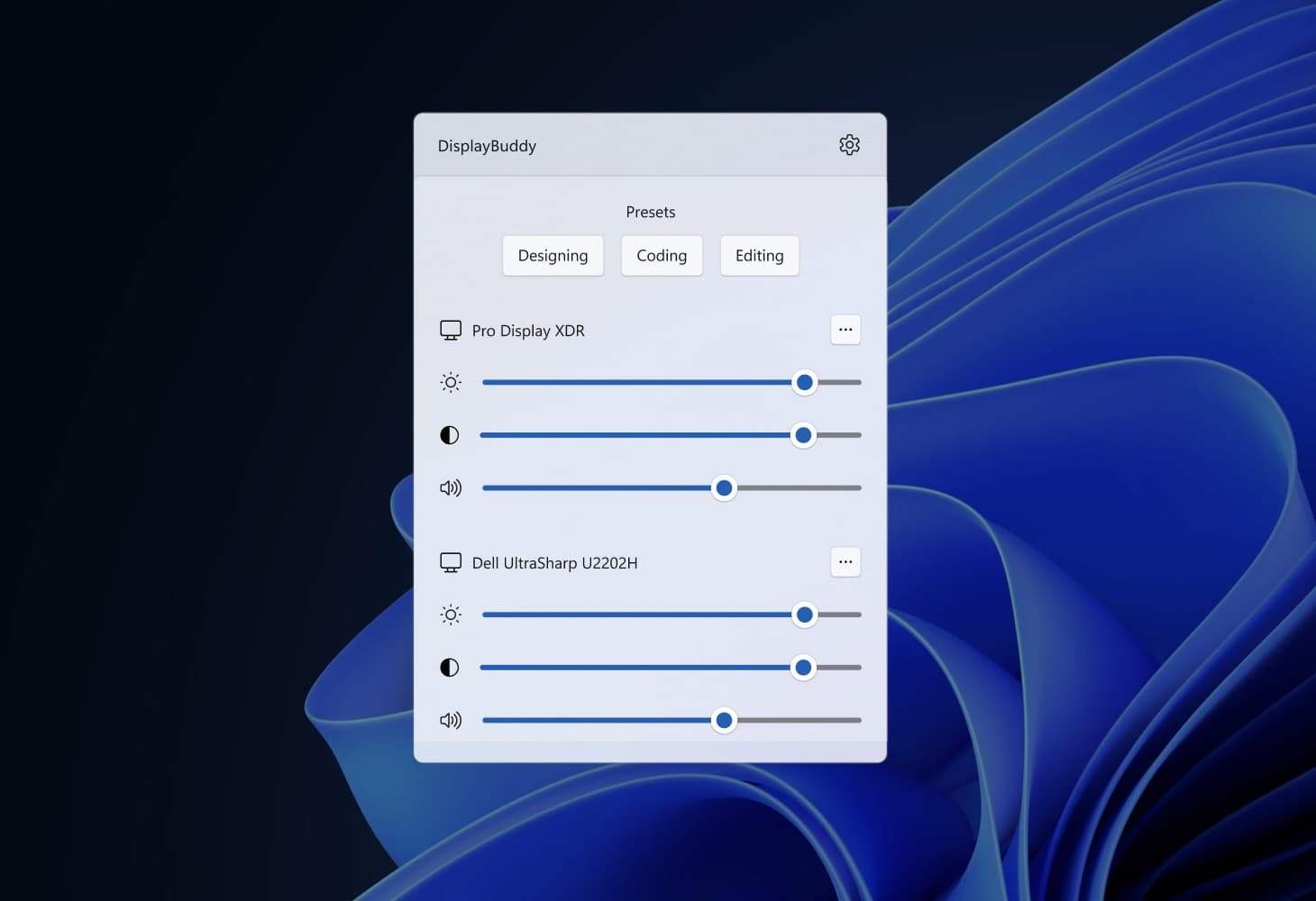
DisplayBuddy is a monitor control app for Windows and Mac that gives you hardware-level control over brightness, contrast, volume, and input source on any DDC/CI-compatible external monitor. It is the only app on this list that works on both Windows and Mac with a single license.
Key features:
- DDC/CI brightness, contrast, volume, and input source control for Dell, LG, Samsung, BenQ, ASUS, ViewSonic, HP, AOC, MSI, and any DDC/CI-compatible monitor
- Real brightness control of all Apple Displays (Studio Display 1st (2022) and 2nd Gen (2026), Studio Display XDR and Pro Display XDR)
- Presets: Save your complete display configuration (brightness, contrast, volume, input source, display arrangement) and switch with one click
- Sync: Adjust brightness across all connected monitors simultaneously with one slider
- Keyboard hotkeys for brightness, contrast, and volume
- CLI support for automation and scripting
Where it shines: Presets, sync, and schedules in one Windows app. Real brightness control of all Apple Displays (Studio Display 1st and 2nd Gen, Studio Display XDR and Pro Display XDR) Cross-platform: available for both Windows and Mac. Polished windows app which feel native to Windows 11.
Where it falls short: No free tier (7-day free trial only). No window management features (Easy Arrange-style snapping).
Pricing: One-time lifetime license with 7-day free trial.
Learn more about DisplayBuddy's Presets, Sync, and Schedules.
Monitorian
Monitorian is a widely-used open-source Windows monitor control app (MIT license). It is available from GitHub.
Key features:
- DDC/CI brightness and contrast control for multiple monitors
- Adjust all monitors in unison or individually
- System tray icon with brightness sliders
- Supports up to 4 monitors in the free version (a paid Microsoft Store add-on removes the limit)
Where it shines: It is lightweight and does basic brightness and contrast control on Windows.
Where it falls short: No volume control (a frequently requested feature on GitHub). No input switching. No presets or schedules. Brightness resets to 100% after restart or resume for some users. When Windows HDR is enabled, DDC brightness behaves differently - a v4.12 experimental SDR slider helps mitigate this. The free build is capped at 4 monitors.
Read our full DisplayBuddy vs Monitorian comparison →
Twinkle Tray
Twinkle Tray is an open-source brightness control app for Windows 10 and 11. It sits in the system tray and provides brightness sliders for connected monitors.
Key features:
- DDC/CI brightness control
- System tray brightness sliders
- Keyboard hotkeys for brightness adjustment
- Time-based brightness scheduling
- Link monitors to adjust brightness together
Where it shines: Clean, simple interface with time-based scheduling that Monitorian lacks. Hotkey support is convenient for quick adjustments without opening the app.
Where it falls short: No contrast control, no volume control, no input switching. HDR support is the most requested feature on GitHub (89+ comments) and still not available. Some users report high CPU usage and compatibility issues with AMD graphics drivers. Dell monitors have been reported to become unresponsive after DDC commands from Twinkle Tray, requiring a full power cycle. No Apple Display Control except the original Studio Display from 2022.
Read our full DisplayBuddy vs Twinkle Tray comparison →
Dell Display and Peripheral Manager (Dell Monitors Only)
Dell Display and Peripheral Manager (DDPM, formerly Dell Display Manager) is Dell's first-party Windows utility. The Windows build is the most polished version of the app — more stable than the Mac build and more feature-complete — but "polished" is relative. The interface still feels like enterprise IT software: nested settings panels, modal dialogs, and a workflow that requires more clicks than a dedicated monitor control app for basic tasks like adjusting brightness.
Key features:
- DDC/CI brightness and contrast control for Dell monitors
- Input source switching
- Easy Arrange for window snapping into preset layouts
- KVM switching for supported Dell monitors
- Auto Mode to apply color presets, brightness, and contrast per application
Where it shines: If every monitor on your desk is Dell, DDPM is a capable free option on Windows. Easy Arrange is a solid window manager. KVM switching through the app is unique. Auto Mode handles per-app color profile changes that no other monitor control app on this list offers.
Where it falls short: Dell monitors only — does not work with any other brand. The UI is heavy and unintuitive for simple brightness changes: you need to navigate through multiple tabs and panels to reach controls that dedicated apps put in a system tray slider. DDPM runs as a background service that users report consuming noticeable CPU and memory, even when idle — it continuously polls connected displays. Audio settings were removed in DDPM v2.0, so volume control over DDC is no longer available. No quick-switch preset for full multi-monitor configurations and no brightness sync across displays.
Read our full DisplayBuddy vs Dell Display Manager comparison →
LG OnScreen Control (LG Monitors Only)
LG OnScreen Control is LG's first-party Windows utility for LG monitors. The Windows build is better than the Mac version (it is at least native), but the interface still feels like a legacy desktop app: cluttered panels, small unlabeled icons, and a design language that has not been updated to match Windows 11.
Key features:
- Basic display settings control for LG monitors
- Screen Split for window management with multiple layout presets
- My Display Presets for saving settings per application
- Dual Controller for KVM-like functionality between two PCs
Where it shines: Screen Split on a LG ultrawide is genuinely useful, and the Windows build is native (no Rosetta-style overhead). Dual Controller is a clever bonus for two-PC setups.
Where it falls short: LG monitors only. The UI is cluttered and visually outdated — adjusting brightness requires navigating through panels rather than a quick system tray slider. Users report the app consuming significant background resources, with some noting it slows down system responsiveness even when idle. Brightness and contrast control via OnScreen Control is limited compared to dedicated DDC/CI apps. No keyboard shortcut support. No sync across monitors. No scheduling. Many users report the app failing to detect their LG monitor entirely on first install, and the app has been reported to interfere with full-screen games by stealing window focus.
Read our full DisplayBuddy vs LG OnScreen Control comparison →
Common Problems with Windows Monitor Control Software
Monitor control on Windows depends on DDC/CI, and DDC/CI is not always reliable. Here are the most common issues, based on forum reports and GitHub issues across every Windows app in this list.
DDC/CI Not Detected
The most common problem. Your app says "no compatible displays found" even though your monitor supports DDC/CI.
Fixes: Enable DDC/CI in your monitor's on-screen display menu (many monitors ship with it off). Try a different cable or port. DisplayPort is the most reliable for DDC on Windows; HDMI sometimes drops DDC after sleep. Avoid display adapters and docks when possible, as many block DDC passthrough.
Windows HDR Breaks DDC Brightness
When Windows HDR is enabled, the OS takes exclusive control of the display pipeline and DDC/CI brightness commands stop working. This affects Monitorian, Twinkle Tray, and most other Windows DDC apps. Monitorian's v4.12 added an experimental SDR brightness slider that helps mitigate this. There is no clean general workaround today - turn HDR off when you need DDC brightness control.
Wake-from-Sleep Failures
After Windows wakes from sleep, DDC/CI connections sometimes fail to re-establish. Brightness sliders stop working until you restart the app or unplug and replug the monitor. This has been reported across Monitorian and Twinkle Tray.
Brightness Resets to 100% After Restart
Some Monitorian users report that brightness resets to 100% after a restart or resume. A workaround is to set brightness via the app immediately after wake.
AMD Graphics Driver Conflicts
Twinkle Tray users on AMD Radeon systems have reported that the AMD Radeon Software Control Panel interferes with DDC commands. Disabling AMD's display features (or switching the active graphics adapter) sometimes restores DDC control.
Brand-Specific Quirks
- Dell monitors: Some users report their Dell display becomes unresponsive after DDC commands from Twinkle Tray, requiring a full power cycle.
- Samsung & LG Smart Monitors: Standard DDC/CI apps cannot control Samsung & LG Smart Monitors. DisplayBuddy is currently the only Windows app that controls them, via Wi-Fi.
For brand-specific guides, see our monitor control guides for every brand.
How to Choose the Right Windows Monitor Control App
Check your monitor brand:
- Only Dell monitors → Dell DDPM has brightness, contrast, input, Easy Arrange, and KVM.
- Only LG monitors → LG OnScreen Control for Screen Split window management; pair it with Monitorian or DisplayBuddy if OSC's brightness control is unreliable on your monitor model.
- Samsung & LG Smart Monitor → DisplayBuddy is the only Windows app that controls them, over Wi-Fi.
- Any other brand or mixed brands → DisplayBuddy, Monitorian, or Twinkle Tray.
Match your feature needs:
- Just brightness control → Monitorian (simple) or Twinkle Tray (adds hotkeys + time scheduling).
- Brightness + contrast → Monitorian or DisplayBuddy.
- Brightness + contrast + volume + input → DisplayBuddy.
- Save and restore full multi-monitor setups → DisplayBuddy (Presets).
- Time-of-day brightness automation → Twinkle Tray or DisplayBuddy (Schedules).
- Running Windows HDR → no app fully solves this today. Monitorian's v4.12 experimental SDR slider is the closest workaround; otherwise disable HDR when you need DDC brightness control.
Also use Windows at home with a Mac? DisplayBuddy covers both platforms with one license. See the Mac version of this guide for the full Mac lineup.
Windows Monitor Control FAQ
What is DDC/CI and why does it matter for Windows monitor control?
DDC/CI (Display Data Channel / Command Interface) is a protocol that lets your PC communicate with your monitor over the display cable. It allows software to control hardware settings like brightness, contrast, volume, and input source directly on the monitor. Without DDC/CI, apps can only simulate brightness changes with a dark software overlay, which washes out colors and does not actually reduce backlight power. Most modern monitors support DDC/CI, but some ship with it disabled in the on-screen display menu.
What is the best free monitor control app for Windows?
Monitorian is a widely-used open-source choice for brightness and contrast control, while Twinkle Tray adds time-based scheduling and keyboard hotkeys on top of brightness control. Both are open-source (MIT). Neither handles volume, input switching, or HDR cleanly. If you need those, look at DisplayBuddy (paid, 7-day free trial).
Why does my Windows monitor brightness slider stop working when HDR is on?
When Windows HDR is enabled, the OS takes exclusive control of the display pipeline and DDC/CI brightness commands stop working in most apps. Monitorian's v4.12 added an experimental SDR brightness slider to mitigate this. The cleanest workaround across all current apps is to disable HDR when you need DDC brightness control.
Does Windows monitor control software work with every monitor?
It works with any monitor that supports DDC/CI, which includes most modern external displays from Dell, LG, Samsung, BenQ, ASUS, HP, and other brands. Some monitors ship with DDC/CI disabled; check your monitor's on-screen menu to enable it. Monitors connected through certain docks, adapters, or KVM switches may block DDC commands. DisplayPort is generally the most reliable for DDC on Windows.
What is the best Windows monitor control app for multiple monitors?
DisplayBuddy is the strongest choice for multi-monitor Windows setups. Its Presets feature saves the complete configuration of all connected monitors and restores it with one click. Its Sync feature adjusts brightness across all monitors simultaneously. Monitorian and Twinkle Tray can also link monitors for simultaneous brightness adjustment, but without the full configuration saving that Presets provides. Monitorian's free build is capped at 4 monitors.
What is the difference between hardware and software brightness control?
Hardware brightness control (via DDC/CI) adjusts the actual backlight LEDs inside your monitor. Colors stay accurate, contrast ratios are preserved, and you save energy at lower brightness. Software brightness control overlays a dark filter on your screen, which reduces perceived brightness but washes out colors and does not reduce backlight power. Apps like DisplayBuddy, Monitorian, and Twinkle Tray use hardware DDC/CI control.
What is the best monitor control app for Dell or LG monitors on Windows?
If you only use Dell monitors on Windows, Dell DDPM is a strong free option with brightness, contrast, input, Easy Arrange, and KVM. If you only use LG monitors, LG OnScreen Control offers Screen Split and basic display settings. If you use Dell or LG monitors alongside other brands, or want features like presets, sync, and schedules, DisplayBuddy works with every monitor brand. See: DisplayBuddy vs Dell Display Manager and DisplayBuddy vs LG OnScreen Control.
Compare DisplayBuddy With Every Windows App
See the Mac version of this guide → · All monitor control guides →
DisplayBuddy
for Windows 10 or 11
Take control of your monitors
Control brightness, contrast, volume, and much more.
Get DisplayBuddy on the Microsoft Store