Best Monitor Control Software for Mac (2026)
Best Mac monitor control apps in 2026. DisplayBuddy vs MonitorControl, Lunar, BetterDisplay, and more compared on DDC/CI, presets, sync, XDR.
macOS gives you a brightness slider for your built-in MacBook display. Plug in an external monitor from Dell, LG, Samsung, or any other brand, and macOS leaves you stranded. The F1 and F2 keys do nothing. There is no system slider. The only way to adjust brightness is to reach behind the monitor and stab at tiny buttons.
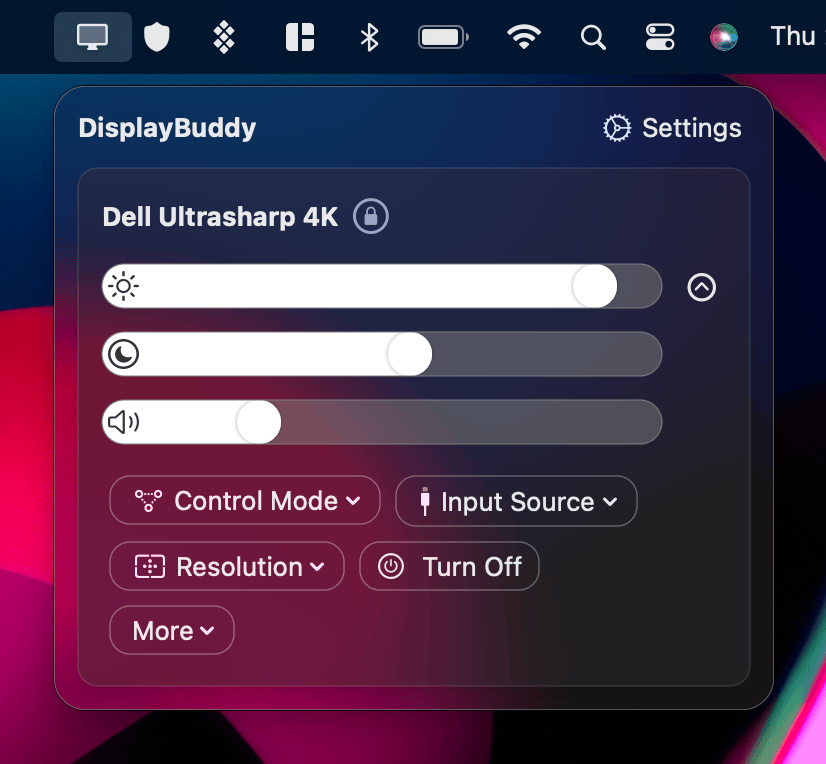
That is the problem monitor control software solves. These apps use a protocol called DDC/CI to talk directly to your monitor's hardware, giving you control over brightness, contrast, volume, and input source from your Mac.
We tested every major Mac monitor control app available in 2026. Here is how they compare.
TL;DR: DisplayBuddy is the most complete Mac monitor control app on this list - full DDC/CI control (brightness, contrast, volume, input) across every brand, plus presets, sync, schedules, Samsung & LG Smart Monitor Wi-Fi, Siri, widgets, and Apple Shortcuts. No monitor cap - users have run it across 8+ displays in a single setup. MonitorControl is a widely-used open-source alternative for basic brightness, contrast, and volume on a couple of external monitors. Lunar is the pick for ambient-light sensor and sub-zero dimming automation, and BetterDisplay is the power-user tool for HiDPI scaling, virtual displays, and EDID overrides. On Windows? See our Windows guide.
How DDC/CI Monitor Control Works on Mac
External monitors support a protocol called DDC/CI, short for Display Data Channel / Command Interface. It lets your Mac send commands over the display cable (HDMI, DisplayPort, USB-C) to adjust hardware settings like brightness, contrast, volume, and input source directly on the monitor.
This is different from software dimming, which overlays a dark filter on your screen. Software dimming washes out colors and does not actually reduce backlight power. DDC/CI controls the real backlight, which preserves color accuracy and saves energy.
Most monitors ship with DDC/CI enabled, but some brands disable it by default. If a monitor control app says "no compatible displays found," check your monitor's on-screen menu for a DDC/CI toggle and enable it.
For a deeper explanation of how this works on Mac, see our guide to controlling external monitor brightness on Mac. To set up keyboard brightness keys with any external monitor, see how to use brightness keys with external displays.
Mac Monitor Control Apps Compared
| Feature | DisplayBuddy | MonitorControl | Lunar | BetterDisplay | Dell DDM | LG OnScreen | BrightIntosh | Vivid |
|---|---|---|---|---|---|---|---|---|
| Apple Silicon Native | ✅ | ✅ | ✅ | ✅ | ✅ | ❌ Rosetta | ✅ | ✅ |
| DDC/CI Brightness | ✅ | ✅ | ✅ | ✅ | ✅ Dell only | ✅ LG only | ❌ | ❌ |
| Contrast Control | ✅ | ✅ | ✅ | ✅ | ✅ | ❌ | ❌ | ❌ |
| Volume Control | ✅ | ✅ | ✅ | ✅ | ❌ | ❌ | ❌ | ❌ |
| Input Switching | ✅ | ❌ | ✅ | ✅ | ✅ | ❌ | ❌ | ❌ |
| Keyboard Brightness Keys | ✅ | ✅ | ✅ | ✅ | ❌ | ❌ | ✅ Custom shortcut | ✅ Custom shortcut |
| Presets | ✅ All settings | ❌ | ✅ App + Custom | ⚠️ Config protection | ⚠️ Auto Mode only | ⚠️ Per-app only | ❌ | ❌ |
| Sync Across Monitors | ✅ | ❌ | ✅ | ✅ Display groups | ❌ | ❌ | ❌ | ❌ |
| Schedules / Automation | ✅ Time, battery, events | ❌ | ✅ Location, sensor | ❌ | ❌ | ❌ | ⚠️ Battery only | ❌ |
| Window Management | ❌ | ❌ | ❌ | ❌ | ✅ Easy Arrange | ✅ Screen Split | ❌ | ❌ |
| XDR Brightness Unlock | ✅ UltraBright | ❌ | ✅ | ✅ | ❌ | ❌ | ✅ | ✅ |
| Samsung & LG Smart Monitor | ✅ Wi-Fi control | ❌ | ❌ | ❌ | ❌ | ❌ | ❌ | ❌ |
| Siri / Voice Control | ✅ | ❌ | ❌ | ❌ | ❌ | ❌ | ❌ | ❌ |
| macOS Widgets | ✅ | ❌ | ❌ | ❌ | ❌ | ❌ | ❌ | ❌ |
| Apple Shortcuts | ✅ | ❌ | ⚠️ via CLI | ✅ | ❌ | ❌ | ❌ | ❌ |
| Open Source | ❌ | ✅ | ⚠️ Partial | ❌ | ❌ | ❌ | ✅ | ❌ |
| Works With Any Brand | ✅ | ✅ | ✅ | ✅ | ❌ Dell only | ❌ LG only | N/A | N/A |
DisplayBuddy (Mac and Windows)
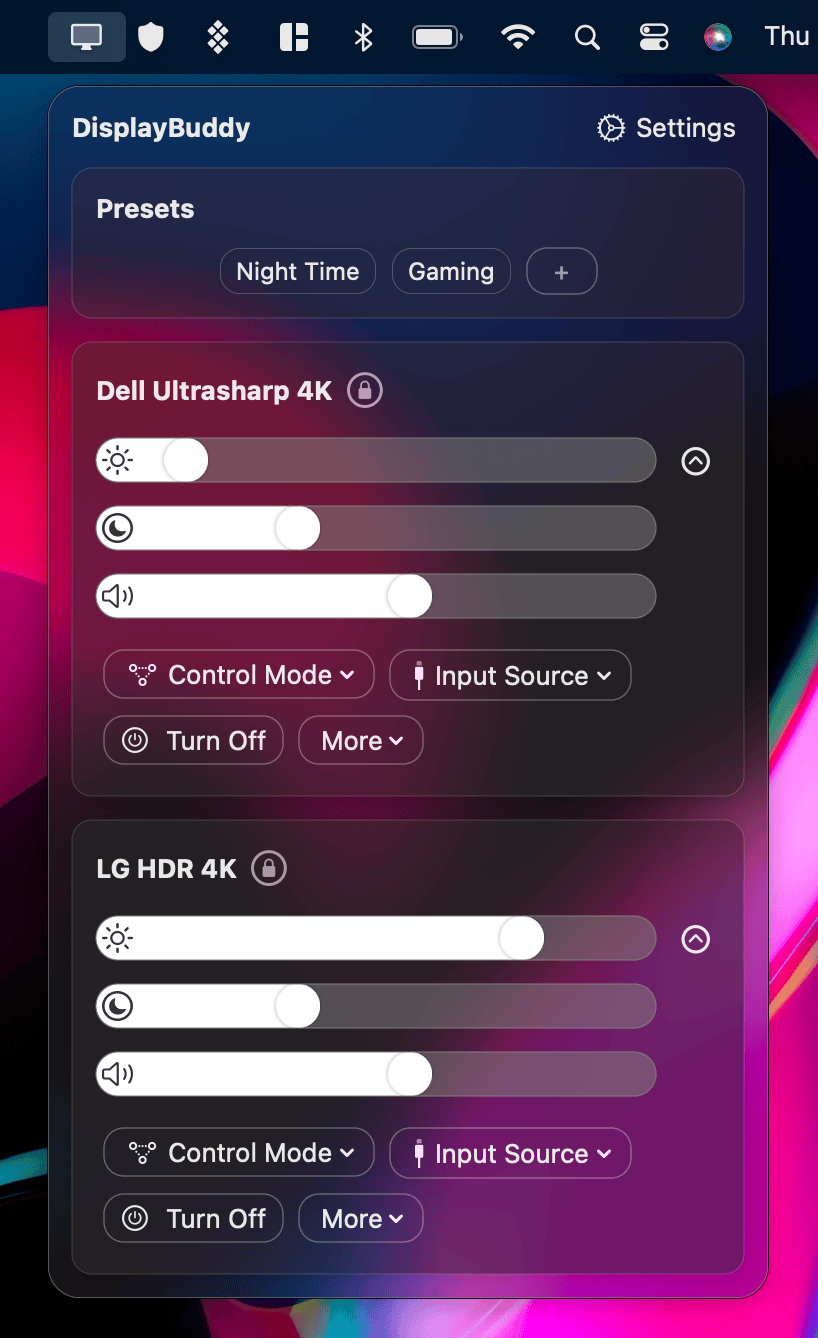
DisplayBuddy is a monitor control app for Mac and Windows that gives you hardware-level control over brightness, contrast, volume, and input source on any DDC/CI-compatible external monitor. It is the only app on this list that works on both platforms with a single license.
Key features:
- DDC/CI brightness, contrast, volume, and input source control for Dell, LG, Samsung, BenQ, ASUS, ViewSonic, HP, AOC, MSI, and any DDC/CI-compatible monitor
- Presets: Save your complete display configuration (brightness, contrast, volume, input source, display arrangement, resolution, rotation) and switch with one click. This is DisplayBuddy's most-used feature.
- Sync: Adjust brightness across all connected monitors simultaneously with one slider
- Schedules: Automate display settings based on time of day, battery level, and system events
- Mac keyboard brightness and volume keys work on external monitors
- Siri voice control, macOS Widgets, Spotlight integration, Apple Shortcuts
- Samsung & LG Smart Monitor support (M5, M7, M8, ViewFinity S9) over Wi-Fi
- UltraBright mode for Apple XDR displays
- CLI support for automation and scripting
Where it shines: The combination of presets, sync, and schedules is unique. No other app lets you save your entire multi-monitor setup and restore it with one click. Cross-platform support is also unique: switch between a Mac at home and a Windows PC at work, and one license covers both.
Where it falls short: No free tier. No window management (it controls display settings, not app window positions). No sub-zero software dimming. No ambient light sensor automation.
Pricing: One-time lifetime license. 7-day money-back guarantee on Mac, 7-day free trial on Windows.
Learn more about DisplayBuddy's Presets, Sync, and Schedules.
MonitorControl (Mac)
MonitorControl is a free monitor control app on Mac, but it's not maintained anymore. It is open-source (MIT license) and available via Homebrew or direct download from GitHub.
Key features:
- DDC/CI brightness, contrast, and volume control
- Mac keyboard brightness and volume keys work on external monitors
- Gamma table fallback for monitors that do not support DDC/CI
- Menu bar slider for quick adjustments
- Supports Apple's native display protocol for built-in screens
Where it shines: It is free, open-source, and does the basics well. The native macOS OSD integration feels polished. If you just need brightness, contrast, and volume control on one or two external monitors and do not want to pay for anything, MonitorControl is the go-to choice.
Where it falls short: The project is not maintained anymore, with no promise of future updates. macOS Sequoia (15.0) broke MonitorControl for many users, requiring a manual update (v4.3.2) to fix. There is no input switching, no presets, no sync, no schedules, and no Windows support. Users with multiple identical monitors have reported issues with the app not distinguishing between them. Some users also reported high CPU usage in earlier versions.
Read our full DisplayBuddy vs MonitorControl comparison →
Lunar (Mac)
Lunar is a feature-rich monitor control app for Mac with five different brightness adjustment modes. It costs $23 for a Pro license.
Key features:
- DDC/CI brightness, contrast, volume, and input source control
- Five brightness modes: Manual, Sync (mirrors MacBook brightness), Location (sunrise/sunset), Sensor (ambient light), and Clock (time-based)
- Sub-zero dimming (software overlay that dims below the monitor's minimum brightness)
- XDR brightness unlock for Apple displays
- CLI support
- Keyboard brightness keys on external monitors
Where it shines: If you want the most granular brightness automation on Mac, Lunar has the deepest feature set among the five modes. Sensor Mode with an external light sensor can match ambient conditions automatically. Sub-zero dimming is useful for working in very dark rooms.
Where it falls short: Mac only. No Windows support. The five-mode interface exposes more controls than most apps - useful if you want sensor automation or sub-zero dimming, but a barrier if you only want a brightness slider. Lunar has App Presets and Custom Monitor Presets, but neither saves a full multi-monitor configuration (arrangement, resolution, rotation) the way DisplayBuddy's Presets do. No Samsung or LG Smart Monitor support. No macOS Widgets or Siri integration.
Read our full DisplayBuddy vs Lunar comparison →
BetterDisplay (Mac)
BetterDisplay is a power-user display management tool for Mac that goes beyond brightness control. It handles virtual displays, HiDPI scaling, EDID overrides, and more. It costs $23.
Key features:
- DDC/CI brightness, contrast, volume, and input source control
- Create virtual displays for flexible HiDPI scaling on non-Retina monitors
- EDID overrides to fix display identification issues
- XDR/HDR brightness unlock
- PIP (Picture-in-Picture) windows for any display
- Software dimming to full black
Where it shines: If you need to force HiDPI on a non-Retina external monitor, create virtual displays for streaming, or override EDID data, BetterDisplay can do it for you.
Where it falls short: The interface surfaces everything - EDID, virtual displays, scaling toggles - which is exactly what power users want, but a learning curve if you only need brightness sliders. BetterDisplay has Display Groups for syncing brightness across monitors and display configuration protection, but no quick-switch presets for full multi-monitor setups and no schedules. Windows is not supported.
Read our full DisplayBuddy vs BetterDisplay comparison →
Dell Display Manager (Dell Monitors Only)
Dell Display Manager (now called Dell Display and Peripheral Manager, or DDPM) is Dell's free utility for Dell monitors. The Mac build runs natively on Apple Silicon, but it only controls Dell-branded displays. The interface is functional but dated — it looks and feels like enterprise IT software from 2018, not a modern macOS app. Multiple panels, nested tabs, and modal dialogs make simple tasks like changing brightness slower than they need to be.
Key features:
- DDC/CI brightness and contrast control for Dell monitors
- Input source switching
- Easy Arrange for window snapping and layout management
- Auto Mode to apply display settings per application (color preset, brightness, contrast)
Where it shines: If every monitor on your Mac is Dell, DDPM is a capable free option with window management (Easy Arrange) that no other Mac monitor control app offers.
Where it falls short: Dell monitors only — does not work with any other brand. The UI is clunky and unintuitive: brightness and contrast controls are buried behind multiple tabs rather than accessible from a simple menu bar slider. The Mac version frequently breaks after macOS updates and sometimes requires a Dell firmware update before it works again. Multiple Reddit users report DDPM consuming 15% CPU or more while running in the background, even when no settings are being changed — the app constantly polls the USB-C connection, causing fan noise and battery drain on MacBooks. Audio settings were removed in DDPM v2.0, so volume control over DDC is no longer available. Auto Mode covers per-app color and brightness, but there is no quick-switch preset for full multi-monitor configurations and no brightness sync across displays. Cannot control your iMac or MacBook built-in display.
Read our full DisplayBuddy vs Dell Display Manager comparison →
If you use Dell monitors alongside other brands, see our Dell monitor brightness guide for setup details.
LG OnScreen Control (LG Monitors Only)
LG OnScreen Control is LG's free display utility for LG monitors. The Mac build is the weakest of any manufacturer app on this list — it runs through Rosetta on Apple Silicon, ships with an interface that feels like a Windows port from 2015, and has a long history of reliability problems on macOS.
Key features:
- Basic display settings control for LG monitors
- Screen Split for window management with multiple layout presets
- My Display Presets for saving settings per application
- Dual Controller for KVM-like functionality between two PCs
Where it shines: Screen Split is genuinely useful for arranging windows on ultrawide LG monitors. If you have an LG monitor and specifically need LG's window snapping layouts, OnScreen Control is the only first-party option.
Where it falls short: LG monitors only. The Mac version runs via Rosetta (not native Apple Silicon), which causes CPU usage to spike as high as 100% on M1 and M2 Macs — users report constant fan noise just from having the app running in the background. The interface is visually outdated and unintuitive: settings are spread across multiple panels with small, unlabeled icons, and the app frequently steals focus from full-screen games and other apps. Many users report the app failing to detect their LG monitor entirely, showing "There is no connected monitor" even though the display is physically connected and working. Brightness and contrast control is limited compared to dedicated DDC/CI apps. No keyboard shortcut support. No sync across monitors. No schedules.
Read our full DisplayBuddy vs LG OnScreen Control comparison →
For LG-specific setup, see our LG monitor brightness control guide.
BrightIntosh (Mac, XDR Displays Only)
BrightIntosh is a single-purpose app that unlocks the sustained XDR brightness level on Apple displays. It pushes the screen to 1000 nits for everyday content, beyond the standard macOS brightness limit.
Key features:
- XDR brightness unlock (up to 1000 nits sustained)
- Works on MacBook Pro (M1 Pro/Max and newer), Pro Display XDR, and Studio Display XDR
- Open-source (GPL-3.0)
- Available on the Mac App Store
Where it shines: If your only goal is more brightness on a MacBook Pro screen, BrightIntosh does that for $2 (or free via GitHub). Simple and focused.
Where it falls short: XDR brightness only. No external monitor control at all. No brightness, contrast, or volume control for Dell, LG, Samsung, or any other brand. Does not work on MacBook Air, iMac, Mac Mini, or Mac Studio. Users report screen flickering after updates and conflicts with f.lux.
Read our full DisplayBuddy vs BrightIntosh comparison →
Vivid (Mac, XDR Displays Only)
Vivid is another XDR brightness app for Mac. It unlocks the full brightness range on Apple displays with XDR technology.
Key features:
- XDR brightness unlock for MacBook Pro, Pro Display XDR, and Studio Display XDR
- Full-screen or Splitscreen Mode brightness boost
- Auto-disable when on battery
Where it shines: The Splitscreen Mode is unique. You can boost brightness on half the screen while leaving the other half at normal levels (handy for editing HDR content next to a reference window).
Where it falls short: XDR brightness only, like BrightIntosh. No external monitor control. No DDC/CI. Mac only. At €10 for a lifetime license, it is more expensive than BrightIntosh's $2 in-app purchase for the same core function.
Common Problems with Mac Monitor Control Software
Monitor control on Mac depends on DDC/CI, and DDC/CI is not always reliable. Here are the most common issues, based on forum reports and GitHub issues across every Mac app in this list.
DDC/CI Not Detected
The most common problem. Your app says "no compatible displays found" even though your monitor supports DDC/CI.
Fixes: Enable DDC/CI in your monitor's on-screen display menu (many monitors ship with it off). Try a different cable or port. USB-C and DisplayPort are more reliable than HDMI for DDC commands on Mac. Avoid display adapters and docks when possible, as many break DDC passthrough.
macOS Updates Break Monitor Control
macOS Sequoia broke MonitorControl for many users until the maintainer shipped v4.3.2 to restore functionality. This is a recurring pattern on Mac: major macOS updates can change how DDC commands are handled, and free or open-source apps with smaller teams are slower to ship fixes.
Apps with active development cycles (DisplayBuddy ships 2 to 3 updates per month) tend to resolve macOS compatibility issues faster.
Wake-from-Sleep Failures
After your Mac wakes from sleep, DDC/CI connections sometimes fail to re-establish. Brightness sliders stop working until you restart the app or unplug and replug the monitor. MonitorControl users see this most often.
Apple Silicon and Rosetta
Most Mac monitor control apps now run natively on Apple Silicon. The exception is LG OnScreen Control, which still runs through Rosetta and uses noticeably more CPU than native apps. If LG's CPU usage is a problem, swap it for a DDC/CI app (DisplayBuddy, MonitorControl, Lunar, BetterDisplay) for brightness control and only open LG OnScreen when you specifically need Screen Split.
Brand-Specific Quirks
- LG monitors: Some MonitorControl users report mute/unmute issues with LG displays, where the volume gets stuck on mute.
- Dell monitors: Dell Display Manager on Mac frequently breaks after macOS updates and sometimes requires a Dell firmware update to function again.
- Samsung & LG Smart Monitors: Standard DDC/CI apps cannot control Samsung & LG Smart Monitors. DisplayBuddy is currently the only Mac app that controls them, via Wi-Fi.
For brand-specific guides, see our monitor control guides for every brand.
How to Choose the Right Mac Monitor Control App
Check your monitor brand:
- Only Dell monitors → Dell Display Manager handles brightness, contrast, input, and Easy Arrange window snapping.
- Only LG monitors → LG OnScreen Control for Screen Split; pair it with MonitorControl, Lunar, or DisplayBuddy for stable brightness because the LG app runs through Rosetta.
- Samsung & LG Smart Monitor → DisplayBuddy is the only Mac app that controls them, over Wi-Fi.
- Any other brand or mixed brands → DisplayBuddy, MonitorControl, Lunar, or BetterDisplay.
Match your feature needs:
- Just brightness control → MonitorControl.
- Brightness + contrast + volume → DisplayBuddy, MonitorControl, Lunar, or BetterDisplay.
- Save and restore full multi-monitor setups (brightness, contrast, volume, input, arrangement, resolution, rotation) → DisplayBuddy (Presets).
- Sensor-driven automation → Lunar.
- HiDPI scaling, virtual displays, EDID overrides → BetterDisplay.
- XDR brightness on MacBook Pro or Pro Display XDR → DisplayBuddy (UltraBright), Lunar, BrightIntosh, or Vivid.
- Siri voice control, macOS Widgets, Apple Shortcuts → DisplayBuddy.
Also use your Mac at work on Windows? DisplayBuddy covers both platforms with one license. See the Windows version of this guide for the full Windows lineup.
Mac Monitor Control FAQ
What is DDC/CI and why does it matter for monitor control?
DDC/CI (Display Data Channel / Command Interface) is a protocol that lets your computer communicate with your monitor over the display cable. It allows software to control hardware settings like brightness, contrast, volume, and input source directly on the monitor. Without DDC/CI, apps can only simulate brightness changes with a dark software overlay, which washes out colors and does not actually reduce backlight power. Most modern monitors support DDC/CI, but some ship with it disabled in the on-screen display menu.
Can you control external monitor brightness with keyboard keys on Mac?
Not by default. macOS keyboard brightness keys (F1/F2) only control the built-in MacBook display. To use them with external monitors, you need a third-party app like DisplayBuddy or MonitorControl that intercepts the keyboard keys and sends DDC/CI commands to your external display. See our guide to using brightness keys with external displays for setup steps.
What is the best free monitor control app for Mac?
MonitorControl is the most widely-used free option on Mac. It is open-source (MIT) and provides DDC/CI brightness, contrast, and volume control with native macOS OSD integration. Lunar also offers a free tier (with daily adjustment limits) that is more feature-rich. BetterDisplay's free tier gives you HiDPI scaling and virtual displays.
Does monitor control software work with every monitor?
Monitor control apps work with any monitor that supports DDC/CI, which includes most modern external displays from Dell, LG, Samsung, BenQ, ASUS, HP, and other brands. Some monitors ship with DDC/CI disabled; check your monitor's on-screen menu to enable it. Monitors connected through certain docks, adapters, or KVM switches may not pass through DDC/CI commands. USB-C and DisplayPort connections are generally more reliable for DDC than HDMI.
What is the best Mac monitor control app for multiple monitors?
DisplayBuddy is the strongest choice for multi-monitor Mac setups. Its Presets feature saves the complete configuration of all connected monitors (brightness, contrast, volume, input, arrangement, resolution, rotation) and restores it with one click. Its Sync feature adjusts brightness across all monitors simultaneously. Lunar's Sync Mode can mirror MacBook brightness across externals, and BetterDisplay's Display Groups handle brightness sync - but neither saves the full multi-monitor configuration the way Presets does.
What is the difference between hardware and software brightness control?
Hardware brightness control (via DDC/CI) adjusts the actual backlight LEDs inside your monitor. Colors stay accurate, contrast ratios are preserved, and you save energy at lower brightness. Software brightness control overlays a dark filter on your screen, which reduces perceived brightness but washes out colors and does not reduce backlight power. Apps like DisplayBuddy, MonitorControl, and Lunar use hardware DDC/CI control. If a monitor does not support DDC/CI, DisplayBuddy falls back to software dimming automatically.
What is the best monitor control app for Dell or LG monitors?
If you only use Dell monitors, Dell Display Manager (DDPM) is a free, capable option with window management and KVM features. If you only use LG monitors, LG OnScreen Control offers Screen Split and basic display settings. However, if you use Dell or LG monitors alongside other brands, or if you want features like presets, sync, and schedules, DisplayBuddy works with every monitor brand including Dell and LG. See our comparisons: DisplayBuddy vs Dell Display Manager and DisplayBuddy vs LG OnScreen Control.
Compare DisplayBuddy With Every Mac App
See the Windows version of this guide → · All monitor control guides →
DisplayBuddy
for macOS 10.13+
Take control of your monitors
Control brightness, contrast, volume, and much more.
Buy NowLifetime license • 7-day refund on full-price purchases