BetterDisplay for Windows: Does It Exist? Use DisplayBuddy Instead
BetterDisplay is Mac-only and has no Windows version. DisplayBuddy is the best alternative — it controls monitor brightness, contrast, volume, and presets on Windows 10 & 11. Free trial available.
BetterDisplay for Windows — There Is No Windows Version
BetterDisplay does not have a Windows version. It is a Mac-only app and the developer has confirmed there are no plans to build a Windows release.
If you landed here looking for a way to control your monitor brightness, contrast, and volume on Windows — the way BetterDisplay does on Mac — DisplayBuddy is the best alternative. It was built to do exactly that, and it runs natively on both Windows and Mac.
Does BetterDisplay Work on Windows?
No. BetterDisplay only runs on macOS. It uses macOS-specific display APIs and system-level integrations that do not exist on Windows. There is no BetterDisplay for Windows 11, no BetterDisplay for Windows 10, and no Windows version in development.
The confusion is understandable. BetterDisplay is one of the most well-known monitor control apps, and if you use Mac at work and Windows at home — or you just searched for what you knew — it is a natural first search.
What you are actually looking for is an app that:
- Controls external monitor brightness without using physical buttons
- Uses DDC/CI to adjust contrast, volume, and input source in software
- Saves monitor settings as Presets and switches between them instantly
- Works with Apple Studio Display, Dell, Samsung, LG, ASUS, and other monitors on Windows
DisplayBuddy does all of this on Windows 10 and Windows 11, and it is the only major monitor control app that also runs natively on Mac.
BetterDisplay vs DisplayBuddy on Windows
Since BetterDisplay has no Windows version, this comparison shows what BetterDisplay offers on Mac versus what DisplayBuddy offers on Windows — so you can see whether DisplayBuddy covers what you need.
| Feature | DisplayBuddy (Windows) | BetterDisplay (Mac only) |
|---|---|---|
| Brightness control (DDC/CI) | ✅ Yes | ✅ Yes |
| Contrast control | ✅ Yes | ✅ Yes |
| Volume control | ✅ Yes | ✅ Yes |
| Input source switching | ✅ Yes | ✅ Yes |
| Keyboard shortcuts | ✅ Yes, fully customizable | ✅ Yes |
| Fn + brightness key support | ✅ Yes, works like a laptop | ✅ Yes |
| Presets (save full display config) | ✅ Yes | ❌ No |
| Sync brightness across all monitors | ✅ Yes | ⚠️ Basic |
| HDR monitor support | ✅ Yes, DDC works with HDR on | ⚠️ N/A (Mac only) |
| Apple Studio Display brightness | ✅ Yes, native USB protocol | ✅ Yes (Mac only) |
| Apple Studio Display XDR brightness | ✅ Yes | ✅ Yes (Mac only) |
| Apple Pro Display XDR brightness | ✅ Yes, native USB protocol | ✅ Yes (Mac only) |
| Dell, Samsung, LG, ASUS, BenQ and many more | ✅ Yes | ✅ Yes (Mac only) |
| Windows support | ✅ Yes | ❌ No |
| Mac support | ✅ Yes | ✅ Yes |
| Price | One-time purchase | Free + one-time Pro upgrade |
| Available on Microsoft Store | ✅ Yes | ❌ No |
Why People Look for BetterDisplay on Windows
The most common reason: someone uses BetterDisplay on their Mac at the office, wants the same experience on their Windows PC at home, and searches for "BetterDisplay Windows."
The second most common reason: you read a review recommending BetterDisplay, did not notice the Mac-only note, and assumed it ran on Windows too.
Both situations lead to the same place. You want software that replaces the clunky physical buttons on your monitor and gives you keyboard-level control from the taskbar. That is what DisplayBuddy does on Windows.
What DisplayBuddy Does on Windows
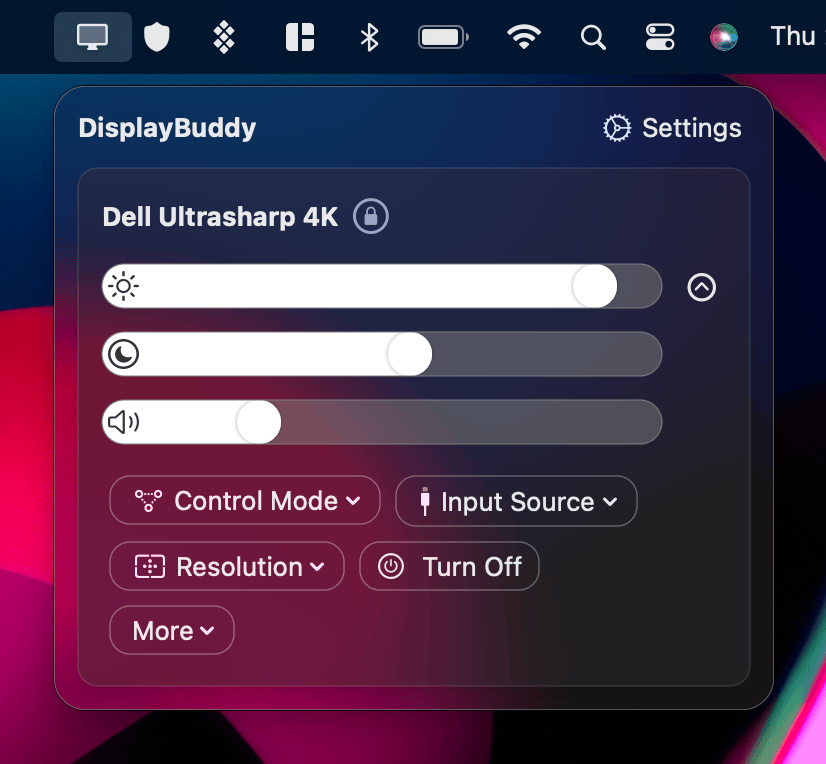
DisplayBuddy for Windows is a native Windows app available on the Microsoft Store. It uses DDC/CI — the same protocol as BetterDisplay — to communicate directly with your monitor hardware. Adjustments happen in real hardware, not software overlays, so your monitor's backlight actually changes.
Brightness and Contrast Control Adjust the real hardware brightness of any DDC/CI-compatible external monitor from your taskbar. Works with Dell, Samsung, LG, ASUS, BenQ, HP, MSI, Philips, Lenovo, ViewSonic, AOC, Gigabyte, and virtually every other brand.
Volume Control Control your monitor's built-in speakers from Windows without touching the physical buttons. Useful for monitors mounted on arms or tucked in tight spaces.
Keyboard Shortcuts DisplayBuddy maps your Fn + brightness keys to your external monitors, so they behave the same as your laptop display. You can also create custom hotkeys for any display setting.
Presets Save your entire display configuration — brightness, contrast, volume, input source — across all connected monitors as a named Preset. Switch from "Work" to "Gaming" to "Movie" with a single click. BetterDisplay does not have Presets on Mac; DisplayBuddy has them on both platforms.
Brightness Sync Move one slider and all monitors follow. Useful when you have two monitors of different brands that need to stay matched throughout the day.
Apple Studio Display on Windows This is a unique case. Apple's Studio Display and Studio Display XDR use a proprietary USB-based protocol instead of standard DDC/CI, which means they show up at fixed 100% brightness on Windows with no way to adjust them natively. DisplayBuddy speaks the Apple protocol directly over Thunderbolt or USB-C — no Apple Boot Camp drivers required. This makes it the easiest way to control an Apple Studio Display or Studio Display XDR connected to a Windows PC.
DisplayBuddy vs the Free Windows Alternatives
If you are comparing options, the two most common free alternatives to DisplayBuddy on Windows are Twinkle Tray and Monitorian. Both are good apps with real limitations.
Twinkle Tray handles basic brightness well and has hotkeys. It does not have Presets, its volume control is buggy on many monitors, and its brightness sync does not include contrast or volume.
Monitorian handles brightness and contrast. It has no volume control, no Presets, and its brightness slider stops working entirely when Windows HDR is enabled — a known open issue since 2023.
DisplayBuddy is a paid app. The trade-off is Presets, reliable volume control, full HDR compatibility, Apple display support, and a codebase that is actively maintained on both Mac and Windows.
If you want the full experience — especially Presets, or control of an Apple monitor — DisplayBuddy is the right choice.
Cross-Platform: Mac and Windows Together
One thing neither Twinkle Tray nor Monitorian offers is Mac support. If you use both platforms — a MacBook at work and a Windows desktop at home, or a mixed-OS household — DisplayBuddy is the only app that gives you the same experience on both.
The same Presets, keyboard shortcuts, and interface on Mac and Windows.
Frequently Asked Questions
Is there a BetterDisplay for Windows? No. BetterDisplay is a Mac-only app. It uses macOS-specific display APIs and has no Windows version. DisplayBuddy is the closest equivalent — it controls monitor brightness, contrast, volume, and more on Windows 10 and Windows 11 using DDC/CI.
Does BetterDisplay work on Windows 11? No. BetterDisplay only runs on macOS. For Windows 11 monitor control, DisplayBuddy is available on the Microsoft Store and works with all major monitor brands.
What is the BetterDisplay equivalent for Windows? DisplayBuddy is the most direct equivalent. It covers the core daily use case: controlling external monitor brightness, contrast, volume, input source, and presets from the taskbar. Free alternatives include Twinkle Tray and Monitorian, though both lack Presets and have limited HDR support.
Can I use DisplayBuddy on both Mac and Windows? Yes. DisplayBuddy is a native app on both platforms and one purchase covers both. It is the only major monitor control app in this category that works on Mac and Windows.
Does DisplayBuddy work with Apple Studio Display on Windows? Yes. DisplayBuddy controls the brightness of Apple Studio Display and Studio Display XDR on Windows 10 and 11 without requiring Apple Boot Camp drivers. It communicates via the Apple USB/Thunderbolt protocol natively.
Does DisplayBuddy work with HDR monitors on Windows? Yes. DisplayBuddy's DDC/CI control continues to work when Windows HDR is enabled. This is a known limitation of Monitorian, which loses brightness control when HDR is active.
DisplayBuddy
for macOS 10.13+
Take control of your monitors
Control brightness, contrast, volume, and much more.
Buy NowLifetime license • 7-day refund on full-price purchases