Control Brightness for Samsung Monitors on Windows
Adjust Samsung monitor brightness directly from Windows without touching the monitor buttons. Works with most Samsung monitors via DDC/CI.
Samsung monitors are among the most popular displays for Windows users, from budget office screens to high-end gaming panels. But one frustration is universal: adjusting brightness means reaching behind the monitor to fumble with tiny OSD buttons.
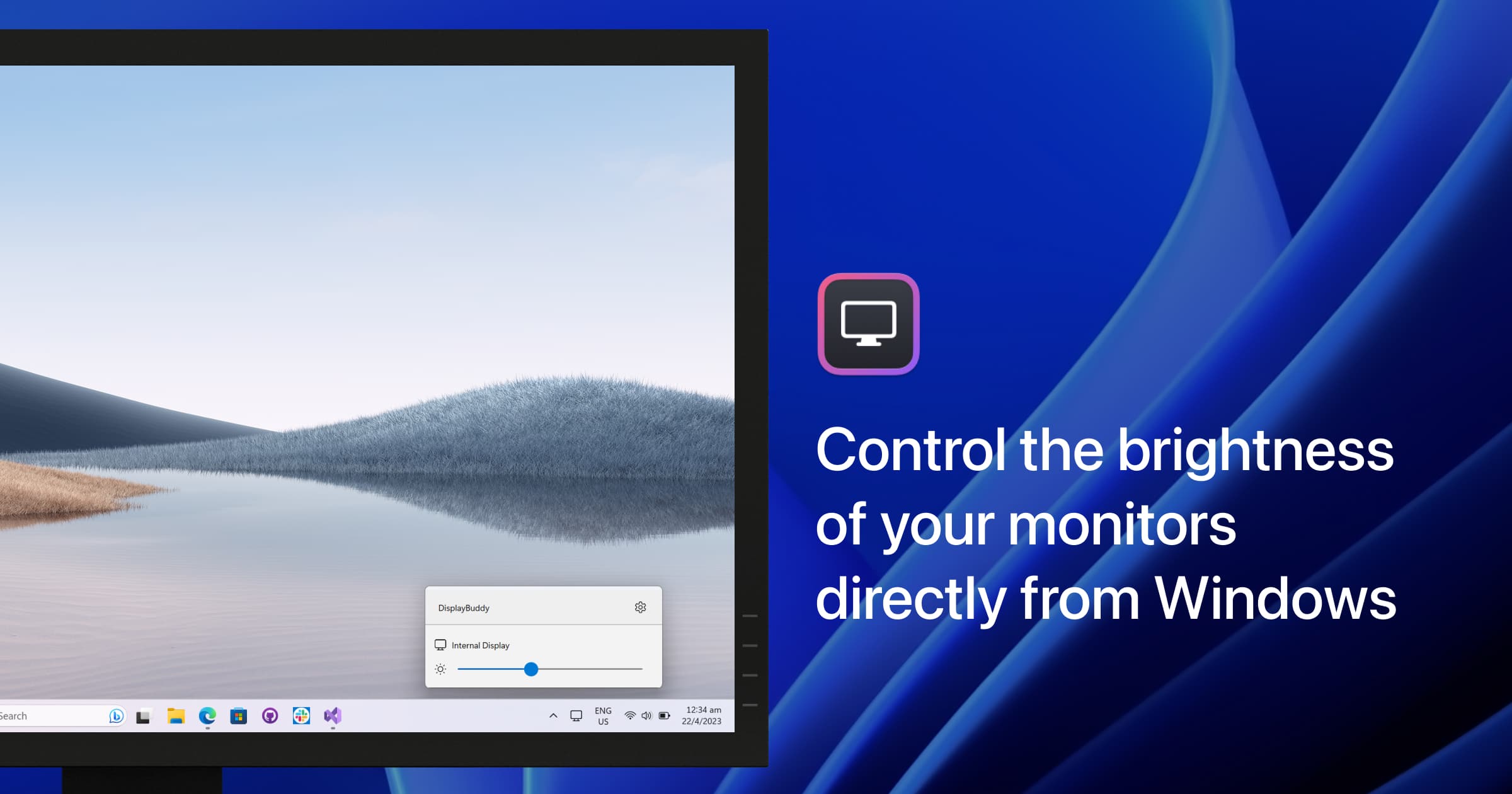
DisplayBuddy lets you control Samsung monitor brightness directly from Windows.
With DisplayBuddy, you adjust your Samsung monitor's real hardware brightness from your taskbar or keyboard. No physical buttons required. It uses DDC/CI to send commands directly to the monitor, changing the actual backlight LEDs for true brightness control.
How It Works
Most Samsung monitors support DDC/CI (Display Data Channel/Command Interface), which lets software send hardware commands to the monitor.
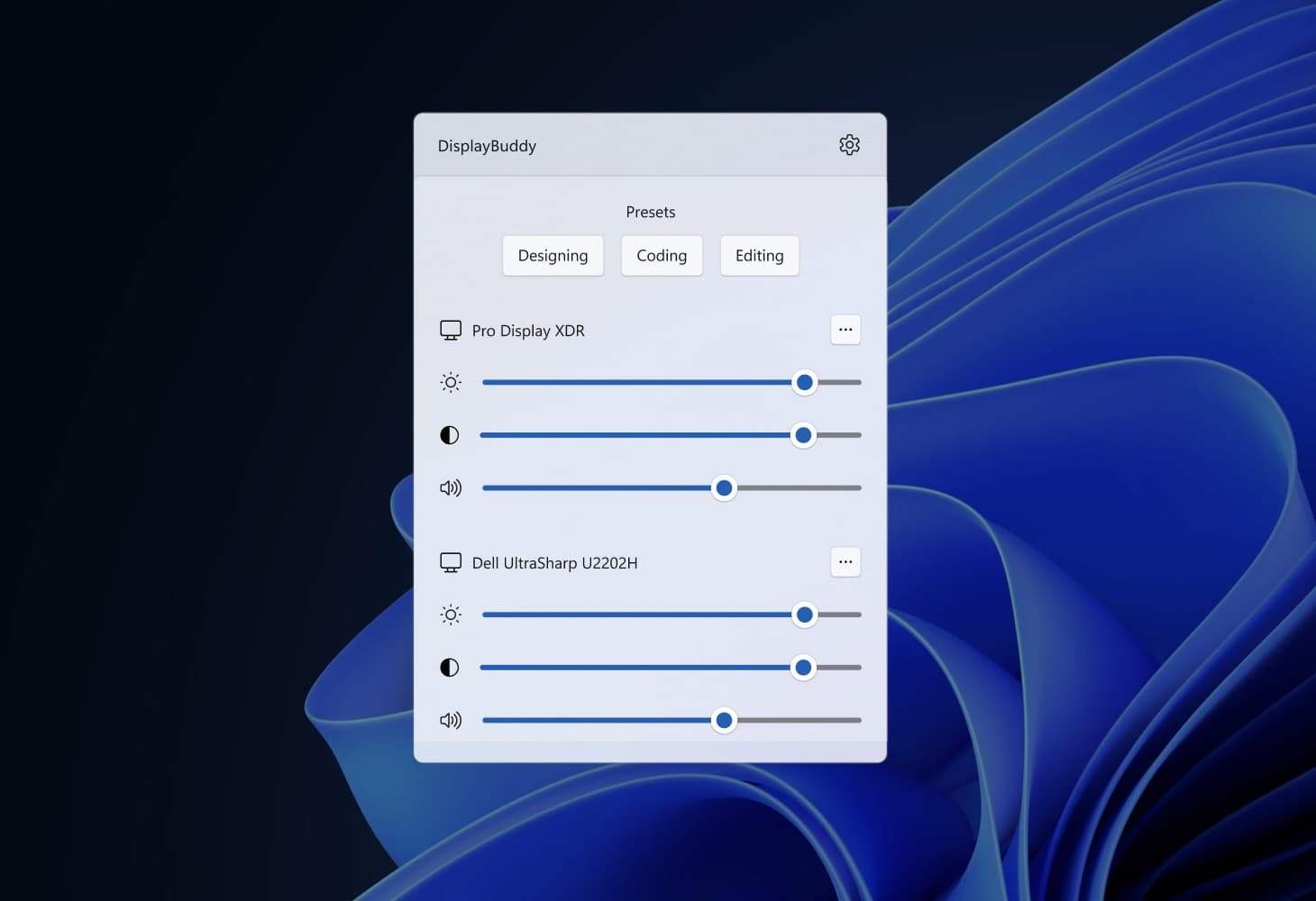
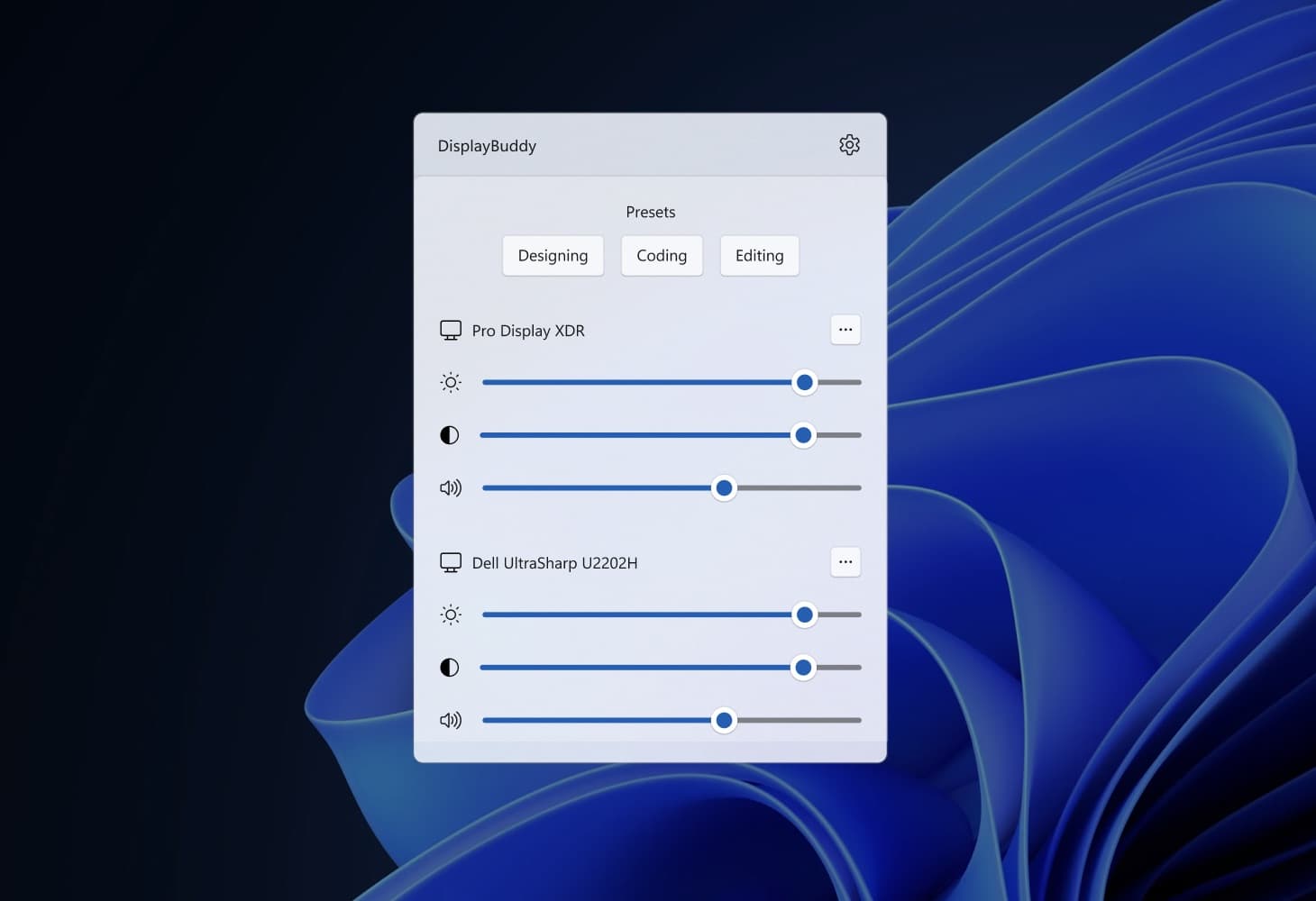
DisplayBuddy uses this DDC/CI protocol to give you full control of the following without touching a physical button 🔘:
☀️ Brightness Adjust the actual backlight, not a software overlay. This is real hardware brightness — the same setting you'd normally reach through your monitor's on-screen display (OSD).
🎛️ Contrast Fine-tune the contrast ratio for better visibility. Useful when switching between tasks like reading documents and watching video, without hunting through monitor menus.
🔊 Volume Control built-in speakers or connected audio devices without opening the OSD. Especially handy on monitors where the volume buttons are awkward to reach.
📺 Input Source Switch between HDMI, DisplayPort, and other inputs directly from the menu bar. No more reaching behind the monitor to change what's plugged in.
Everything happens through the existing cable connection — no extra hardware, no drivers, no configuration required. If your monitor supports DDC/CI (most modern monitors do), DisplayBuddy works with it out of the box.
Supported Samsung Monitor Models
DisplayBuddy works with most Samsung monitors that support DDC/CI. Here are some popular models that have been tested and confirmed:
DisplayBuddy works with most DDC/CI-compatible Samsung monitors beyond this list. If your Samsung monitor is not listed, try DisplayBuddy risk-free. If it doesn't work with your monitor, you get a full refund within 7 days on a full-price purchase only, no questions asked.
(Note: Samsung Smart Monitors like the M9, M8, M7, and M5 do not support DDC/CI. If you have a Samsung Smart Monitor, see our guide on controlling Samsung Smart Monitors from Mac.)
Setting Up Brightness Control
Getting started takes less than a minute:
- Download DisplayBuddy from the Microsoft Store
- Make sure DDC/CI is enabled in your Samsung monitor's OSD settings (usually under System or General)
- Launch DisplayBuddy and it will automatically detect your Samsung monitor
- Adjust brightness from the system tray slider or set up keyboard shortcuts
Beyond Brightness: What Else You Can Do
DisplayBuddy is not just a brightness slider. Here is what makes it powerful for Samsung monitor users:
| Feature | What it does |
|---|---|
| ⌨️ Keyboard Shortcuts | Map brightness and volume to any keys. Adjust without lifting your hands |
| 🎛️ Presets | Save complete display configurations and switch between them instantly |
| 🔄 Sync | Keep multiple monitors at the same brightness. Adjust one, all follow |
| 📺 Input Switching | Switch your Samsung monitor's input source from the taskbar |
| 🔊 Volume Control | Adjust built-in speaker volume without touching the OSD |
Frequently Asked Questions
Can I control Samsung monitor brightness on Windows without software?
Only through the physical OSD buttons on the monitor itself. Windows does not include built-in brightness control for external monitors. DisplayBuddy adds this functionality by communicating with your Samsung monitor via DDC/CI.
Does DisplayBuddy work with Samsung gaming monitors?
Yes. Most Samsung gaming monitors (Odyssey G9, G7, G5, and others) support DDC/CI and work with DisplayBuddy. Make sure DDC/CI is enabled in the monitor's OSD settings under System or General.
What is DDC/CI and how do I enable it?
DDC/CI (Display Data Channel/Command Interface) is a protocol that lets your computer send hardware commands to your monitor. To enable it on a Samsung monitor, press the physical menu button, go to System or General in the OSD, find DDC/CI, and enable it.
Does DisplayBuddy adjust the real backlight or use a software overlay?
DisplayBuddy adjusts the real hardware backlight via DDC/CI. This means true brightness control that saves power and maintains full color accuracy, unlike software overlays that just darken the image.
Can I use keyboard shortcuts to control Samsung monitor brightness on Windows?
Yes. DisplayBuddy lets you map brightness up and down to any keyboard shortcut. You can also use your keyboard's built-in brightness keys if it has them.
Does DisplayBuddy support multiple Samsung monitors?
Yes. DisplayBuddy can control multiple Samsung monitors independently or sync them together. With Sync enabled, adjusting one monitor's brightness automatically adjusts all connected monitors to match.
Troubleshooting
DisplayBuddy does not detect my Samsung monitor
Make sure DDC/CI is enabled in your monitor's OSD. Press the physical menu button, go to System (or General), and look for DDC/CI. Enable it and restart DisplayBuddy.
Brightness slider does not respond
Some Samsung monitors only support DDC/CI over specific connections. Try a different cable:
- DisplayPort is the most reliable for DDC/CI
- HDMI works on most models but may have issues with some older firmware
- USB-C usually works if your monitor supports it
If you are using a dock or adapter, try connecting directly to rule out DDC/CI passthrough issues.
Related Samsung Guides
DisplayBuddy
for Windows 10 or 11
Take control of your monitors
Control brightness, contrast, volume, and much more.
Get DisplayBuddy on the Microsoft Store